
People on several teams
Turn on several teams per person, put people on an extra team, move them between teams, and see what the primary team means.
By default a person can only be on one team at a time. If you turn on several teams, a person can be on as many teams as you like, for example both at the bar and on the clean-up team.
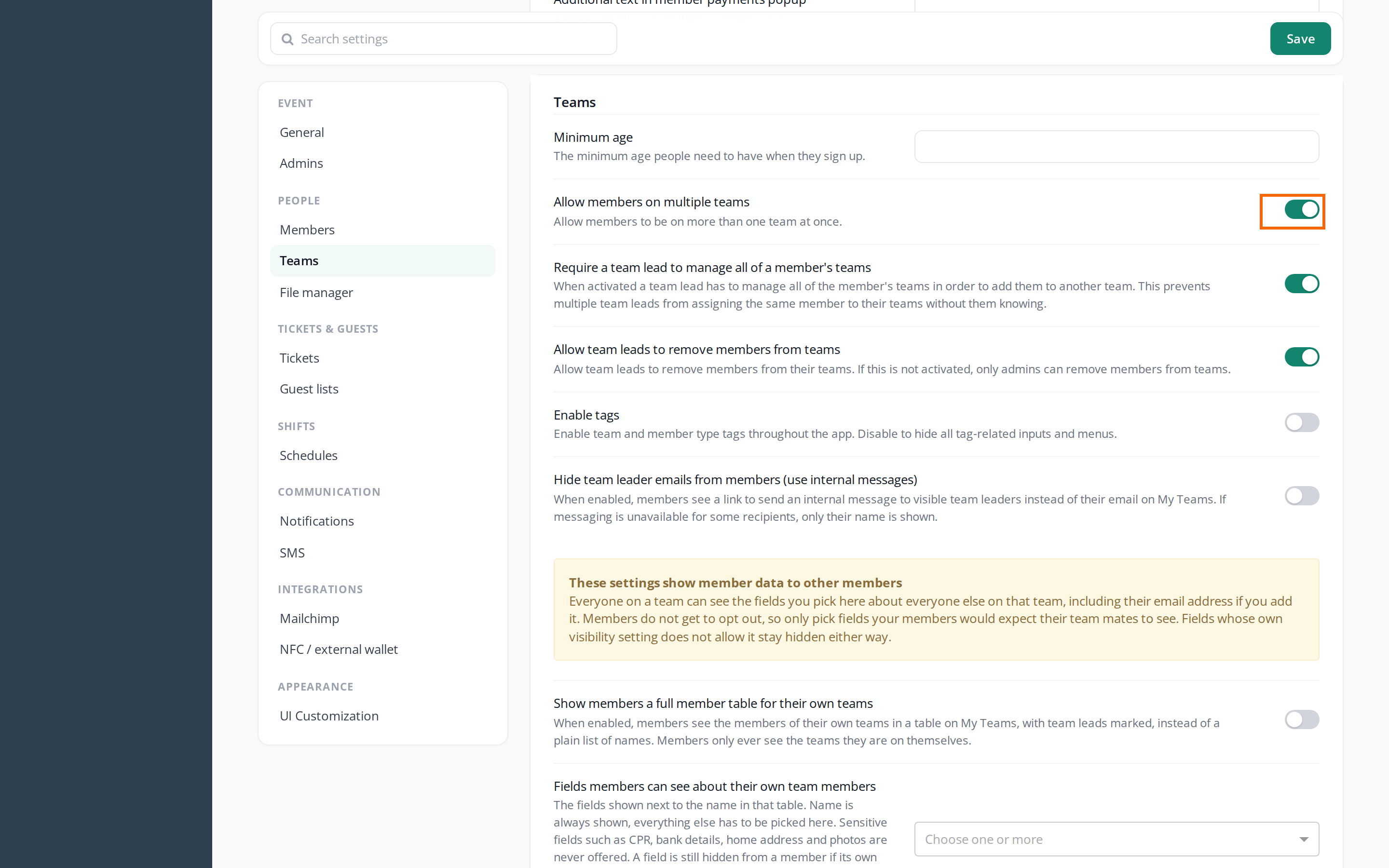
Turn on several teams
This requires a super admin.
- Go to Settings > General settings.
- Tick Allow members on multiple teams under Teams.
- Click Save.
Put a person on an extra team
- Go to Members and search for the person.
- Click Actions next to the person and choose Add to team.
- Choose the team in the window and click Add Member to team.
The person keeps their other teams and shifts.
To put several people on the same team, select them in the list and choose Add to team under Batch actions above the list.
If Allow members on multiple teams is turned off, you can only choose Add to team for people who aren't on any team. Use Move to team instead.
Move a person to another team
Move to team takes the person off one team and puts them on another. The person's other teams aren't touched.
- Click Actions next to the person and choose Move to team.
- Choose the team the person is moving from and the team they are moving to.
- Click Move Member to team.
If the old team was the person's primary team, the new team becomes primary.
The primary team
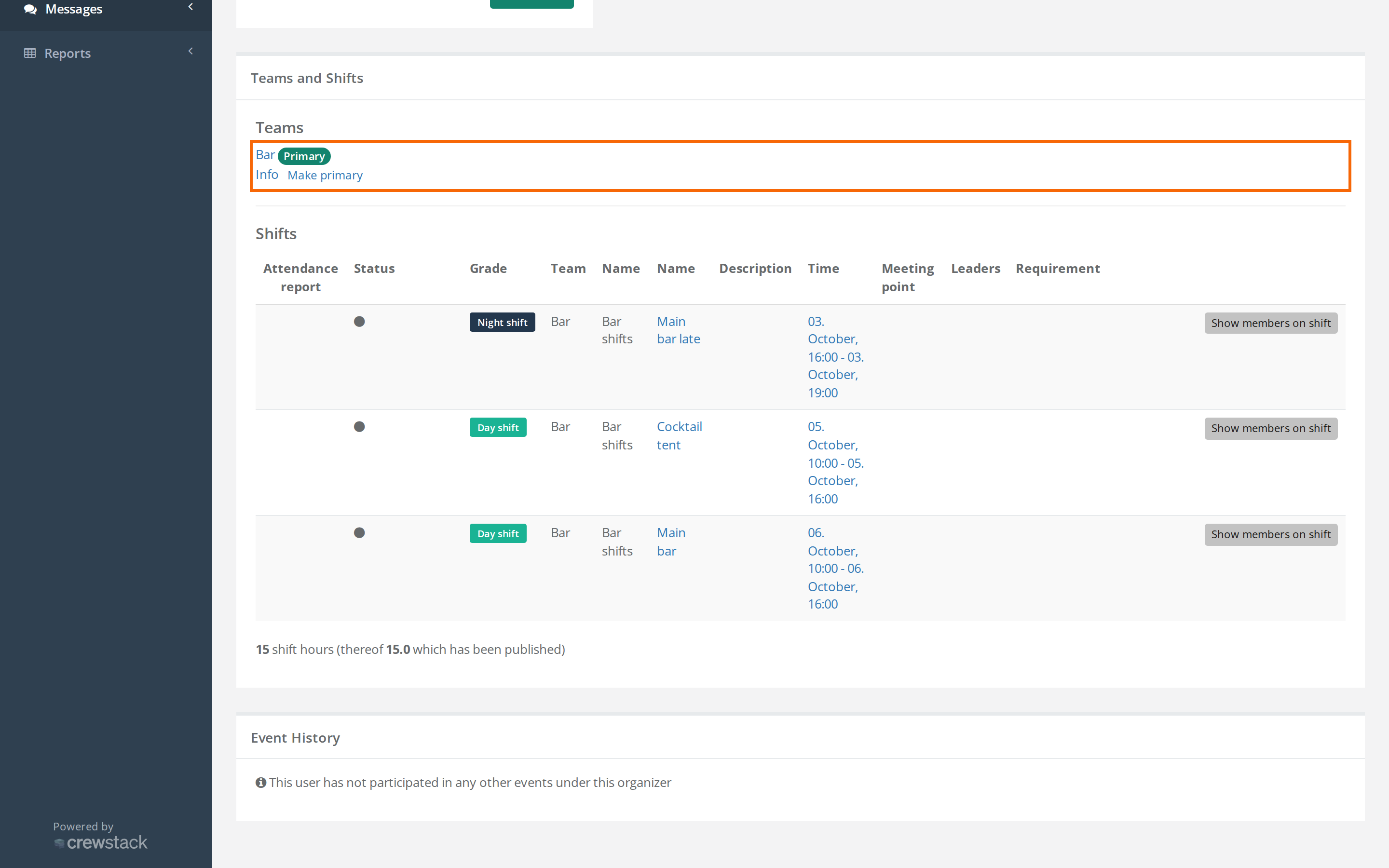
When a person is on several teams, one of them is primary. By default it's the first team the person joined. On the person's profile, that team is marked Primary.
To make another team primary, click Make primary next to the team on the profile.
You can't remove a person from their primary team while they're on other teams. If you try, you get the message "Cannot remove a member from their primary team while they still belong to other teams. Switch the primary team first." Make another team primary first, or use Move to team.
Remove a person from a team
Click Actions next to the person, choose Remove from team, choose the team and click Remove Member from team. The person is only removed from the team, not from the event. The person's shifts on the team are deleted.
What you can do as a team leader
As a team leader you can add people to, move and remove them from the teams you lead. A few limits apply:
- Free spots. You can only put a person on a team that has free spots for the person's member type, and only if the member type is allowed on the team.
- The person's other teams. If Require a team lead to manage all of a member's teams is turned on, you can only put a person on an extra team if you also lead all the teams the person is already on. Otherwise you see "You do not have permission to edit one or more of the teams for the selected members." The setting is turned on from the start.
- Move. You must lead both teams.
- Remove. This requires Allow team leads to remove members from teams to be turned on. It is from the start.
The three settings are under Settings > General settings > Teams and can only be changed by a super admin. See also Manage your team as a team leader.
Does the person get told?
- Email about the new team: Only if a super admin has turned on Send email when member is added to a team or Send email when member is moved to a team under Settings > General settings > Notifications. Both are turned off from the start. See Automatic emails and SMS reminders.
- Waiting list: If the person is on the waiting list, they are taken off it when you put them on a team, and they get the email saying they have moved up from the waiting list.
Pitfalls
- Shifts disappear. Move to team and Remove from team delete the person's shifts on the team they leave. Check the shifts on the profile first.
- Add to team is missing. The person is already on a team and Allow members on multiple teams is turned off.
- Full team. As a team leader you get "This team is full." when the team has no room. Ask an admin for help.
Didn't find the answer? Write to support@crewstack.io.