
Corego wallet with QR tickets
How to choose which products go into your crew's Corego wallets, and help a crew member who is missing their wallet.
With Corego, your crew gets their products, such as meal vouchers, as QR tickets in a digital wallet on their phone. Crewstack sends the products to Corego when the person is checked in, and keeps them up to date afterwards. Here you can see how to choose the products, and how to help a crew member who is missing their wallet.
Before you start
- Crewstack sets up the integration with Corego for you when you have an agreement with us about it. Write to support@crewstack.io.
- The products need Super Admin.
- The products have to exist in Crewstack. See Create products and give them to your crew.
See also RFID, NFC and digital wallets for an overview of the options.
Choose what goes into the wallet
Only products you have linked to Corego go into the wallet:
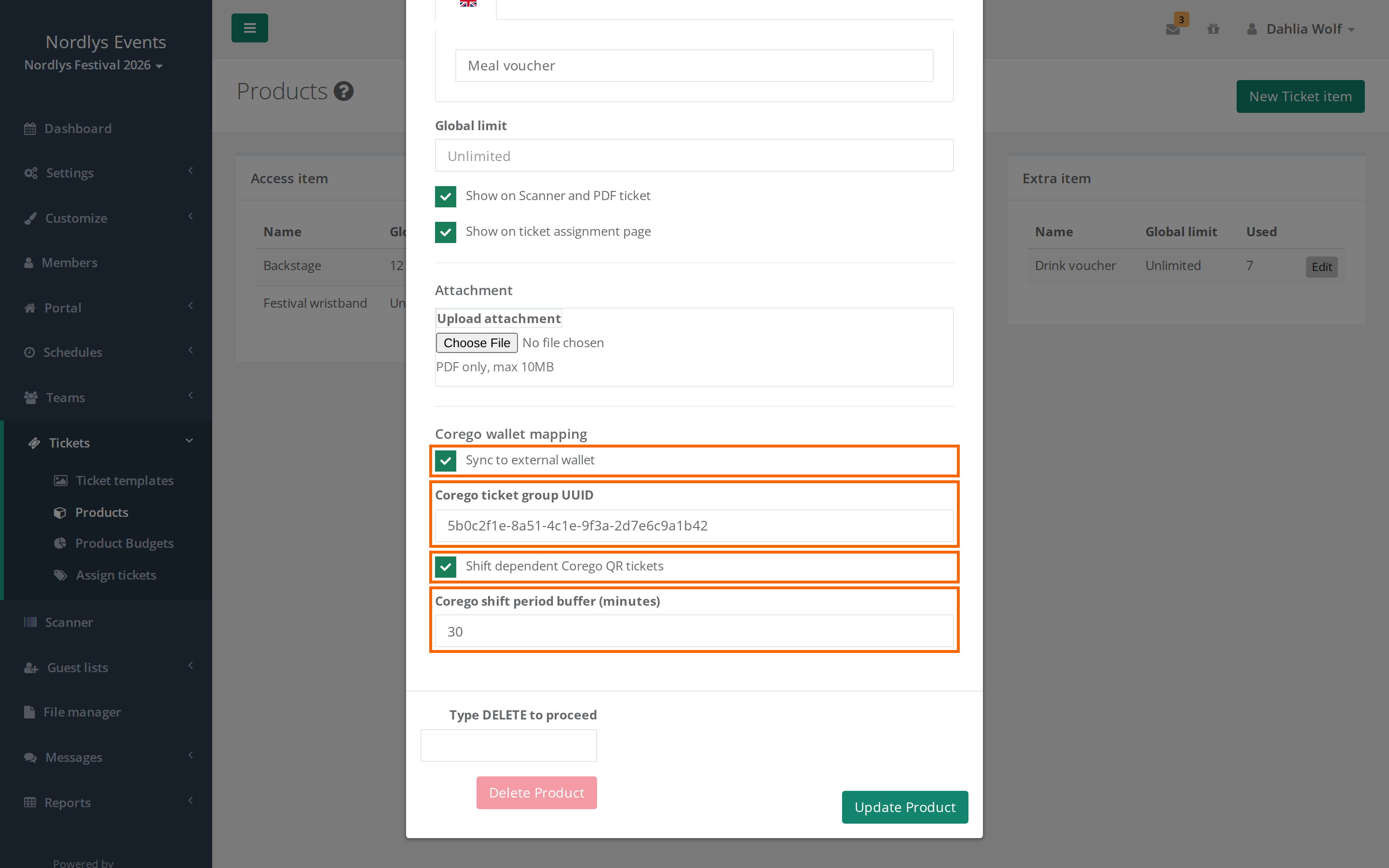
- Go to Tickets > Products, and click Edit next to the product.
- Find the Corego wallet mapping section in the window.
- Tick Sync to external wallet.
- Type the Corego ticket group UUID as it is at Corego.
- Tick Shift dependent Corego QR tickets if the product should only work while the person is on shift.
- Optionally type a number of minutes in Corego shift period buffer (minutes). The QR ticket then works that many minutes before and after the shift.
- Save the product.
The product only goes into the wallet when both the tick and the UUID are filled in. System items such as Scanner can't be linked.
The person gets one QR ticket per product. If the person has, say, three meal vouchers, there are three QR tickets in the wallet.
How shift dependent QR tickets work: If the person has three meal vouchers and three shifts, the first QR ticket works during the first shift, the second during the second shift and so on. If there are more vouchers than shifts, the extra ones work all the time.
When does a crew member get their wallet?
The wallet is created the first time the person is checked in, if the person has at least one product linked to Corego. This applies to check-in in the scanner and on the guest list. No window opens in the scanner. It happens in the background.
At the same time Corego sends a text message with a link to the wallet to the phone number the person has in Crewstack.
After that the wallet updates by itself when the person gets or loses products, when the shifts change, or when you change the link on a product. It can take a moment. QR tickets that have been used stay in the wallet.
See the wallet on the person's profile
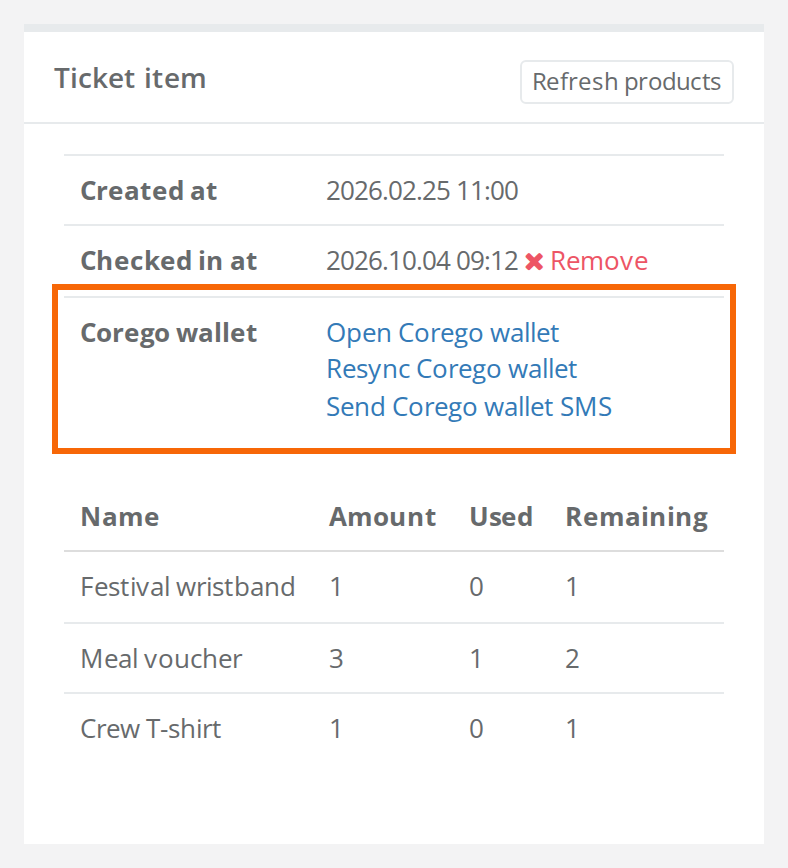
The Ticket item box on the person's profile has the Corego wallet row with:
- Open Corego wallet: opens the person's wallet. The link is there once Crewstack knows it.
- Resync Corego wallet: sends the person's products to Corego again. Use it if the wallet looks wrong. You see "Corego wallet refresh has been queued. It may take a few moments to show updated usage.".
- Send Corego wallet SMS: sends the text message with the link to the person again. You see "Corego wallet SMS has been queued.".
The list of products in the box gets the columns Used and Remaining, so you can see how many QR tickets the person has used. Only admins can see the box.
Under the person's name you also see Corego wallet with the Products link. It opens Activated products on chip with each QR ticket, whether it is Used, and when.
What your crew sees
- The crew member gets a text message with a link to the wallet when they are checked in for the first time. The QR tickets are in the wallet.
- In the Crewstack app the products are listed under the Ticket tab in the Food & drinks section, with how much has been used ("Used 1 of 3") and how many are Left. Refresh fetches the numbers again.
Hasn't the crew member received the text message? Check that the person is checked in and that the phone number on the profile is correct. Then click Send Corego wallet SMS on the profile.
Pitfalls
- Resync or SMS doesn't work. If it says "Corego wallet resync is not available." or "Corego wallet SMS is not available.", the person isn't checked in yet or has no products linked to Corego. Check the person in, or link the product.
- A product is missing from the wallet. Check that both Sync to external wallet and Corego ticket group UUID are filled in on the product. Then click Resync Corego wallet.
- The Used and Remaining columns show "-". Crewstack couldn't get the numbers from Corego just now. Try again later.
- Do you use EventPos? Then this guide doesn't apply. See NFC chips with EventPos.
Didn't find the answer? Write to support@crewstack.io.