
FAQ for your crew
Write answers to the questions your crew often asks, with an FAQ for each member type in the portal and the Crewstack app.
Under Portal > FAQ your crew finds answers to the questions you often get, for example where to check in, what to bring and how to get their ticket. Each member type can have its own FAQ. Crew members see the same text under the FAQ tab in the Crewstack app.
Only admins can write and edit the FAQ.
Who sees which FAQ?
- A crew member sees the FAQ for their own member type.
- If the member type has no FAQ, they see the FAQ for the member type marked Default under Member types.
- If that has none either, the page is empty. The app shows No FAQ found.
If everyone should see the same thing, one FAQ for the default member type is enough. See Set up member types.
Write an FAQ
- Go to Portal > FAQ. On the right is the FAQs list with a row for each member type.
- Click New Faq next to the member type.
- Write the text. You can use bold and italic text, bullet lists, links and images.
- If the event has several languages, there is a tab with a flag for each language. Write the text in each language.
- Click Create Faq.
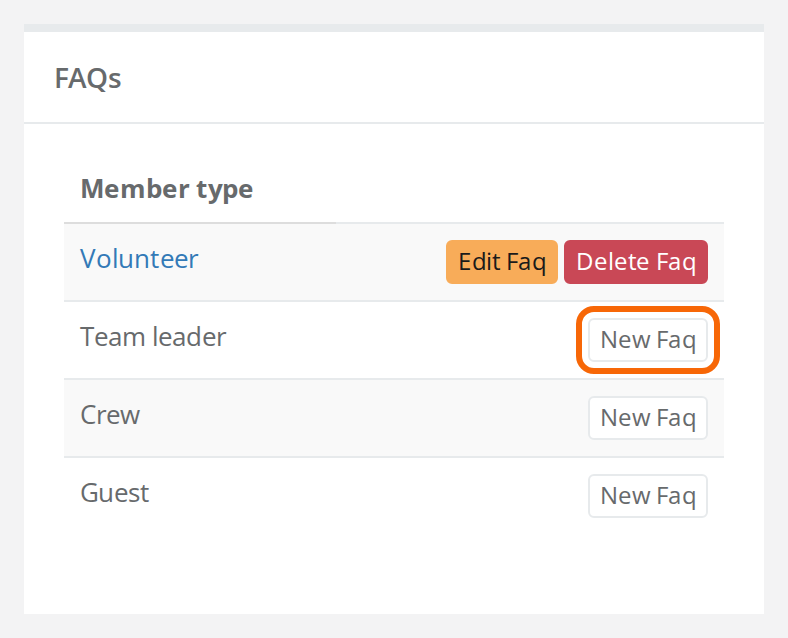
To change an FAQ, click Edit Faq next to the member type, change the text and click Update Faq. Delete Faq deletes the FAQ.
See the FAQ the way your crew sees it
As an admin you only see the list of member types under FAQ, not the text itself. Click Edit Faq to read it, or use Log in as on a crew member with that member type. See Log in as another person.
Pitfalls
- Delete Faq doesn't ask. The FAQ is deleted as soon as you click. Copy the text first if you want to use it again.
- No button to create one. If the event only has the built-in member types, the page doesn't show the FAQs list. If there is already an FAQ for the default member type, you can change it with Edit Faq at the top. Otherwise you can't create one. Once the event has at least one member type you created yourselves, the list appears. A super admin creates member types under Settings > Member types.
- A language is missing. Write the text in all of the event's languages, so every crew member gets it in their own language.
- The crew member sees the wrong FAQ. Check the person's member type on their profile. If the member type has no FAQ, they get the default member type's.
Didn't find the answer? Write to support@crewstack.io.