
Check-in reports
See how many tickets each person at the entrance has checked in, and how many wristbands, drink tickets and other products came in during a period.
Under Reports there are two reports on what happened at the entrance. Check-ins shows how many tickets each person at the entrance has checked in. Product check-ins shows how many wristbands, drink tickets and other products came in with the tickets during a given period. Use them, for example, to settle up after a shift at the entrance, or to see when it was busy.
Who can see the reports?
Only people with the Admin or Super Admin role and organizer admins, and only when the event uses tickets. Team leaders and the crew scanning at the entrance can't see the reports.
Check-ins from the scanner in the browser and from the scanner in the Crewstack app are both included. See Scanner / Scanning tickets.
Check-ins: who checked people in?
Go to Reports > Check-ins.
The report has a row for each person who has checked in at least one ticket in the event:
- name and email. Type in the box under the column heading to find a specific person.
- Tickets: how many check-ins the person has made. If they check in the same ticket again, it counts again.
- one column per product: how many of that product the people they checked in have on their ticket.
The report covers the whole event. You can't choose a period. Use Product check-ins if you only want to see a specific day or shift.
Product check-ins: what came in?
- Go to Reports > Product check-ins.
- Choose dates in Checked in from and Checked in until. Both days are included in full. Both fields start out set to today.
- Choose one or more products under Products. The products are grouped into Access, Add-ons, Extras and Other. Click Select all to include all of them, or Clear to start over.
- If you only want to see specific people at the entrance, choose them under Checked in by. If you leave the field empty, everyone is included.
- Click Run report.
Under Results you get a table with a row for each person who checked people in and a column for each product. The Total row at the bottom is the sum.
An example: if a crew member at the entrance checked in 10 people who each have 2 drink tickets on their ticket, the drink tickets column shows 20 next to that crew member.
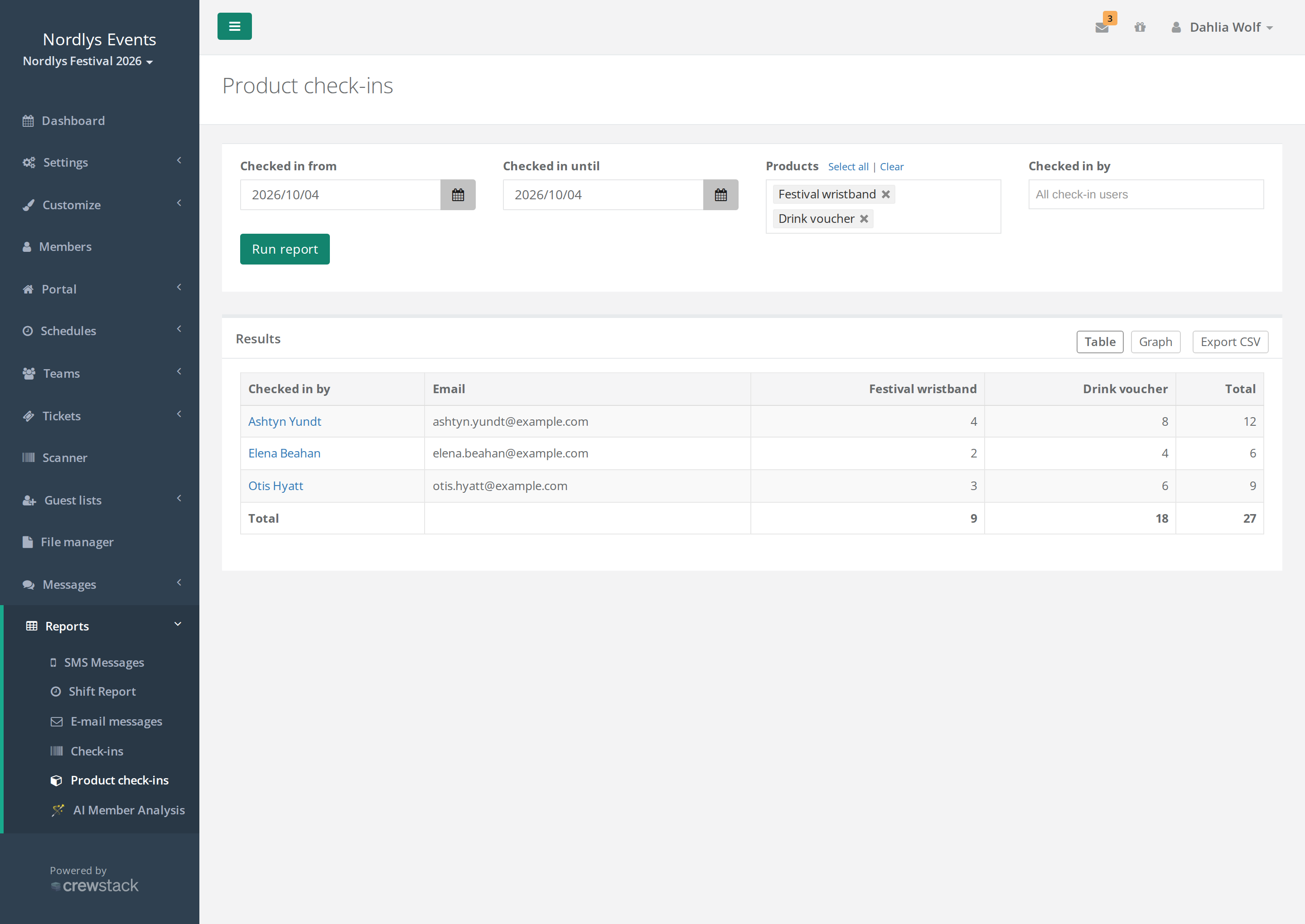
Above the table you can:
- click Graph to see the numbers hour by hour, with one line per product. That shows you when it was busy. Table takes you back.
- click Export CSV to download the table as a file you can open in Excel. The file contains the names and emails of the people who checked others in, so delete it when you are done.
How things are counted
- The reports count the products the person has on their ticket now. They don't tell you whether the product was actually handed out. To see how much has been handed out, use the Product handout overview widget. See Dashboard and widgets.
- Product check-ins uses the ticket's latest check-in. If a check-in is removed with Remove check-in, it disappears from the report. If the ticket is checked in again, it counts at the new time and for the person who checked it in last.
- Guests on guest lists count the same way as crew members.
- Deleted tickets are not included in Product check-ins.
Pitfalls
- The numbers change afterwards: If a person gets more products after check-in, or a product is removed from the ticket, the numbers also change for check-ins that already happened. Download a CSV file right after the shift if you need the numbers to settle up.
- Error when you click Run report: You have to choose at least one product, and Checked in until can't be before Checked in from.
- "No matching product check-ins were found." No tickets with the chosen products were checked in during the period. Check the dates and the products. If you chose people under Checked in by, only their check-ins are included.
- A person is missing under Checked in by: The list only shows people who are currently recorded as the one who checked a ticket in.
- Venue mode: If the event is a venue (Venue mode), check-ins are stored per concert day and are not included in the two reports. See Scanning at a venue.
Didn't find the answer? Write to support@crewstack.io.