
Dashboard and widgets
Build your own overview of signups, shifts, tickets and check-ins with widgets, keep several dashboards, and download the numbers as CSV.
The Dashboard is the first thing you see when you log in as an admin. It collects the numbers you keep an eye on, such as signups, how full the shifts are and how many people have checked in. You choose which widgets are on it, and you can have several dashboards, for example one for planning and one for the event itself.
Who can see the dashboard?
People with the Admin or Super Admin role and organizer admins can see, create and edit dashboards. Team leaders and guest list admins don't have Dashboard in the sidebar.
Dashboards belong to the event, not to you. All admins see the same dashboards, so when you add, move or remove a widget, it changes for everyone.
Choose widgets
- Go to Dashboard.
- Click Edit Dashboard at the top right. If the dashboard is empty, click Customize Dashboard in the middle of the page.
- Find the widgets you want. Type in Search widgets, or look through the groups, such as Shifts, Members and Tickets. When you hover over a card, the right-hand side shows what the widget displays.
- Click the cards for the widgets you want. The top shows how many you have selected.
- Click Update Dashboard.
To remove a widget, click its card again so it is no longer selected, and click Update Dashboard.
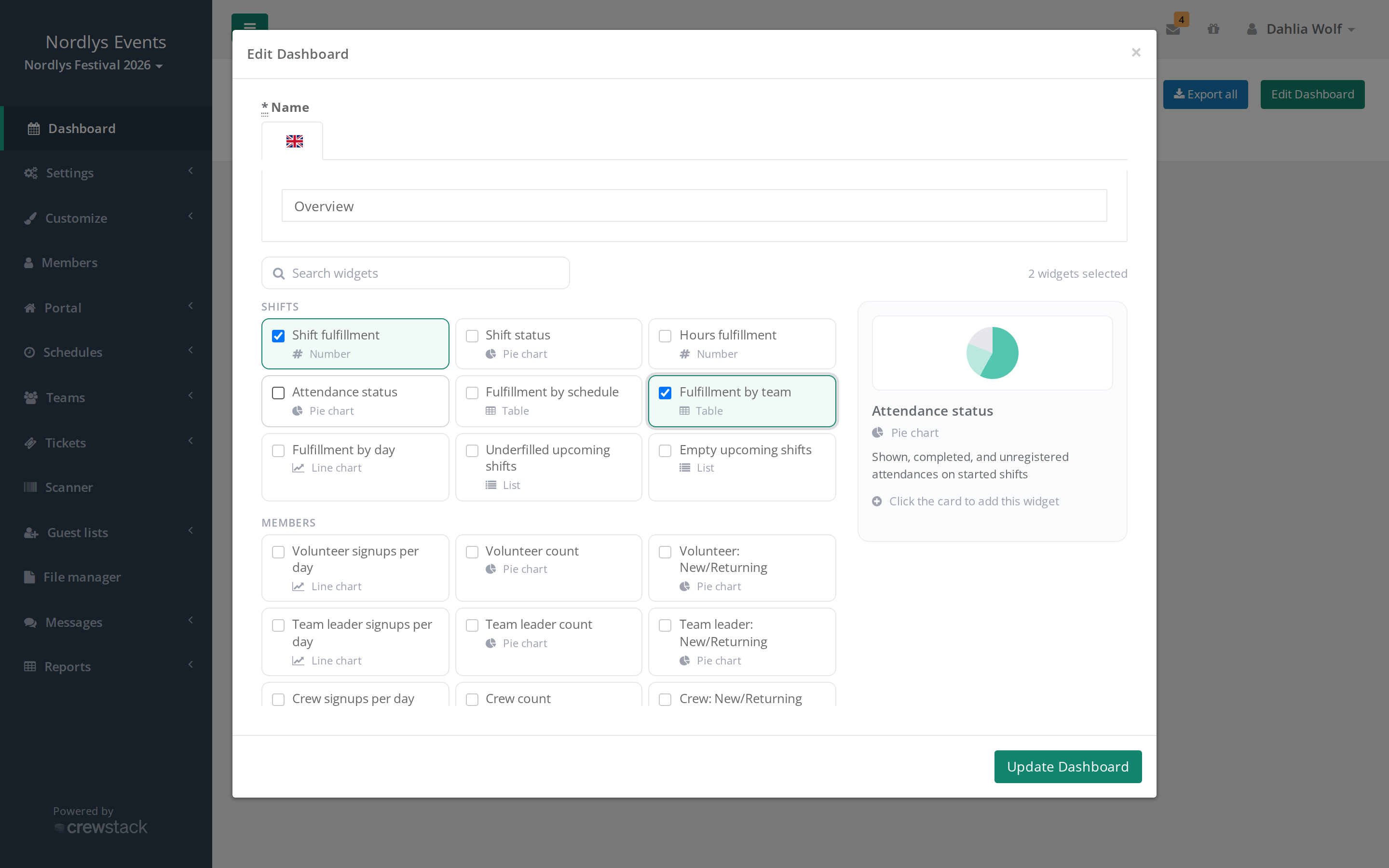
You only see the widgets that fit what your event uses. For example, the groups Shifts, Tickets, Guests and Portal are only there if you have schedules, tickets, guest lists and the portal.
Arrange widgets
- Move a widget: Drag its title bar.
- Change the size: Drag the bottom right corner. Some widgets have a fixed size.
- Tidy up in one go: Click Auto layout. Answer yes to the question "Rearrange all widgets on this dashboard?". The widgets are lined up by type: numbers first, then pie charts, tables and lists, and line charts last.
It is saved straight away. There is no save button.
Several dashboards
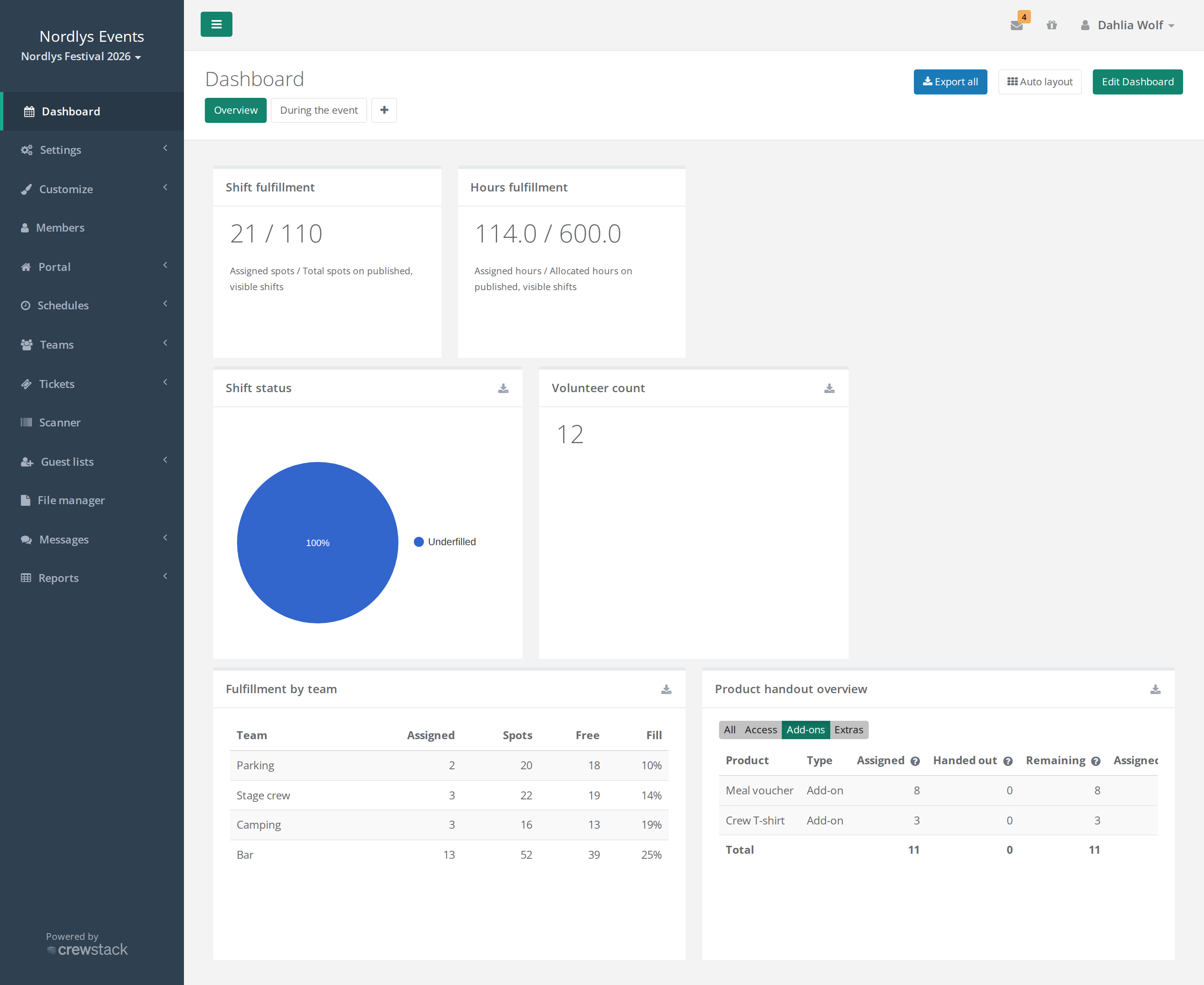
Your dashboards are shown as buttons next to the Dashboard heading. Click a name to switch. When you log in or click Dashboard in the sidebar, you always land on the dashboard that was created first.
Create a new dashboard:
- Click + next to the buttons.
- Give the dashboard a name. If the event has several languages, you can enter the name in each language. Only the primary language is required.
- Choose widgets as above.
- Click Create Dashboard.
Two dashboards can't have the same name.
Rename or delete a dashboard: Open the dashboard and click Edit Dashboard. Here you change the name, or you click Delete Dashboard at the bottom left. The button is only there when the event has more than one dashboard. Deleting a dashboard only removes the dashboard, not the data it shows.
Download the numbers
- One widget: Click the download icon in the widget's title bar (Export data). You get a CSV file you can open in Excel. This works for charts, tables and lists. Widgets that only show a number have no icon.
- The whole dashboard: Click Export all. You get a zip file with one file per widget: a CSV file for charts, tables and lists, and a text file for numbers.
The file contains what is on the screen. Product handout overview starts out showing add-on products only. Click All in the widget before you export if you want all products included.
Widgets you can choose
| Group | Widgets |
|---|---|
| Shifts | Shift fulfillment, Hours fulfillment, Shift status, Attendance status, Fulfillment by schedule, Fulfillment by team, Fulfillment by day, Underfilled upcoming shifts, Empty upcoming shifts |
| Members | Total member count and, for each member type, the count, signups per day and new/returning |
| Capacity | Total members on teams / Capacity, Capacity by Member Type |
| Activity | Latest 5 teams, Latest 25 members, Latest internal notes, Resignations per day |
| Tickets | Arrived guests, check-ins per day and per hour for crew members and guests, Product handout overview, Ticket Sales |
| Guests | Ticket count, Overview of guest tickets |
| Portal | Latest 10 portal news |
| Registration fields | For each member type, a pie chart of the answers in every Custom select field and of the ages from Birthdate |
The names of widgets for a member type start with the member type's name, for example "Volunteer count".
How things are counted
- Counts of people, such as Total member count, only include people who have completed signup and aren't on the waiting list or blacklisted. Resigned people aren't counted.
- New/returning: New is a person who created their account when they signed up for this event. Everyone else counts as returning, both people who took part in your earlier events and people an admin created.
- Shifts widgets only count shifts on published schedules, and not shifts marked Hidden. Attendance status only counts shifts that have started.
- Fulfillment by schedule and Fulfillment by team show the 15 least filled first. The two lists of upcoming shifts show the next 10.
- Capacity doesn't count team leaders. If a person is on several teams, they count once per team.
- The numbers are fetched when you open the page. Reload the page to get the latest numbers.
Pitfalls
- You changed the dashboard for everyone. There is only one set of dashboards per event. If you want your own overview, create a new dashboard with your name instead of changing a shared one.
- Shifts are missing from the numbers: The schedule isn't published, or the shifts are marked Hidden. See Publish a schedule.
- The number doesn't match Members: The search under Members includes people on the waiting list by default. The dashboard doesn't count them.
- You can't delete the dashboard: It is the event's only dashboard. Create a new one first, or remove widgets from it instead.
Didn't find the answer? Write to support@crewstack.io.