
Invite crew members to a team
How to send an invite link to a team, invite last year's crew and invite a new team leader.
With an invite link you can bring crew members straight onto your team. The crew member signs up for the event through the link and joins the team when the signup is complete. You can copy the link and share it yourself, send it by email from Crewstack, or send it to the people who were on the team last time.
The Invite links button is at the top of the team page. You can see it if you are a team leader of the team, an area leader of the team's area, or an admin.
Copy the link
- Go to the team.
- Click Invite links.
- Find the member type the new crew members should sign up as. There is one link for each member type allowed on the team.
- Copy the link and share it, for example in an email, a text message or your Facebook group.
The link doesn't change. You can use the same link for as long as the team accepts signups.
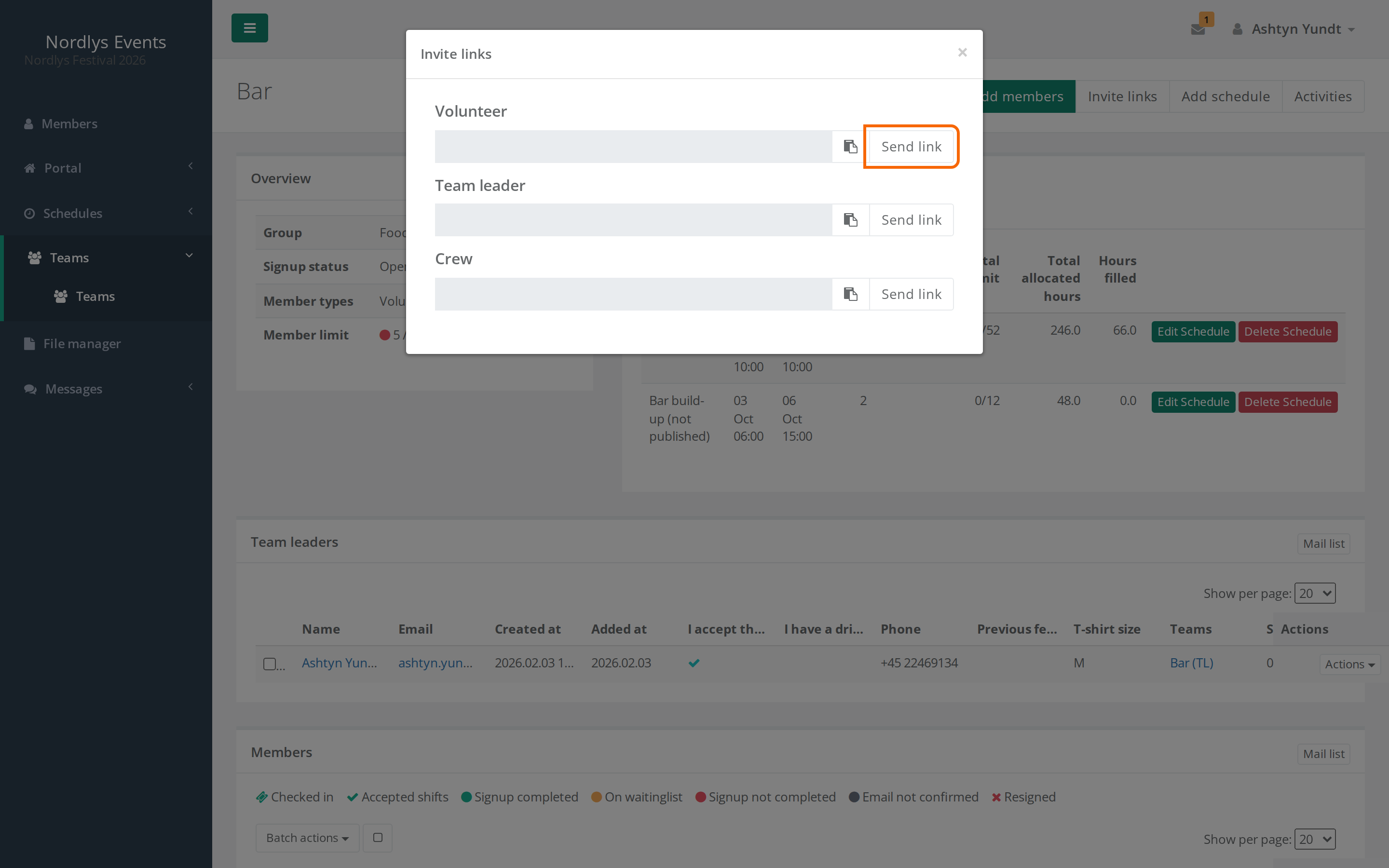
Send the link by email
- Click Invite links, then click Send link next to the member type.
- Type the email addresses in the E-mail field. Press Enter after each address. You can also paste a whole list, separated by commas, spaces or line breaks.
- Edit the text in Message if you like. It appears at the top of the email.
- Click Send invite link.
You see the message Invite e-mail has been sent. Each recipient gets an email with your message and a link to sign up.
A super admin can edit the email itself under Customize > Mail templates.
Invite the people who were on the team last time
When you send the link by email, you can fetch the email addresses from the team in your previous event:
- Click Invite links, then click Send link next to the member type.
- Choose the team in the Import from previous event... list next to E-mail. The number after the team name is how many addresses there are.
- The E-mail field is filled with the addresses of the people who were on that team. People who are already on your team now are left out.
- Remove anyone you don't want to invite by clicking the cross next to their address.
- Edit Message and click Send invite link.
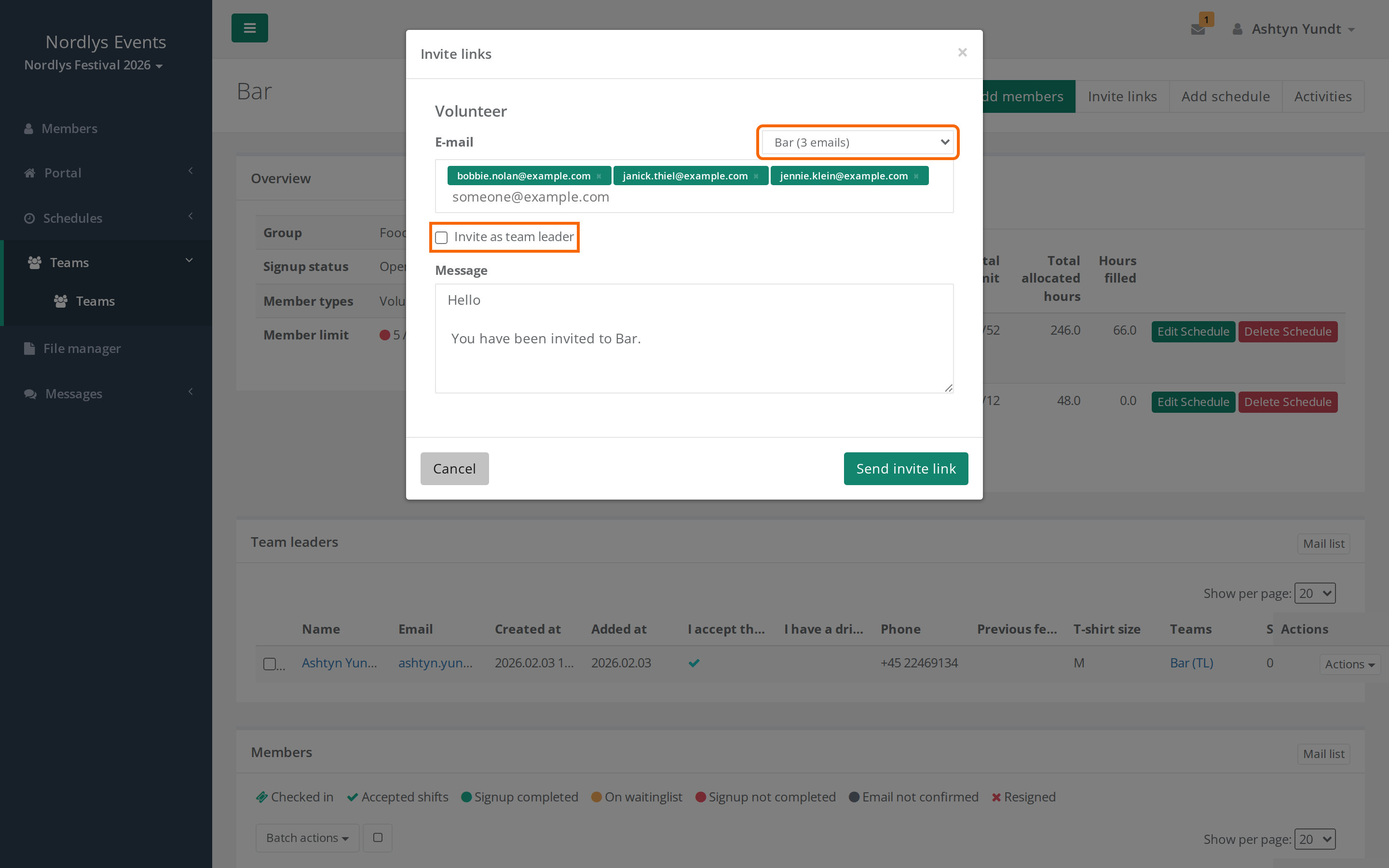
The Import from previous event... list only appears when there is something to fetch. That requires:
- your event has a start date (Starting at under General settings). Only a super admin can set it.
- you have an earlier event with a start date before your event's. Crewstack only uses the most recent of them.
- you took part in that event yourself. You see the teams you were team leader or area leader for there. If you were an admin, you see all teams.
Invite a new team leader
Tick Invite as team leader before you click Send invite link. When a person with that email address completes their signup for the event, they become team leader of the team.
The team leader role is tied to the email address, not to the link. So the person has to sign up with exactly the address you sent the invitation to.
What happens when the crew member uses the link
- At the top of the signup it says You are signing up for the … team.
- If the crew member has taken part in one of your events before, they log in with their old password.
- The crew member doesn't choose a team. They join your team when they click Confirm on the last page.
- The crew member doesn't go on the waiting list, even if the waiting list is switched on.
When does the link work?
The link works when all of this is true:
- The team's Signup status is Open or Invite only. With Closed the link doesn't work.
- The team has free spots, also for the member type the link is for. Team leaders don't count towards the spots.
- The event's Signup status allows signup with an invitation. With Closed the link doesn't work for anyone. With Open for previous members and Open for previous members by invite only it only works for crew members who have taken part in one of your events before. See Signup status: who can sign up?.
If the team is closed or full, the crew member sees The team, …, that you are invited to are unfortunately no longer open for signup. Only an admin or an area leader can change the team's status and spots. See also Crew members are stuck in the signup.
Pitfalls
- The person has already signed up for the event: Then the link does nothing. The person just lands in the portal and doesn't join your team. Add them yourself under Add members on the team.
- The person cancels the invitation: In the box at the top of the signup the crew member can click Return to normal signup to cancel. They then sign up as normal and don't join your team.
- Wrong member type: The crew member signs up as the member type the link is for. Send the link that fits the person.
- Full team: The spots are checked at every step of the signup. If you send more invitations than there are spots, the first people to finish get in. The others get the message that the team is no longer open.
Didn't find the answer? Write to support@crewstack.io.