
Waiting list on a team
Let people join the waiting list of a full team, and give them a spot from the team page when one opens up.
When a team is full, people can still join its waiting list if you have switched it on. They do not take up a spot until you give them one from the team page. This is a waiting list per team. The event's shared waiting list, where people go when they cannot choose any team, is something else. See How the waiting list works.
Switch on the waiting list for a team
- Go to Teams > Teams, and open the team.
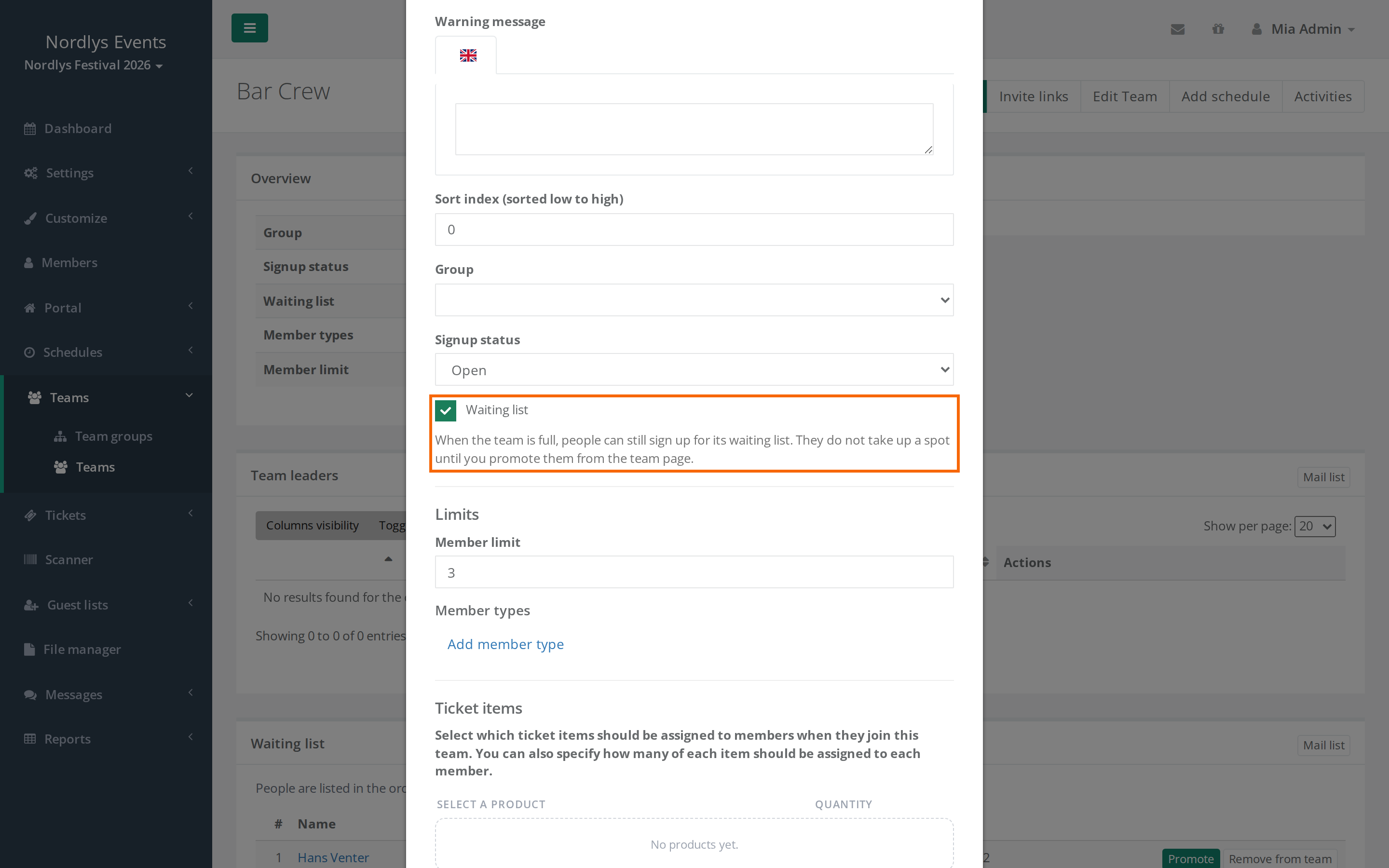
- Click Edit Team. If you create a new team with New Team, the field is there too.
- Tick Waiting list. It is right below Signup status.
- Save.
Only admins and team group leaders can edit the team. See Set up teams and team groups.
What the crew member sees
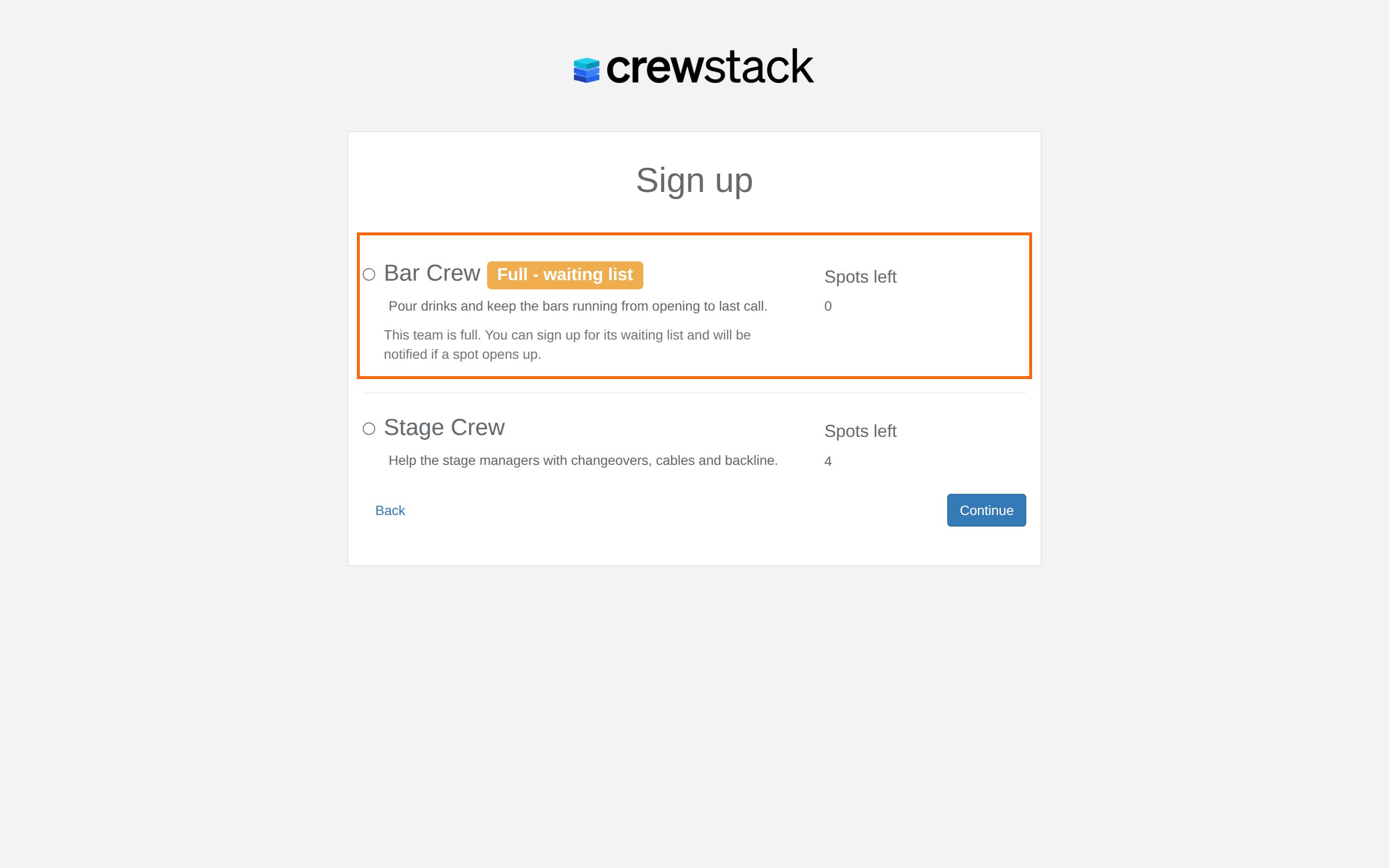
- Choosing a team: A full team with a waiting list is still shown, with the badge Full - waiting list and the text "This team is full. You can sign up for its waiting list and will be notified if a spot opens up." Full teams without a waiting list are not shown.
- If they choose the team, they go on the team's waiting list instead of getting a spot. The last step says "The … team is full. You are signing up for its waiting list and will be notified if a spot opens up."
- If they switch to a team with free spots, they leave the waiting list again and get a spot on that team.
- Payment: If the member type requires payment, they do not pay during signup, just like on the event's waiting list.
- Email: When the signup is complete, they get the email Member signup completed (thank you), but person put on waiting list. In that email you can use the token
<team_name>for the team's name. See Mail templates. - Unfinished signups: If they do not finish the signup, their place on the waiting list is removed after about 30 minutes, like other unfinished signups.
Invite links to a full team
If someone uses an invite link to a full team with a waiting list, they go on the team's waiting list, as long as the team allows their member type. The signup says "The … team you are invited to is full. You are signing up for its waiting list. Click here to cancel:" with the button Return to normal signup, which takes them back to the normal signup.
If the team is full and has no waiting list, the invite is refused as before. See Invite crew members to a team.
Only show waiting lists when all teams are full
If you want your crew to choose a team with free spots while there are any:
- Go to Settings > General settings, and find the Teams section.
- Tick Only allow team waiting lists when all teams are full.
- Click Save.
Full teams with a waiting list are then only shown when choosing a team once every team the person can choose is full. Invite links to a team's waiting list still work. The setting needs a super admin.
See the waiting list
On the team page, the Overview box shows either Enabled (3 waiting) or Disabled next to Waiting list.
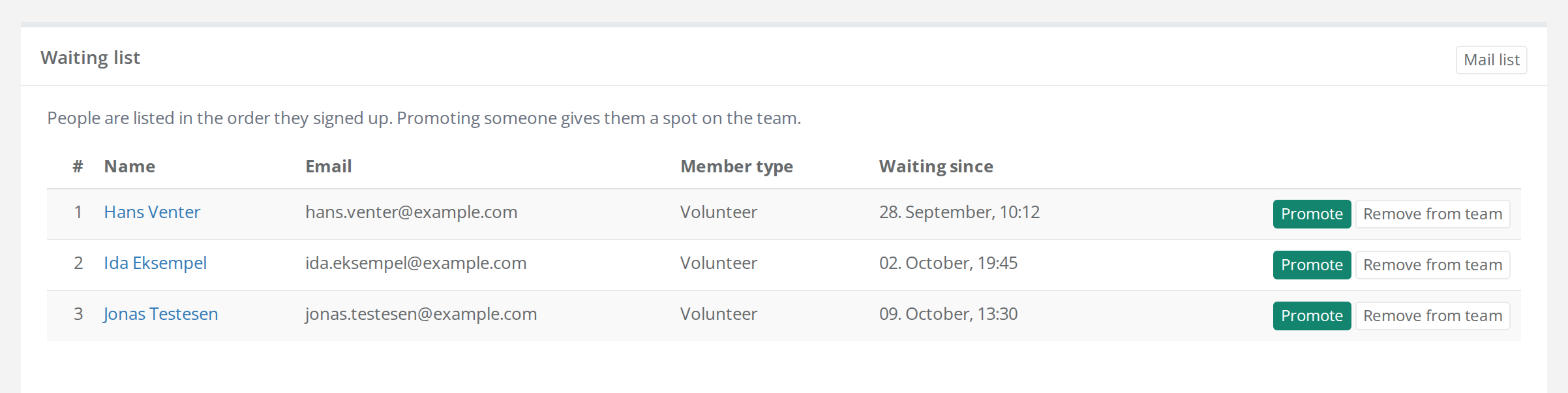
The Waiting list box shows the people waiting in the order they signed up: number, Name, Email, Member type and Waiting since. Next to each person are Promote and Remove from team, and Mail list shows the email addresses of everyone on the waiting list, so you can write to them from your own email program.
Under Teams > Teams, the number of people waiting is shown in brackets after the team's spots, for example 3 / 3 (+3).
While they are on the waiting list, they:
- do not take up a spot and do not count towards the team's member limit or its member type limits.
- do not use the team's product pools and do not get the team's products.
- are not in the team's Members list.
Give someone a spot
- Click Promote next to the person in the Waiting list box.
- Confirm in the browser's dialog.
The person gets a spot on the team, is removed from the waiting lists of any other teams, and gets the email Member bumped from waiting list.
- Admins can promote even when the team is full. The dialog then warns that the team goes over its member limit.
- Team leaders only get the Promote button when the team has a free spot. If the person is also on the waiting list of other teams, the team leader must be allowed to remove people from those teams.
You can also use Add to team under Actions. If the person is on the team's waiting list, they get a spot the same way.
While they wait
- When they log in, they only see the waiting list page. They have no access to the Crewstack app and cannot pick shifts.
- Move to waiting list on a person's profile keeps the person on their teams as a waiting list position and frees up their spot. You do not need to remove them from the teams yourself.
- If you make a person on the waiting list a team leader with Set as teamlead, they leave the waiting list, and their places on other teams' waiting lists are removed.
Pitfalls
- A spot removes the other waiting lists: If you give a person a spot on one team, they lose their place on the waiting list of the other teams.
- The team ends up over its limit: If an admin promotes someone into a full team, the team has more people than spots. Raise the Member limit if it should add up.
- The waiting list is not shown when choosing a team: Check whether Only allow team waiting lists when all teams are full is switched on and whether there are still teams with free spots.
Didn't find the answer? Write to support@crewstack.io.