
Manage your team as a team leader
How to find your team, see who is on it, add, move and remove people, and appoint other team leaders.
As a team leader, you run your team from the team's page. Here you see who is on the team, and here you add, move and remove people and appoint other team leaders.
Find your team
- Go to Teams > Teams in the menu. The list shows the teams you lead. If you're a team group leader, it shows all teams in your team group.
- Click the team's name.
You can also go to Portal > My teams. Next to your teams it says You are the team leader of this team, with a button to the team's page.
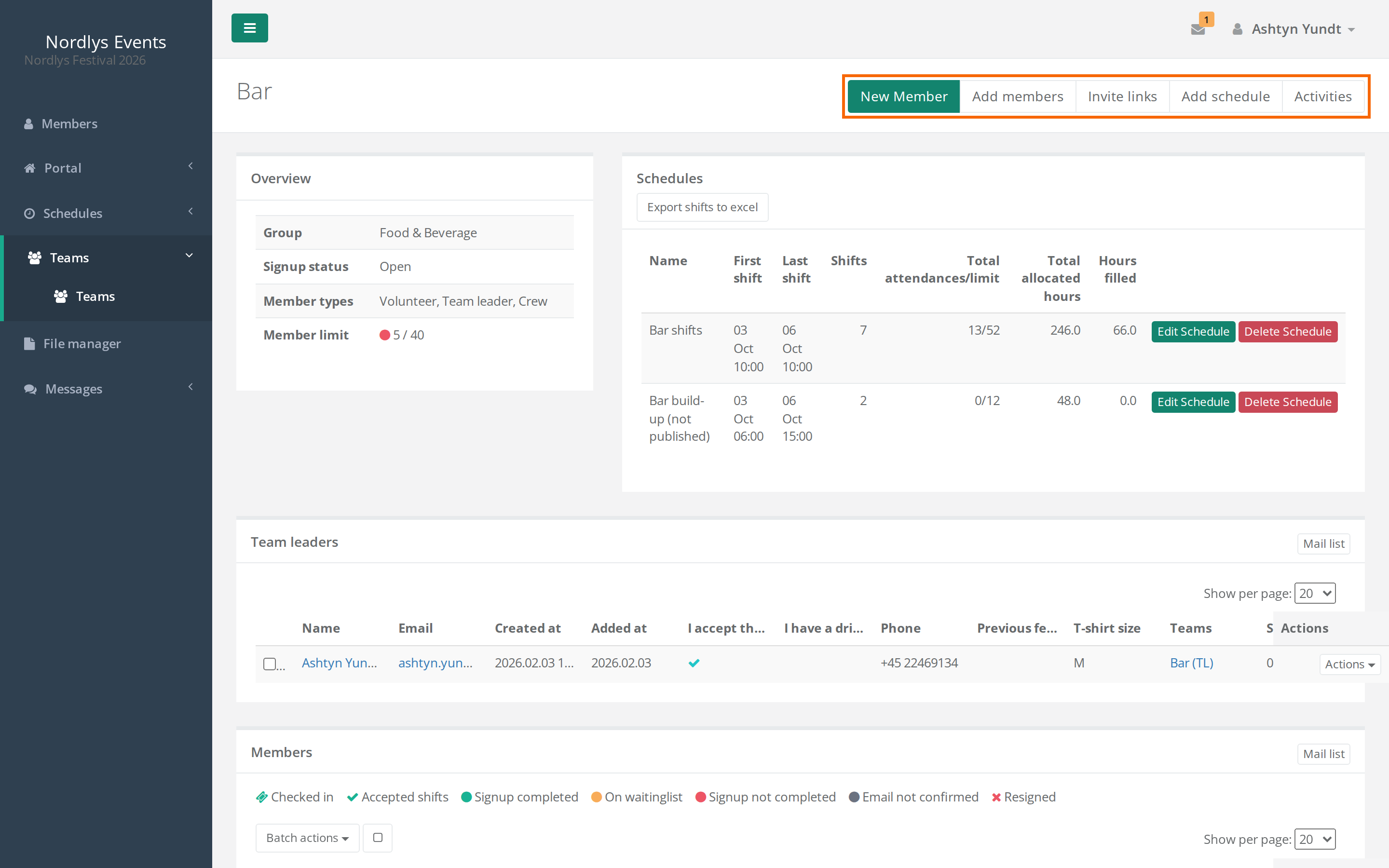
What's on the team's page
- Overview: the team's team group, Signup status, which Member types may be on the team, and how many spots are used. Team leaders don't count towards the spots.
- Schedules: the team's schedules with the number of shifts and hours. A schedule that isn't published is marked in brackets. Total attendances/limit is everyone on the shifts, accepted or not, against the total number of spots. Total allocated hours is the shift length times the maximum spots, and Hours filled is the length times the people assigned.
- Team leaders: you and the other team leaders.
- Members: everyone else on the team.
The tables only show the data fields that belong to the member types on the team, and only the ones you're allowed to see. Use Columns visibility and Toggle all properties to choose what's shown. Use Export to Excel to download the list, unless a super admin has turned that off for team leaders.
At the top of the page are the buttons for what you can do with the team, for example Add members, Invite links and Add schedule. Only an admin or a team group leader can change the team's name, spots and other settings.
Add people who have already signed up
- Click Add members at the top of the team's page.
- Search by name or email. You can use Show advanced, for example On team set to No to find people without a team.
- Click Search.
- Click Actions next to the person, and choose Add to team.
To add several at once, tick them, and choose Add to team under Batch actions above the table.
If the team has specific member types, the search only shows people with those member types.
You can only add a person when:
- the team has free spots, also for the person's member type. Otherwise you get the message This team is full. or This team has reached its limit for one or more member types.
- the person's member type is allowed on the team. Otherwise you get the message You can only add members with allowed member types for this team.
- you're also team leader of the teams the person is already on. Otherwise you get the message You do not have permission to edit one or more of the teams for the selected members. A super admin can turn this requirement off.
If people may only be on one team in your event, you can't add a person who is already on another team. Use Move to team instead.
Create a new person directly on the team
If the team's page shows New Member at the top, you can create a person who hasn't signed up yet:
- Click New Member.
- Choose the member type, and click Next.
- Fill in the email and the other fields, and save.
The person is put on the team and gets an email saying their signup is complete. If they don't already have a login with you, they need to use Forgotten your password? on the login page the first time.
The button is only there when a super admin has allowed it for the member type and there are free spots.
Invite new people to the team
With Invite links you send a link that crew members can use to sign up for the event and go straight onto your team. See Invite crew members to a team.
Move or remove a person
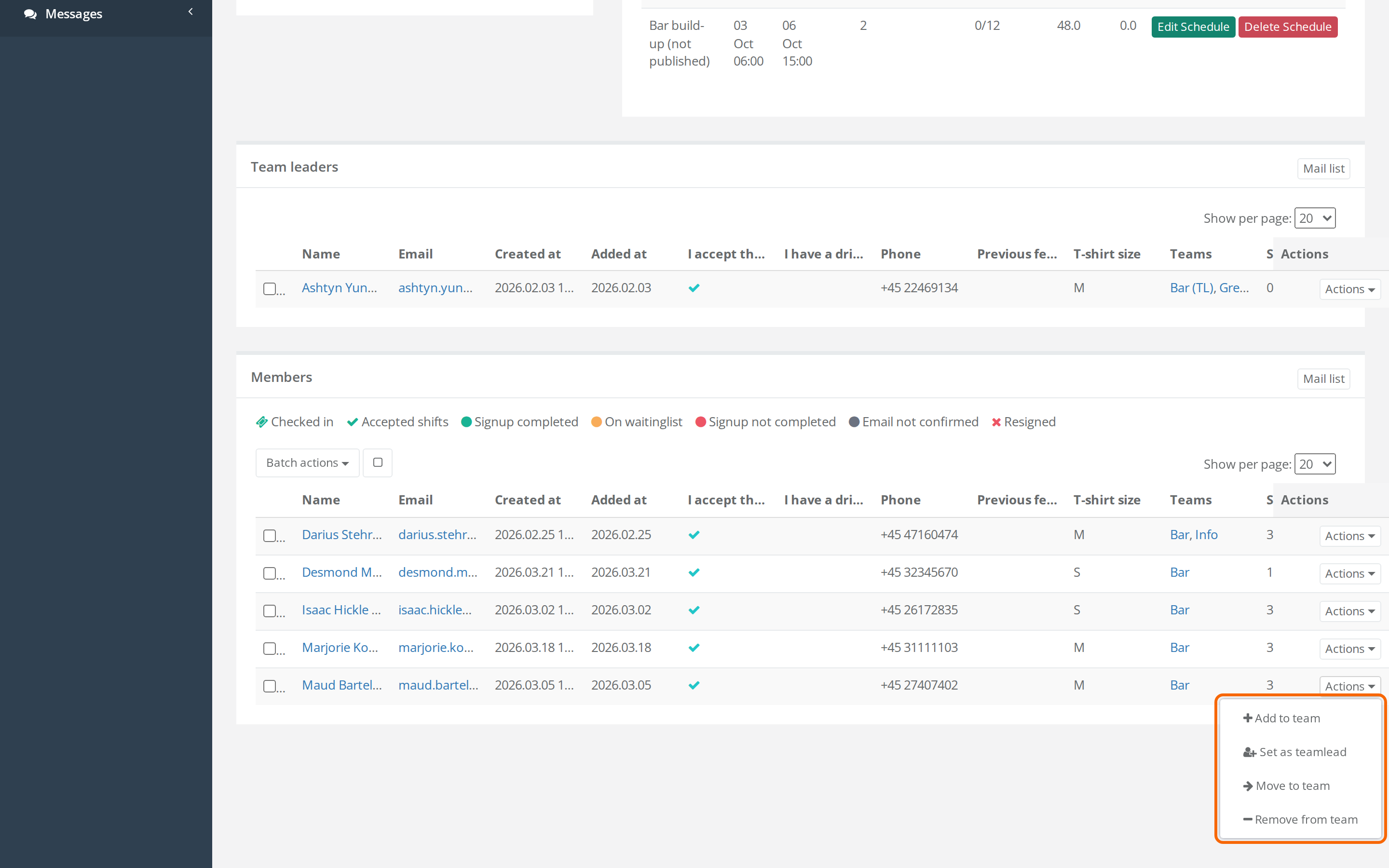
Click Actions next to the person in the Members table:
- Move to team moves the person to another team you also lead. The person's shifts on the old team are removed.
- Remove from team removes the person from the team. The person's shifts and shift preferences on the team are removed too.
You can also do both for several people at once with the tick boxes and Batch actions above the table.
Remove from team is only there if Allow team leads to remove members from teams is switched on. It is by default. If it's off, only admins can remove people from teams.
Appoint other team leaders
- Click Actions next to the person.
- Choose Set as teamlead, and confirm.
The person moves up to the Team leaders table and no longer takes a spot on the team. Strip from teamlead makes them an ordinary member of the team again.
If the person isn't on the team yet, you can find them under Add members and choose Set as teamlead there.
Under Actions next to a team leader you can also choose Hide from member list. The option is only there next to people who lead that particular team, and admins and team group leaders can use it too. Then the team's crew members can't see that team leader under My teams or in the Crewstack app, and they can't pick the team leader as a recipient when they write a message. Show in member list shows them again.
Pitfalls
- Primary team: If the person is on several teams, you can't remove them from their primary team. You get the message Cannot remove a member from their primary team while they still belong to other teams. Switch the primary team first. Make another team primary first with Make primary next to the team on the person's profile. That needs you to lead the other team too. Otherwise ask an admin. See People on several teams.
- Resign doesn't work for you: Resign member is listed under Batch actions above the table, but only admins can resign other people.
- Full team after Strip from teamlead: When a team leader becomes an ordinary member, they count towards the spots again. The team can therefore end up with more people than spots.
- No email by default: The person only gets an email when you add or move them if a super admin has switched it on under General settings > Notifications. When you remove a person from the team, they don't get an email.
- Can't find the person? See Can't find a person in the search.
Didn't find the answer? Write to support@crewstack.io.