
Give products for a specific shift
How to put a product, such as a T-shirt or drink vouchers, on a single shift so everyone on that shift gets it, and how that works with the event budget.
Some shifts are harder to fill than others. With products on a shift you can give everyone who takes that particular shift something extra, for example a T-shirt for taking the Sunday clean-up, or two drink vouchers for a night shift. The product follows the shift, not the member type or the team.
Only admins can put products on a shift. Team leads can see them but not change them.
Put products on a shift
- Open the schedule so the schedule planner opens.
- Click the shift in the calendar, or create a new shift.
- Go to the Products tab.
- Click Add product, choose the product in the new row, and type the amount in the field next to it. Repeat for each product the shift should give. The same product can only be on a shift once.
- If you like, tick Only when the shift is marked completed (see the next section).
- Click Update Shift (or Create Shift for a new shift).
The number on the tab shows how many products the shift gives. To take a product off again, click Remove and save.
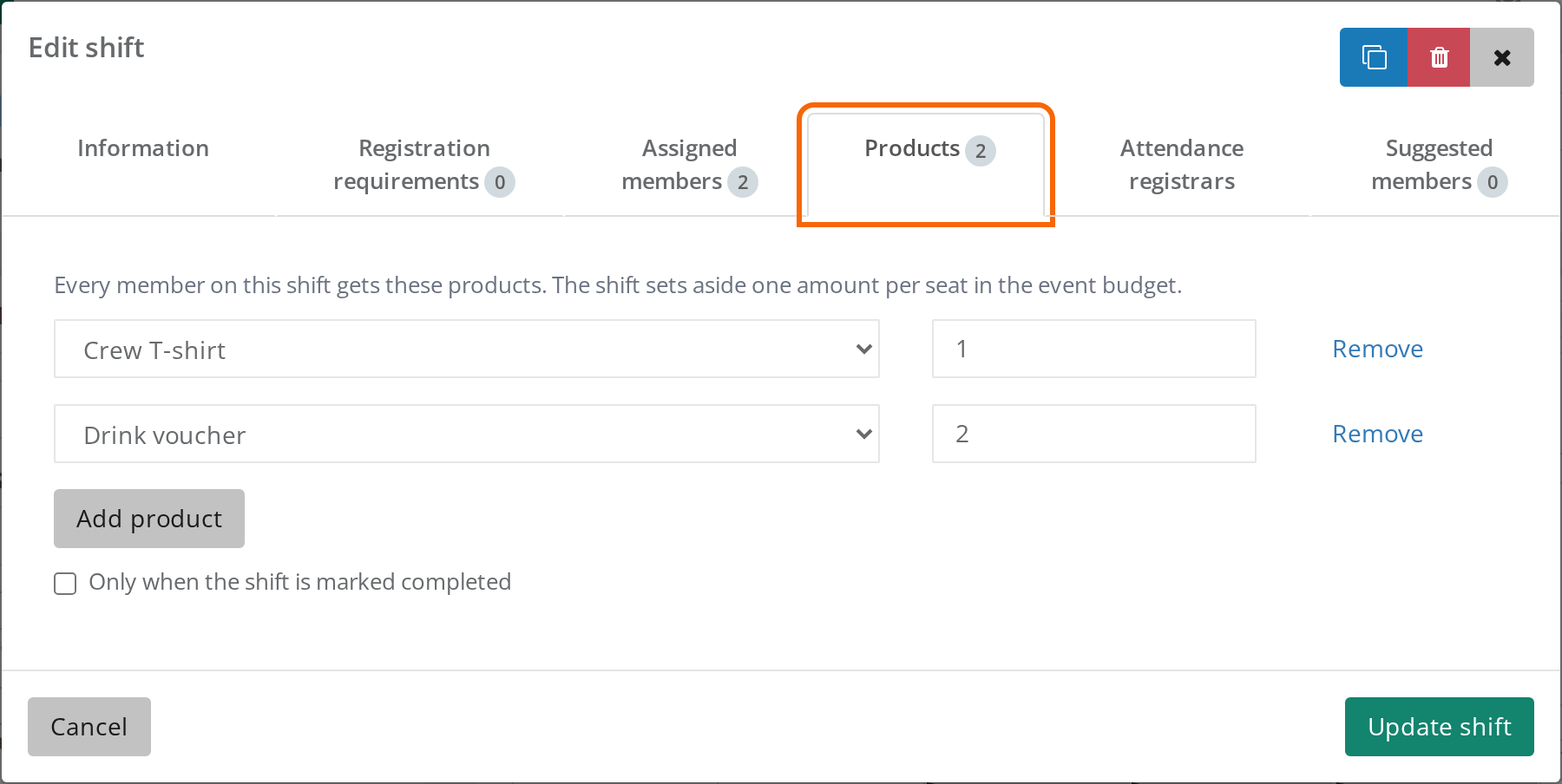
You can choose any of the event's products except the system products. You create products under Tickets > Products. See Create products and give them to your crew.
Who gets the product, and when?
Everyone on the shift gets the products, whatever their member type. You choose what it takes:
- Without the tick: The person gets the products as soon as they are on the shift.
- With Only when the shift is marked completed ticked: The person only gets the products once the shift is marked Completed for them. See Attendance registration and shift leaders.
Also good to know:
- Published schedules only: A shift on a schedule that isn't published gives nothing. The products arrive when you publish the schedule. See Publish a schedule.
- Each shift counts on its own: If a person takes three shifts that each give 1 T-shirt, they get 3 T-shirts. This comes on top of what the person gets from their member type, team and elsewhere.
- Access items at most once: A person holds at most one of an access item, such as a wristband, however many shifts give it.
- Changes apply to everyone on the shift: If you change the amount or remove a product, it changes for everyone already on the shift.
- The person leaves the shift: If the person is taken off the shift, or you remove the Completed mark, the product goes away again. Not if the product has already been handed out in the scanner. Then the person keeps it.
- After the event: The products keep following the shifts after the event is over. If you mark shifts as completed afterwards, people still get the products.
Your crew get no message when you put a product on a shift.
The shift reserves the products in the budget
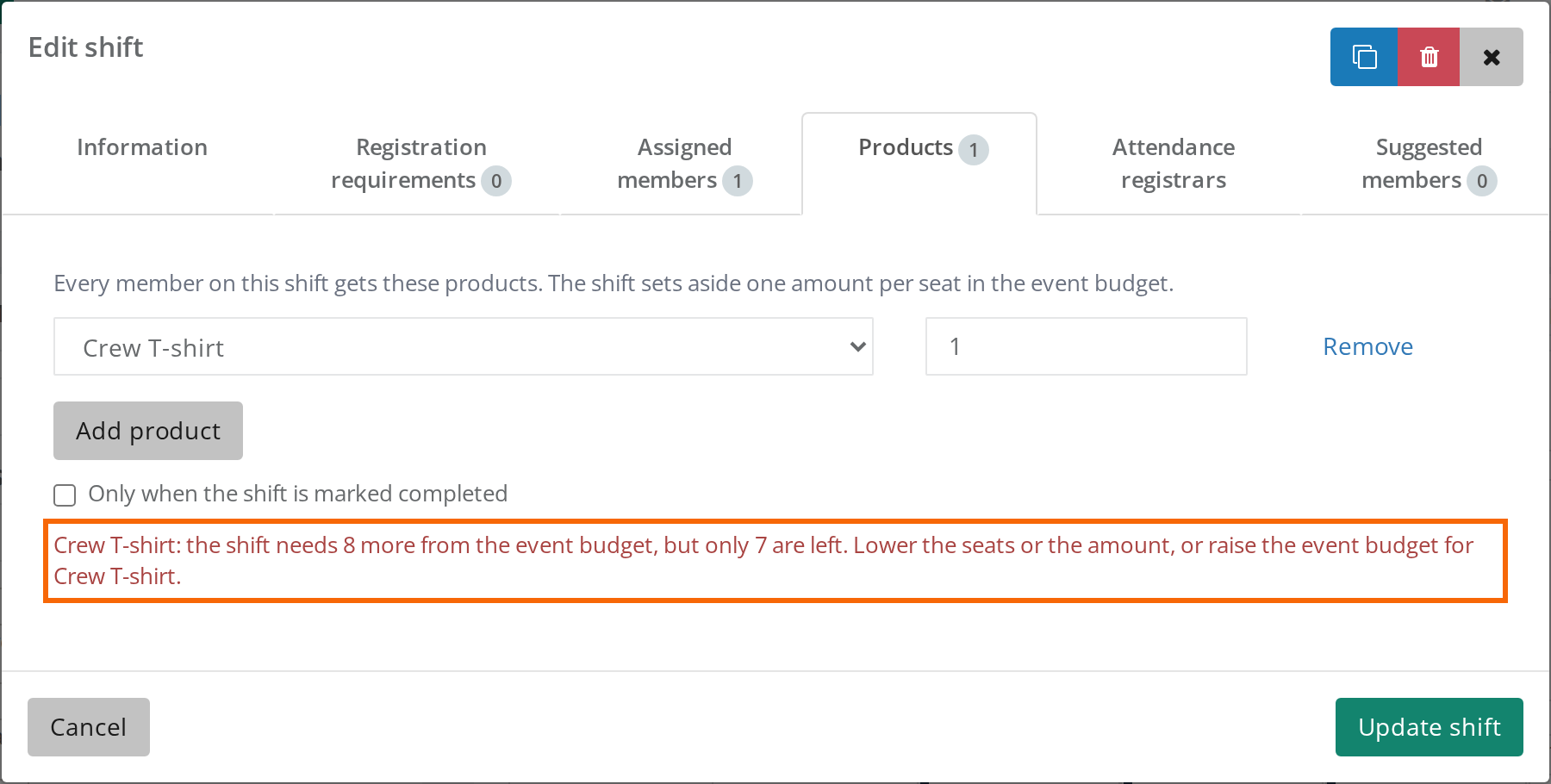
When you save the shift, it sets the products aside for all of the shift's seats: Attendance limit times the amount of the product. So a shift with room for 8 that gives 1 T-shirt reserves 8 T-shirts from the product's Global limit, even before anyone is on the shift. That way there is always a product for whoever takes the shift, and nobody is turned away from the shift because the product has run out.
If there isn't enough left, the shift isn't saved, and the Products tab shows something like "T-shirt: the shift needs 8 more from the event budget, but only 7 are left. Lower the seats or the amount, or raise the event budget for T-shirt." Do what the message says: lower the Attendance limit or the amount, or raise the Global limit on the product under Tickets > Products.
- If the product has no Global limit (Unlimited), nothing is checked and the shift can be saved.
- If the product has a Global limit, the shift needs an Attendance limit. Otherwise it says "… has a limited event budget, so the shift needs a number of seats."
- It is checked again when you raise the Attendance limit or the amount. Lowering them or removing a product can always be saved.
- The reservation stays, even after the shift is over, until you lower the seats or take the product off the shift.
- If more has been given from the shift than was reserved, the budget counts what was given.
- You can't set the Global limit lower than what the shifts have reserved.
If your event uses Product Budgets, the shifts' reservation counts under Reserved (R) on Event Budget. See Product pools: share out products on a team.
What your crew and team leads see
If a shift has no products, nobody sees anything about it. If it has products:
- When they pick shifts: Under Find shifts in the portal, the shift shows for example "Gives: 1 × T-shirt" or "Gives when completed: 2 × Drink voucher". This also applies to the shifts in a shift bundle. See How crew members pick their own shifts.
- In the Crewstack app: The same line shows when they pick shifts, and next to their shifts on the Shifts tab. The team lead's overview of the team's shifts in the app shows it too.
- Their products: In the app, under Products, a product from a shift shows which shift it came from, for example "Shift: Bar – Main bar, 12 Nov 10:00–16:00". See The Crewstack app for your crew.
- Team leads: In the schedule planner, team leads see the Products tab, but only on shifts where an admin has set products. It shows what the shift gives and whether the shift must be completed. Team leads can't change it, and when a team lead saves the shift, the products are left as they are.
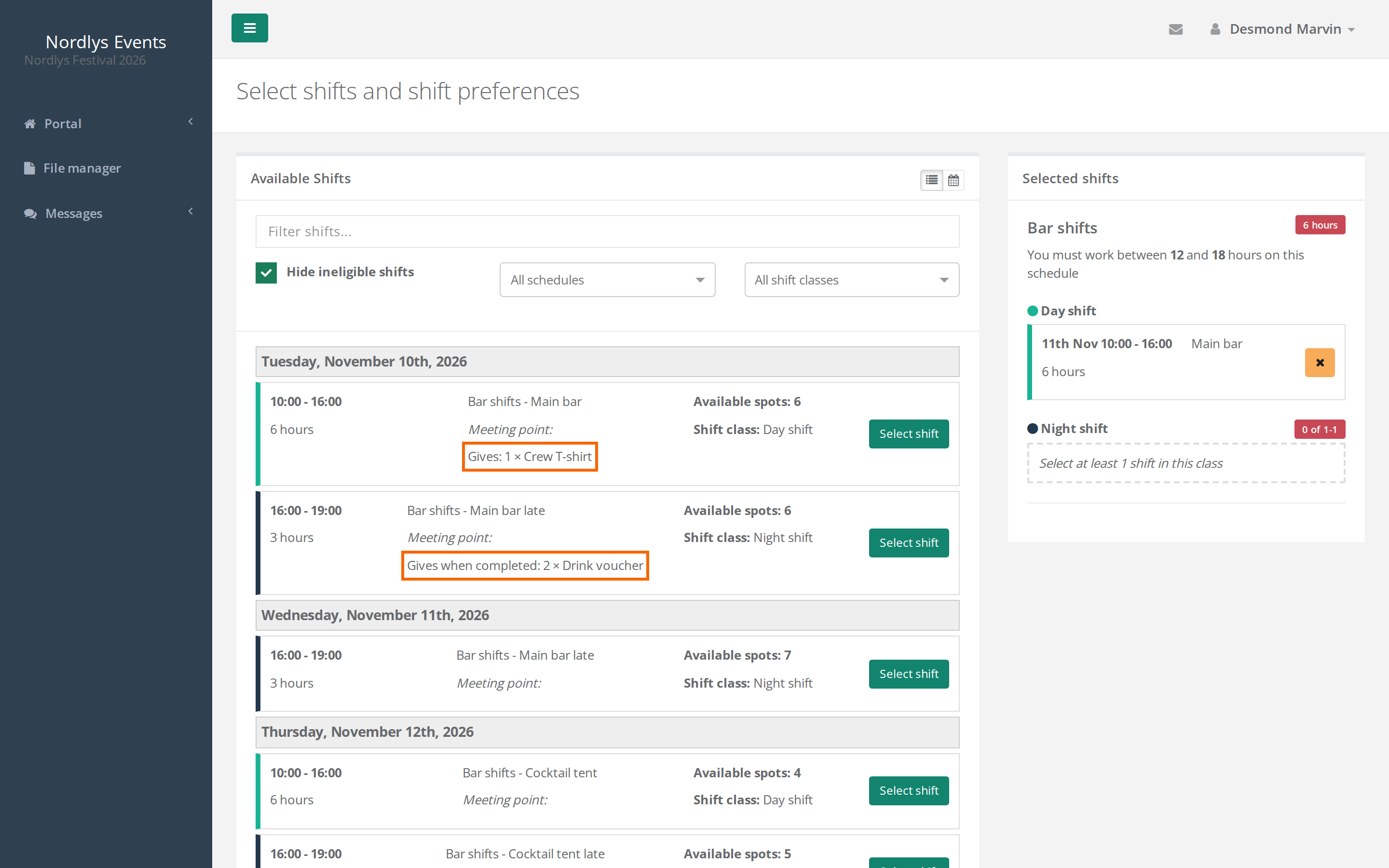
You can see the products yourself in two places:
- On the schedule's Shifts overview, the shift shows Gives with the products and whether the shift must be completed.
- Under Tickets > Assign tickets, a product from a shift is listed under Already assigned products with the shift as its source, for example "1 x Shift: Bar – Main bar, 12 Nov 10:00–16:00". See Assign tickets to a single person.
When you copy shifts
The products come along when you copy:
- A single shift with Copy shift in the schedule planner. The new shift reserves too, so the budget can turn it down.
- A schedule used as a template. If the template comes from another event, the product is matched by name and product type in the new event. If there is no product with the same name and type, it is skipped. If the budget can't cover the products, the schedule isn't created, and the window shows the message from the budget. See Create a schedule and add shifts.
Pitfalls
- A team lead copies the shift: If a team lead copies a shift with products, the products don't come along on the copy.
- No products before the schedule is published: A shift on a schedule that isn't published gives nothing, but it still reserves in the budget.
- The product can't be deleted: Delete Ticket item is greyed out as long as a shift gives the product. Take it off the shift first.
- The product didn't arrive: Check that the schedule is published, that the person is on the shift, and, if Only when the shift is marked completed is ticked, that the shift is marked Completed for the person.
- The shift can't be saved: The product has a Global limit and there isn't enough left for all of the shift's seats, or the shift has no Attendance limit. See the budget section above.
Didn't find the answer? Write to support@crewstack.io.