
Assign tickets to a single person
How to give one person extra products, such as an extra meal voucher, on the Assign tickets page, and who can use the page.
On the Assign tickets page you give one person extra products, for example an extra meal voucher for a crew member who took an extra shift, or a crew T-shirt. The page is handy to keep open at the info desk during the event.
Products that everyone on a team or with a member type should have, you give on the team or the member type instead. See Create products and give them to your crew.
Who can use the page?
- Admins can assign products to everyone.
- Others can use the page if they have the system item Ticket assignment. They can only assign to people on teams they lead themselves as team leader or team group leader.
How to give the system item to, for example, all the team leaders at the info desk:
- Go to the team and click Edit Team.
- Click Add product under Ticket items.
- Choose Ticket assignment in the System item group, and save.
You can also give it to a whole member type under Ticket items on the member type.
How to assign a product
- Go to Tickets > Assign tickets.
- Click Choose a member, type at least two letters of the person's name or email, and choose the person.
- Choose the Product. The products are split into Addon, Extra and Other.
- Check the Budget source. It is one of the person's teams, and the assignment belongs to that team. The person's primary team is chosen in advance and is marked (primary). If the person is only on one team, you can't choose another.
- Set the Direct amount with - and +, or type the number.
- Click Save assignment.
The product is on the person's ticket straight away, and the Already assigned products list on the right is updated.
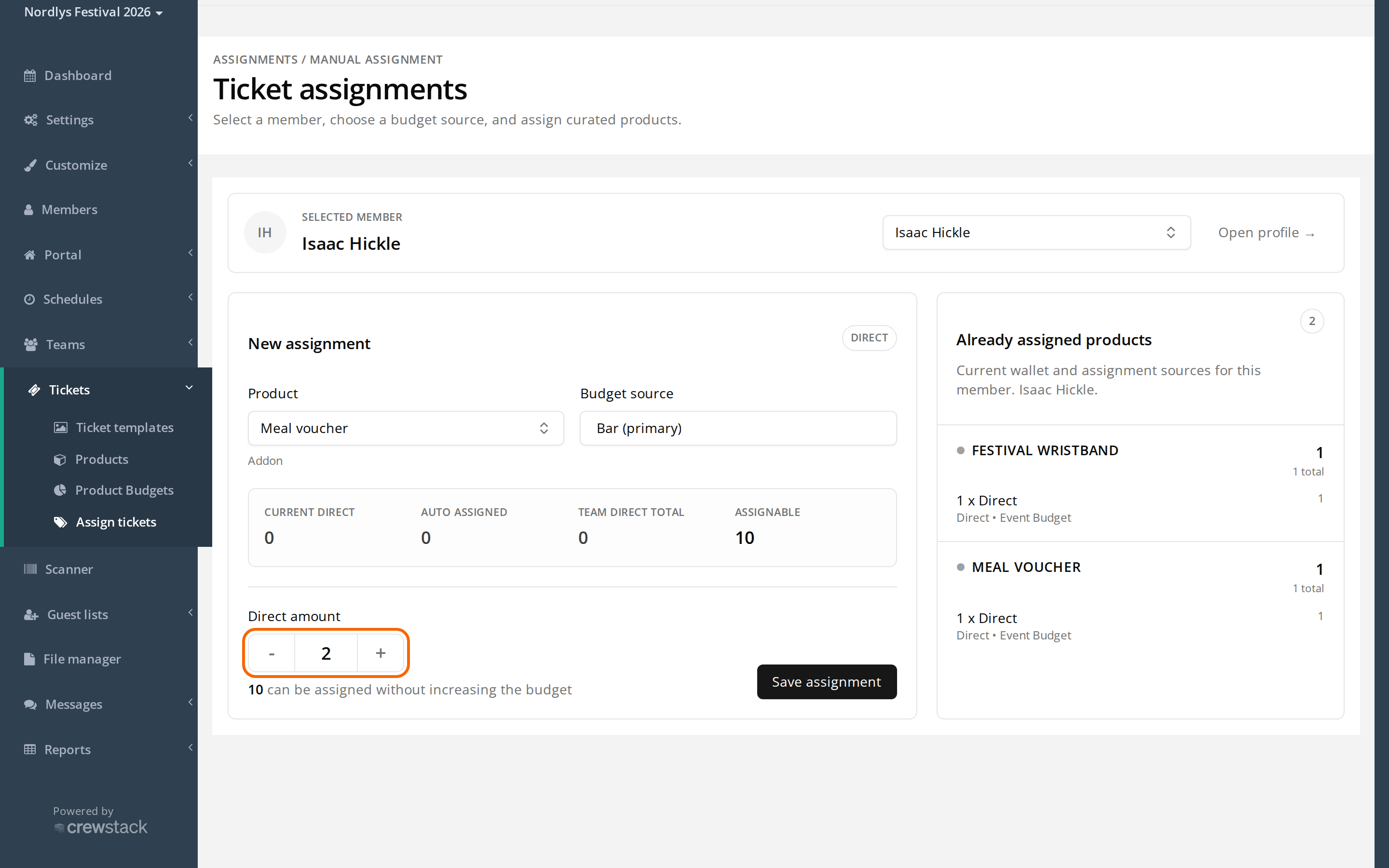
Above the field you can see:
- Current direct: how many the person has already been given here from the team.
- Auto assigned: how many of the product the person gets because it is on the team.
- Team direct total: how many everyone on the team has been given here in total.
- Assignable: how many more you can give.
See and remove what the person has been given
On the right is Already assigned products. It lists all the person's products, and for each product where it comes from, for example Direct, Team or Member type.
You can only remove direct assignments (Direct) here:
- Click Remove next to the assignment.
- Click Remove assignment.
Products from a team or a member type are removed on the team or the member type.
Which products can you choose?
- Only addon items and extra items. Access items, for example wristbands, can't be given here.
- The product must have a tick in Show on ticket assignment page. All products have it from the start. Untick it under Tickets > Products to hide a product here.
Is there a limit to how many you can give?
For most events there is no limit here. Assignable shows Unlimited, and the product's Global limit isn't checked. Keep an eye on Used under Tickets > Products yourself.
If your event uses Product Budgets, the person's team must have a pool of the product, and Assignable shows how many are left. If there aren't enough, admins and team group leaders get the button Add … to … budget and save, which extends the team's pool. See Product pools: share out products on a team.
Check this
- The person doesn't show up in the search: The search only finds people who have completed signup and confirmed their email. People on the waiting list, blacklisted people and resigned people don't show up.
- *It says "No manageable team budgets are available for this member.":* The person isn't on any team, or on no team you lead. Put the person on a team first.
- *It says "Could not load member ticket assignment context (403)":* You have the system item but aren't a team leader or team group leader. Ask an admin to make the assignment.
- The product isn't in the list: It is an access item, or the tick in Show on ticket assignment page has been removed.
- Save assignment is greyed out: You haven't changed the amount, or there isn't enough in the team's pool.
Didn't find the answer? Write to support@crewstack.io.