
Force people to choose a team
Ask one or more people to choose a team the next time they open Crewstack, for example when the teams are ready after signup or the waiting list needs emptying.
With Force team select you ask one or more people to choose a team. The next time they open Crewstack, they have to choose a team before they can do anything else. This is useful when you took signups before the teams were ready, when people signed up for a broad team and need to be spread out, or when the waiting list needs emptying. Only admins can do it.
Which teams can they choose?
The person can choose between the teams that
- have Signup status Open,
- are open to the person's member type,
- have free spots for the person's member type,
- and that the person isn't already on.
Teams set to Invite only or Closed aren't included. If there isn't a single team the person can choose, the person can't be forced. Open the teams they should be able to choose before you start. See Signup status: who can sign up?.
How to do it
- Go to Members and search for the people who need to choose a team.
- Tick the box next to them.
- Choose Force team select under Batch actions above the list.
- Check the window. People who have no team to choose are listed separately and skipped.
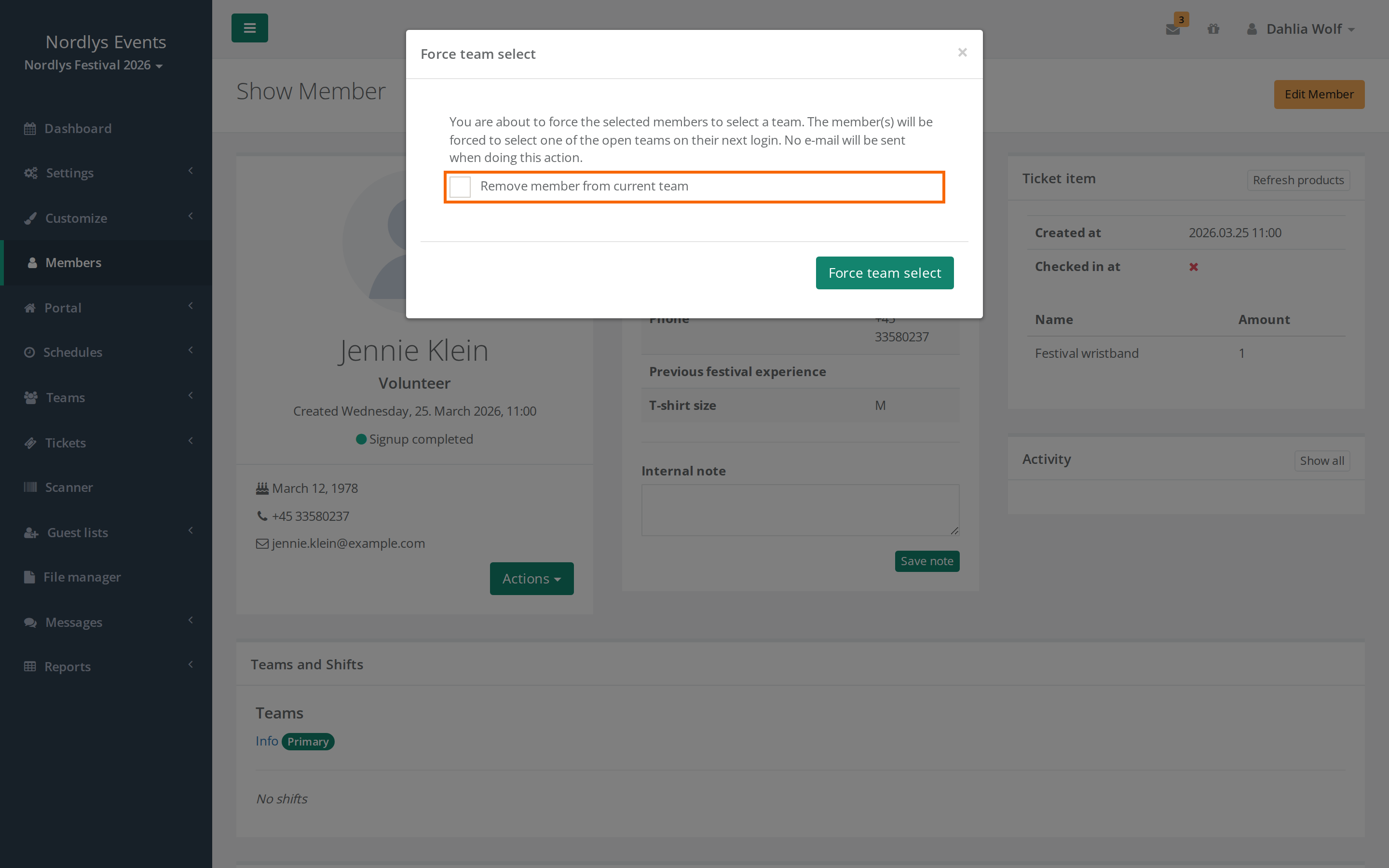
- If the people are already on a team, choose whether they should be removed from it (see below).
- Click Force team select.
You can also do it for one person: Click Actions next to the person in the list, or use Force team select on the person's profile.
What happens to the current teams?
It depends on whether Allow members on multiple teams is turned on:
- Turned off: The person is always removed from their current team. The window says "The member will be removed from the team".
- Turned on: You choose. If you tick Remove member from current team (or Remove member from current teams), the person is removed from their teams. Otherwise they keep them, and the new team is added on top.
What the crew member sees
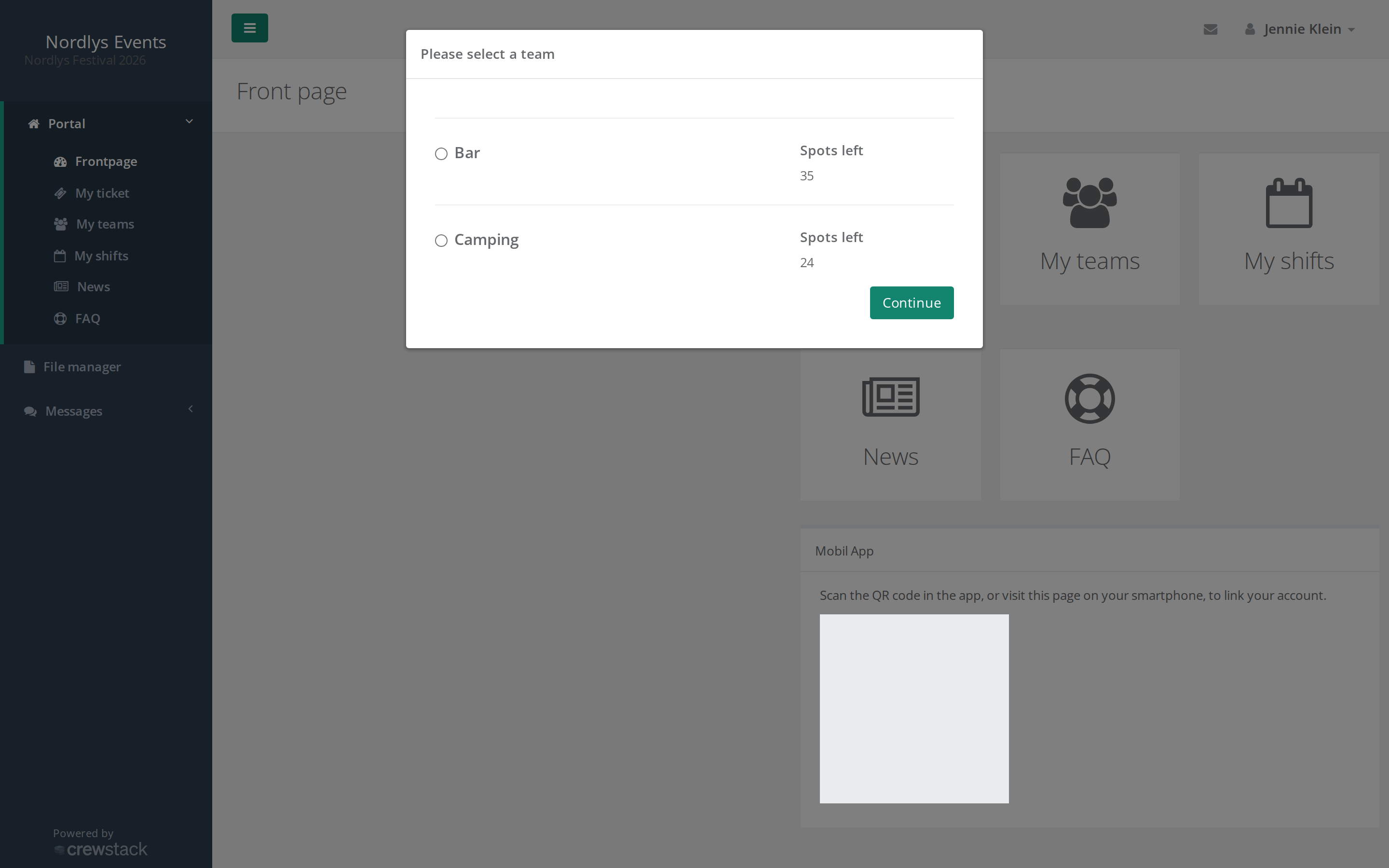
The next time the crew member opens a page in Crewstack in the browser, they get the window "Please select a team" with the teams they can choose. The window can't be closed. They choose a team and click Continue.
- No email. Crewstack doesn't send an email when you force team select. Let them know yourself, for example with a message. See Messages.
- Completed signups only. People who haven't completed signup only see the window once they have completed it.
- Not in the app. The window doesn't appear in the Crewstack app. The crew member has to open Crewstack in a browser.
- Waiting list. If the person is on the waiting list, they are taken off it when they choose a team, and they get the email saying they have moved up from the waiting list. See How the waiting list works.
Pitfalls
- The person is on the list of people who can't be forced. There are no open teams with free spots for the person's member type that the person isn't already on. Open a team, or give the team more spots.
- It can't be undone. There is no button that removes the requirement again. It only goes away once the person has chosen a team. If all the teams the person can choose fill up or close, the person is stuck in the window until you open a team with room.
- The team has filled up. If a team fills up while people are choosing, they can't choose it any more. The team disappears from the list for those who haven't chosen yet.
- Force team select is missing on the profile. The person is on a team and Allow members on multiple teams is turned off. Use Actions next to the person in the list instead.
Didn't find the answer? Write to support@crewstack.io.