
How the waiting list works
Who goes on the waiting list, what they experience, and how to bring them onto a team.
With the waiting list, people can sign up even when there is no room on the teams. They go on the waiting list, and you bring them onto a team when a spot opens up. The waiting list is off until you switch it on.
Switch on the waiting list
- Go to Settings > General settings.
- Tick Waiting list activated in the Members section.
- Click Save.
You can also switch it on in the Setup guide under the Registration method step, where the field is called Waiting list.
Who goes on the waiting list?
When the waiting list is on, a new crew member goes on the waiting list if they can't choose a team during signup. That happens in two cases:
- The teams are full. The member type has Team select switched on, but there is no team the crew member can choose. A team can be chosen when its Signup status is Open, the team is open to the member type, and there are free spots, also for the member type. Teams set to Invite only or Closed don't count.
- The member type doesn't have Team select switched on. Then everyone who signs up as that member type goes on the waiting list.
Crew members with an invite link to a team never go on the waiting list. They join the team directly.
If the waiting list is off and the teams are full, the crew member instead gets the message Teams are full and can't sign up. See Crew members are stuck in the signup.
What the crew member experiences
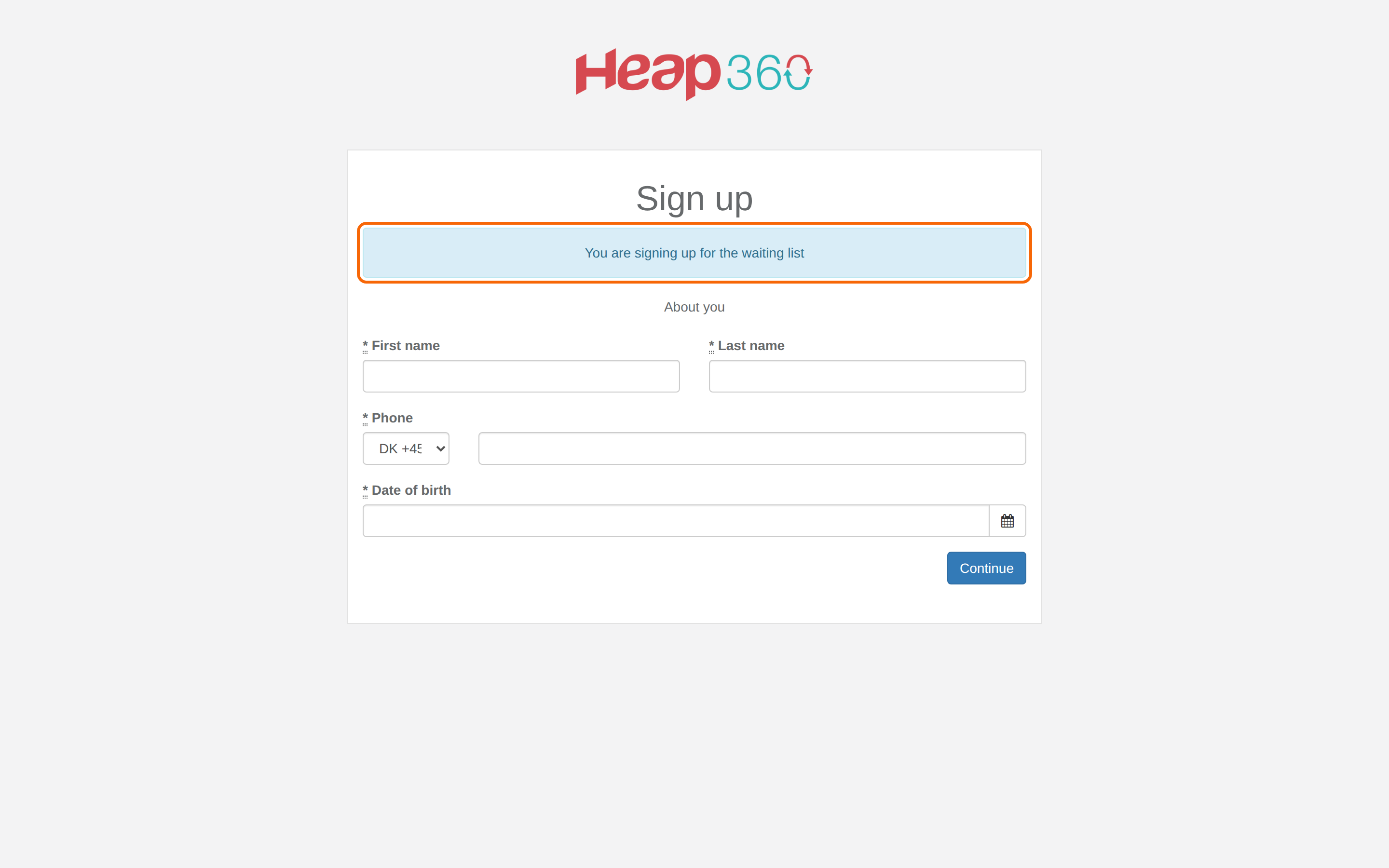
- At the top of the signup it says You are signing up for the waiting list. The crew member doesn't choose a team.
- If the member type requires payment, the crew member doesn't pay during signup. They are asked to pay when they have been taken off the waiting list and log in.
- When the signup is complete, the crew member gets an email saying they are on the waiting list.
- When they log in, they only see a page saying they are on the waiting list. They can't see the rest of the portal, get their ticket, or choose and accept shifts.
Find the people on the waiting list
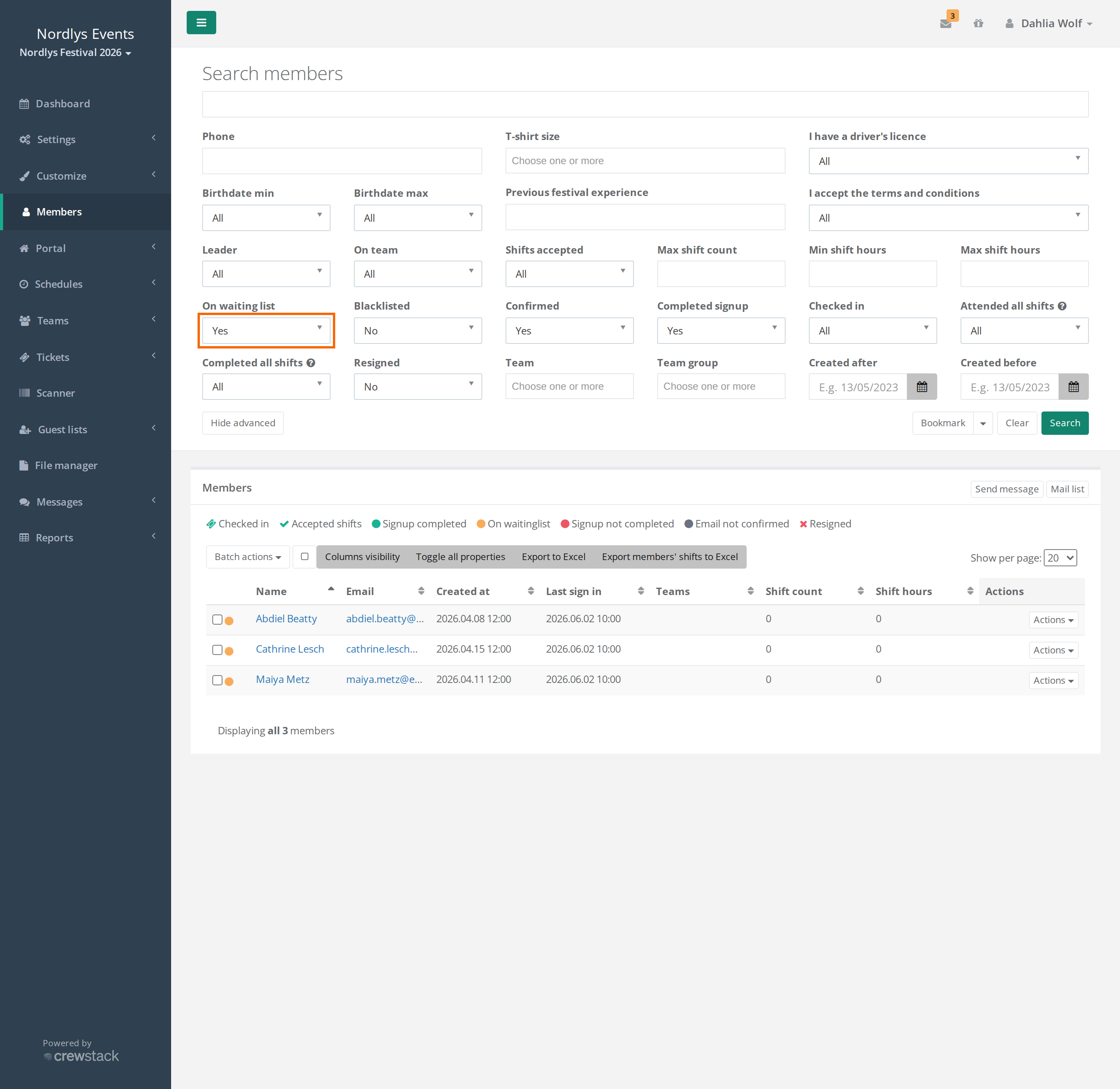
Under Members, people on the waiting list have a yellow circle with the status On waitinglist. To see only them:
- Go to Members and click Show advanced.
- Set On waiting list to Yes.
- Click Search.
Bring a person onto a team
The best way to take a person off the waiting list is to put them on a team:
- Go to the team and click Add members.
- Click Show advanced, set On waiting list to Yes, and click Search.
- Click Actions next to the person and choose Add to team.
The person is taken off the waiting list automatically and gets an email saying they have been moved off the waiting list. The next time they log in, they see the portal like everyone else.
Team leaders can do the same for their own teams.
If the people on the waiting list should choose a team themselves, an admin can use Force team select. They are taken off the waiting list once they have chosen. See Force people to choose a team.
Take a person off the waiting list without a team
If the person should take part, but not on a team, open the profile and click Promote from waiting list. The person gets no email, so tell them yourself.
Put a person on the waiting list
- Open the person's profile.
- Click Move to waiting list.
- Confirm in the browser window that says This will put the member on waiting list. If the member is currently on any teams, you will need to move him manually from them.
The person gets no email. As the message says, they are not removed from their teams. You have to do that yourself.
If the profile has many actions, Move to waiting list and Promote from waiting list are under the Actions button.
Edit the emails and the waiting list page
A super admin can edit the texts:
- Under Customize > Mail templates: Member signup completed (thank you), but person put on waiting list. is the email when the signup is complete, and Member bumped from waiting list is the email when the person joins a team.
- Under Customize > View templates: Waiting list is the page they see when they log in.
Pitfalls
- Everyone goes on the waiting list: The member type doesn't have Team select switched on. Switch it on under Settings > Member types, or switch off the waiting list.
- Promote from waiting list sends no email: If you want the person to be told automatically, put them on a team instead.
- No ticket: People on the waiting list can't get their ticket. See A crew member can't get their ticket.
- Move to waiting list doesn't remove teams: Remove the person from their teams yourself, otherwise they still take up spots on the teams.
Didn't find the answer? Write to support@crewstack.io.