
Assign shifts from shift preferences
How to see who preferred a shift, assign the shifts based on the preferences, and what the crew member sees along the way.
When a schedule runs on shift preferences, crew members prefer the shifts they can take, and you hand out the shifts afterwards. Here you can see where to find the preferences, how to assign the shifts and what the crew member sees. To switch shift preferences on, see How crew members pick their own shifts.
What is a shift preference?
- A preference doesn't reserve anything. Several crew members can prefer the same shift, even more than there are spots. A shift that is already full can't be preferred.
- Preferences can only be made on a schedule that is Published and set to Enable selection of preferred shifts under Edit settings > Shift selection.
- If Minimum hours is set on the schedule, the crew member has to prefer at least that many hours. Until then, "You have not yet choosen all your shifts!" shows at the top of the portal.
- The crew member sees their preferences under Preferred Shifts on My shifts.
How to see the preferences
You need to be able to edit the schedule. Admins and leaders of the team or team group that owns the schedule can.
- Go to Schedules > Manage schedules and click the schedule's name.
- Click a shift.
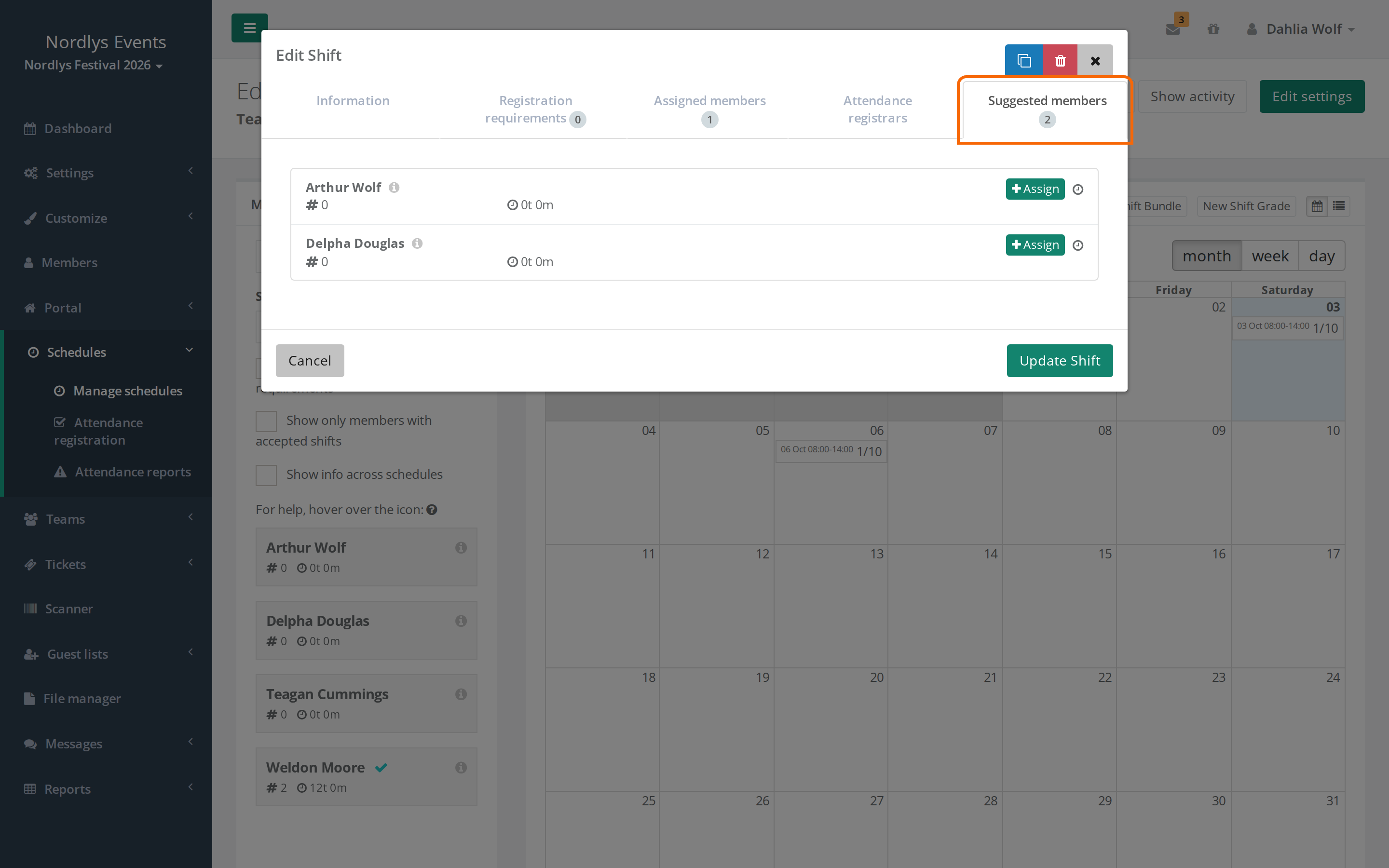
- Go to the Suggested members tab. The number on the tab is the number of preferences.
- Hover over the clock next to a person to see when the preference was made (Requested at).
People who are already on the shift aren't on the list. Preferences only show on the individual shift. There is no overview of who preferred what.
How to assign the shift
- Click Assign next to the person on the Suggested members tab. The person moves to Assigned members.
- Repeat for the others you want on the shift.
- Click Update Shift to save.
You can't put more people on the shift than Attendance limit. You can still drag crew members from the Members list onto the shifts as usual.
What happens when you assign?
- The schedule is published, so the crew member sees the shift under Confirmed Shifts on My shifts straight away, and the preference disappears from Preferred Shifts.
- If Send email when member is assigned to a new shift is switched on under Settings > General settings > Notifications, the crew member gets an email for each shift you assign. Only a Super Admin can change the setting. See Automatic emails and SMS reminders.
- The crew member can't remove a shift you assigned. Under Find shifts, the shift says "The shift is locked."
- From the first shift you assign on the schedule, only assigned shifts count towards Minimum hours, not the preferences. The crew member can only accept once you have assigned at least the minimum. See Shift acceptance.
Pitfalls
- You assign fewer hours than the minimum: Then the crew member can't accept, and "You have not yet choosen all your shifts!" stays. More preferences don't help. Assign more shifts, lower Minimum hours, or accept on the crew member's behalf.
- Preferences you don't meet stay: They are still listed under Preferred Shifts for the crew member. Tell crew members that only Confirmed Shifts count.
- You remove a person from a shift: Their preference comes back on the Suggested members tab and under Preferred Shifts.
- Shift bundles: If the crew member prefers a shift bundle, they appear under Suggested members on every shift in the bundle. You assign each shift separately, so remember all of them. See Shift bundles.
Didn't find the answer? Write to support@crewstack.io.