
Shift bundles
How to group shifts into a bundle that crew members can only pick or prefer together, and what to watch out for.
A shift bundle groups several shifts that crew members can only take together, for example all evening shifts on a weekend. Bundles only work when crew members pick or prefer their own shifts. See How crew members pick their own shifts.
How to create a shift bundle
You need to be able to edit the schedule. Admins and leaders of the team or team group that owns the schedule can.
- Go to Schedules > Manage schedules and click the schedule's name.
- Click New Shift Bundle at the top of the Shifts box.
- Enter a Name and choose a Color. Crew members see the name.
- Click Create Shift Bundle.
- Open each shift that belongs in the bundle, choose the bundle under Bundle and click Update Shift.
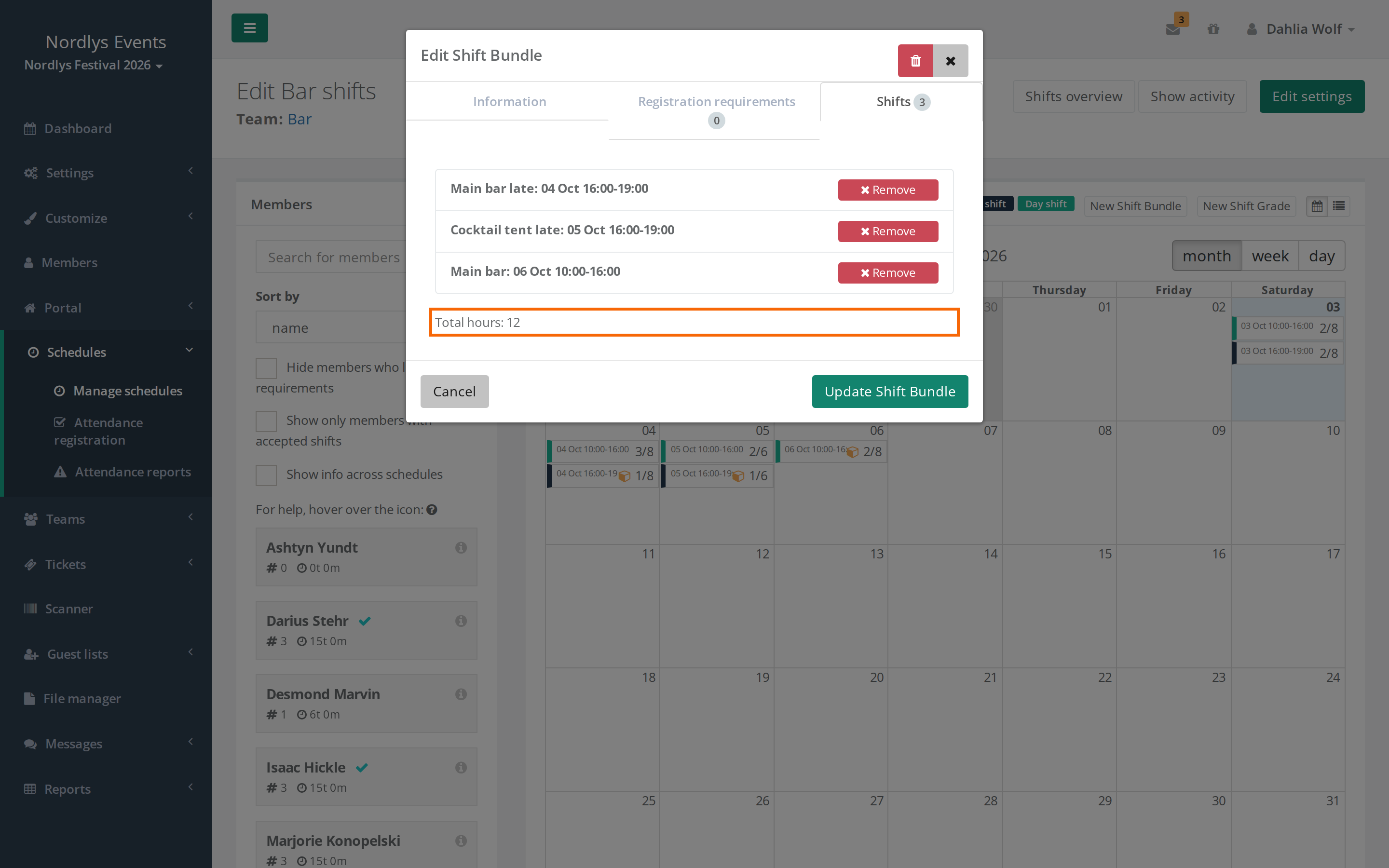
The bundle now shows with its name at the top of the Shifts box. Click the name to edit the bundle. The Shifts tab lists the bundle's shifts and the Total hours, and Remove takes a shift out of the bundle.
Requirements for the whole bundle
On the bundle's Registration requirements tab, + Add requirement lets you reserve some of the spots for crew members with a particular data field, for example an age. The requirements apply to every shift in the bundle. If you open a shift in the bundle, its Registration requirements tab shows the bundle's requirements, and changing them there changes them for the whole bundle.
What does the crew member see?
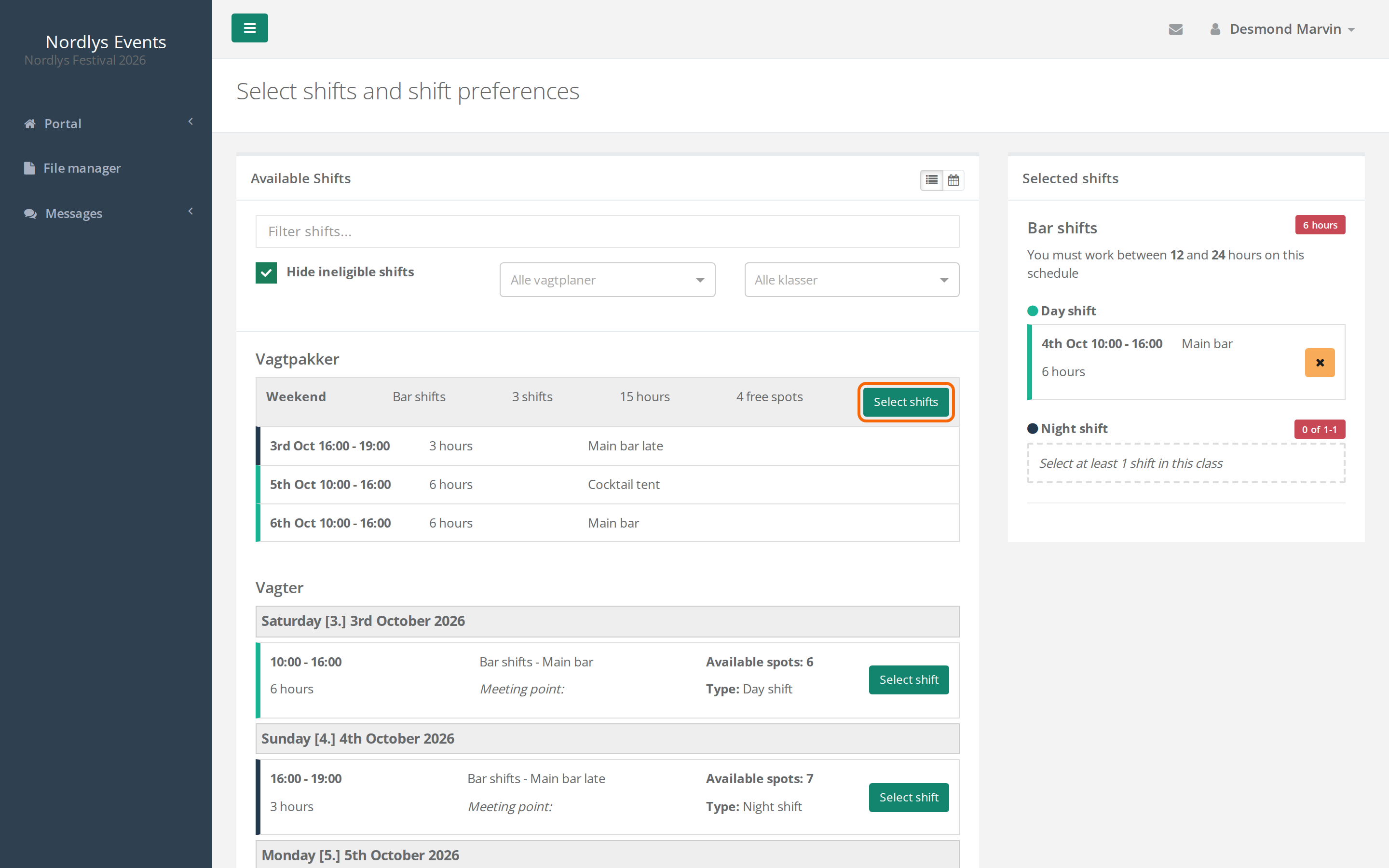
- In the list view, bundles are shown under the heading Vagtpakker above the single shifts. Bundles don't show in the calendar view.
- The bundle's button is Select shifts (direct selection) or Prefer shifts (shift preferences). One click takes or prefers all the shifts in the bundle at once.
- If the crew member removes one shift of the bundle under Selected shifts, the whole bundle goes.
If the bundle can't be picked, the button explains why:
| The crew member sees | It means |
|---|---|
| "No more available spots, or you don't fulfill the requirements, for this package." | At least one shift in the bundle is full, or the crew member doesn't meet the requirements. |
| "This package includes one or more shifts that overlaps with already selected shifts." | The crew member is on a shift at the same time, or two shifts in the bundle overlap each other. |
| "You don't have enough available hours for this package." | The bundle would take the crew member over the maximum hours. |
| "This package contains at least one type you can't select." | The bundle would take the crew member over the maximum for a shift grade. See Shift grades. |
Pitfalls
- One hidden or started shift hides the whole bundle: If just one shift in the bundle is marked Hidden, or the first shift has started, the bundle can no longer be picked or preferred.
- Shifts in the bundle are close together: If two shifts in the bundle overlap, or are closer than Cooldown (min. hours between a persons shifts), everyone is told the bundle overlaps, and nobody can take it.
- The bundle is longer than the maximum: If the bundle has more hours than Maximum hours on the schedule, it can't be picked. When you open the schedule, Shift selection warnings says so, for example "Bundle "Weekend" totals 16 hours, which exceeds the 12 hour maximum for Volunteer — accepting the bundle may be blocked."
- Preferences for a bundle: If the crew member prefers a bundle, they appear under Suggested members on every shift in the bundle. You assign each shift separately, so remember all of them. See Assign shifts from shift preferences.
- You assign shifts yourself: In the planner you can put a crew member on single shifts in a bundle. The bundle only holds together what crew members pick themselves.
- Schedule from a template: The bundles and their shifts are copied, but not the bundle's Registration requirements. Set them again.
- You delete a bundle: The shifts stay as ordinary shifts, and the bundle's requirements are gone.
Didn't find the answer? Write to support@crewstack.io.