
The new shift planner (beta)
How to try the new shift planner, put people on shifts, change many shifts at once, publish and tell people about changes, and how to switch back to the old planner.
We have made a new shift planner. It's in beta, so the old one is still there, and you choose which one you use. Everyone who can edit a schedule can use the new one: team leaders, area leaders and administrators.
Both planners work on the same shifts. What you do in one, you can see in the other.
Switch to the new shift planner
- Go to Schedules > Manage schedules, and click the schedule's name.
- Click Try the new shift planner at the top right.
Crewstack remembers your choice, so you get the new planner on all the event's schedules until you switch back. The choice only applies to you. Everyone else on the event gets the one they chose themselves.
To go back, click Old planner next to Beta under the schedule's name.
The first time you open the new planner, you get a short tour. You can see it again under ⋯ > Show the tour.
Days and weeks
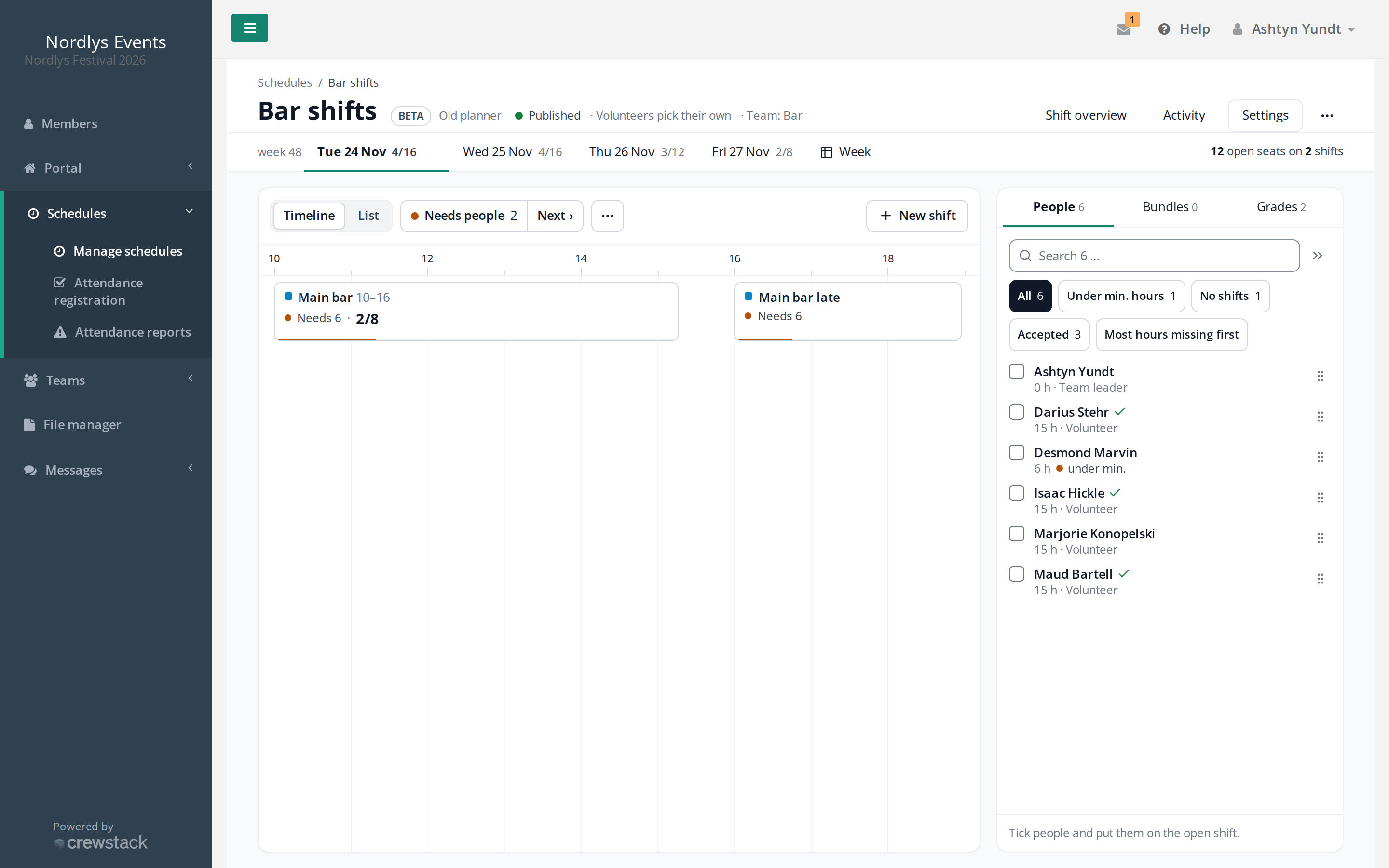
The schedule's days are at the top, with the week number and how many seats are filled, for example 12/16. Click a day to see its shifts. Under Week you see all the days at once. Click a shift there to open the day with that shift selected.
A day in the planner runs until 04:00 the next morning, so a night shift at 02:00 sits with the evening before. A super admin can change the time under Settings > General settings > Schedules > Shift planner day starts at.
See the shifts the way that suits you
Above the shifts you choose:
- View: Timeline shows the shifts on a timeline. List shows them in a table.
- Rows: Combined puts the shifts on as few rows as possible. Per shift puts shifts with the same name in their own group, for example all the Bar shifts. Per person shows one row per person with that person's shifts. If there isn't room, Rows is under ⋯.
- Needs people: Shows only shifts that are missing someone.
- Next: Jumps to the next shift that needs people. You can also press N.
- Show hidden: Shows shifts that are hidden from crew members. The button is only there when there are hidden shifts, and it can be under ⋯.
- Conflicts: Highlights the shifts where someone is double-booked. The button is only there when there are conflicts.
Each shift shows how many people are on it and how many are missing. A red dot means a conflict.
Put people on a shift
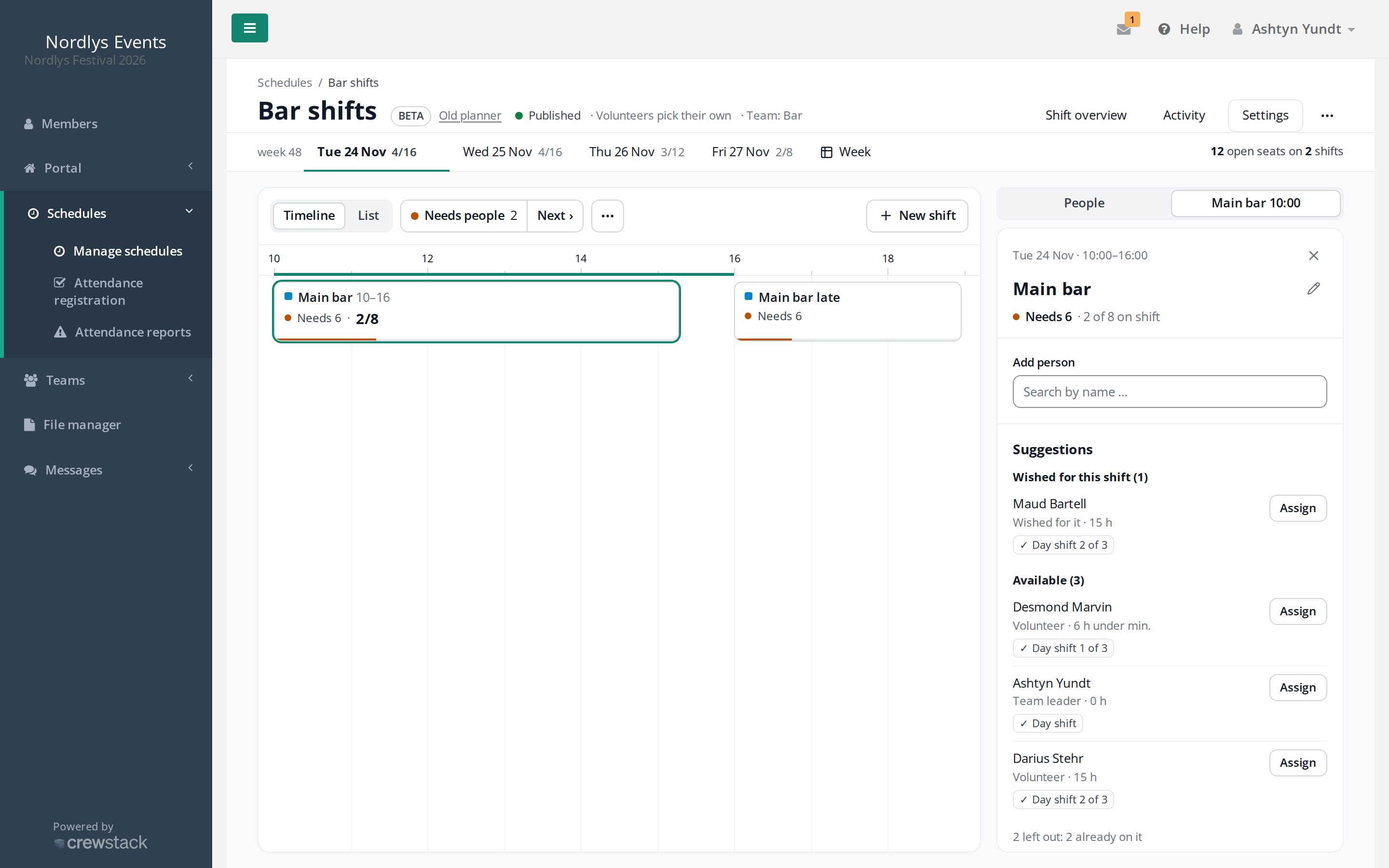
Click a shift. It opens on the right with the people on it and Suggestions for who can take it:
- Wished for this shift: Crew members who wished for the shift.
- Available: People on the team who don't have a shift at the same time.
Click Assign next to a person. If the person isn't among the suggestions, search for the name in the Add person field.
You can also use the People tab in the panel on the right:
- Drag a person onto a shift.
- Or open the shift, go to the People tab, tick the people who should be on it, and click the button at the bottom, for example Assign 2 to Bar 10:00–16:00.
If you drag a person onto a full shift, Crewstack asks whether the shift should get one more seat. If it causes a conflict, for example because the person has another shift at the same time, you can choose Assign anyway. If the shift is full when you use Assign, first raise People on shift.
Everything is saved straight away. If you put someone on or took someone off by mistake, click Undo in the message at the bottom.
In the shift you can also make a person Shift lead and change From, To, People on shift, Meeting point and Sign-up requirements. Under More settings you find Shift class, Shift bundle, Hide from volunteers and Description. If the schedule belongs to a team, you can also add Attendance registrars there.
Products on a shift
Only administrators can set products on a shift. Team leaders can see them under Products on the shift, but can't change them. If the shift has no products, team leaders don't see the section.
- Open the shift and find Products.
- Click Add product …, choose the product, and enter the amount.
- Tick Only when the shift is marked completed if you want to.
If several shifts should have the same product, select the shifts and click Products … in the bar. See Give products for a specific shift.
Conflicts
There is a conflict when a person has two shifts at the same time, or when there is too little time between two shifts. This includes shifts on other schedules. You set the shortest break under Settings > Rest between shifts.
Click Conflicts to see them. Click the person to see all their shifts and conflicts.
A crew member doesn't show up
- Click the person, for example in the People tab or on the shift.
- Next to the shift, click the No-show button with the text find a replacement.
- The shift opens with suggestions for a replacement. Click Assign next to the person taking the shift.
The button is there on shifts that are running or start today, as long as the person isn't checked in.
Create shifts
- Click New shift, or click and drag sideways in a free spot in a row on the timeline.
- Enter the name, the time and the number of people. If you pick a name that already exists, the shift goes on the same row.
- If the shift should be on several days, use Same shift on more days and pick the days.
Change many shifts at once
Select the shifts: tick them in List, or hold down Shift (or Ctrl/Cmd) while you click the shifts in Timeline. A bar appears where you can change them all at once:
- Times …, People …, Shift class …, Shift bundle …, Meeting point … and Description …
- Hide and Show for crew members
- Move by half an hour with −30 min and +30 min
- Copy to days … and Delete …
- Products …, if you are an administrator
Click Deselect to clear the selection.
Copy shifts and schedules
- Copy to days … in the bar copies the selected shifts. Copy day … in the day's menu copies all the day's shifts. Pick the days, or choose Or another date. Name, time, number of people, shift grade, shift bundle, meeting point, requirements and description are copied. If you are an administrator, the shift's products are copied too. Tick Copy the people too if the same people should be on them. A person is only copied if they don't have a shift at the same time. Otherwise the seat stays open.
- ⋯ > New schedule from this one … makes a new schedule with the same shifts, shift grades, shift bundles and requirements, but without people. If you are an administrator, the shifts' products come along too. Under Move the shifts by days, enter 364, for example, to get the same weekday next year.
Shift bundles, shift grades and shift preferences
If crew members choose or wish for shifts themselves, you have the Bundles and Grades tabs next to People. This is where you create and change shift bundles and shift grades. If you assign all the shifts yourself, the tabs are under Advanced. See Shift bundles and Shift grades.
If crew members wish for shifts, you can click Fill from wishes …. Crewstack makes a proposal from the wishes, the hours and the shift grades. Nothing is saved until you keep the proposal. See Assign shifts from shift preferences.
You choose how crew members get shifts under Settings > How do volunteers get shifts?.
Publish the schedule
As long as the schedule isn't published, it says Draft · not visible to volunteers under the name. Nobody is told about anything.
- Click Publish … at the top right.
- Crewstack checks the schedule and shows what you Must fix and what you Should review, for example conflicts and shifts without a meeting point. You can publish anyway.
- Tell people about publishing is ticked, so everyone with shifts in the schedule gets an e-mail. If you use the Crewstack app, they also get a notification in the app. Untick it if they shouldn't be told now.
- Click Publish and send e-mail (or Publish).
To take the schedule down again, click ⋯ > Make draft ….
Tell people about changes after publishing
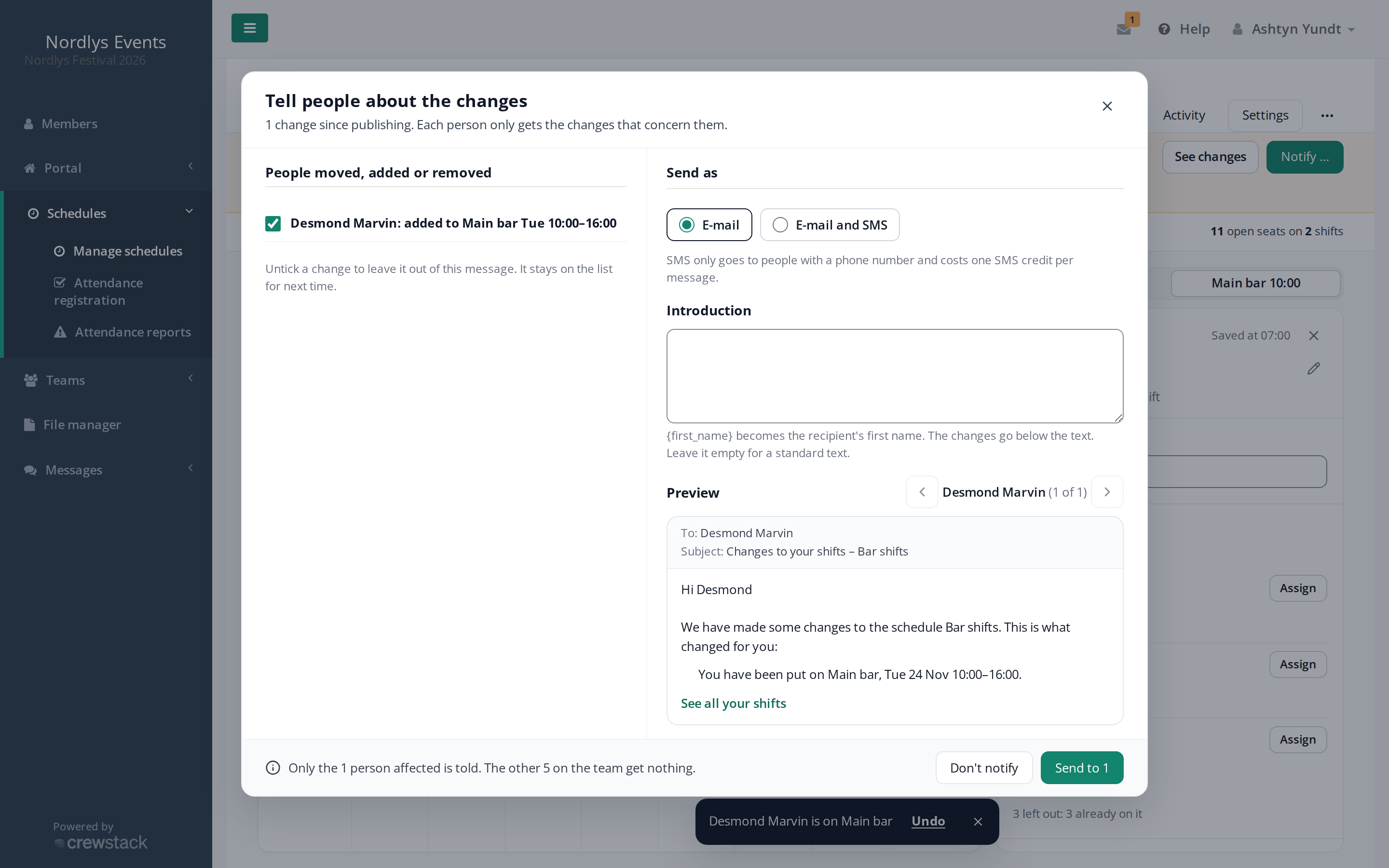
Your changes are collected in a bar under the name, for example 3 changes since publishing · affects 2 people.
- Click See changes to see what has changed.
- Click Notify ….
- Untick a change that shouldn't be included now. It stays on the list for next time.
- If you may send SMS on your event, choose under Send as whether the message goes as E-mail or E-mail and SMS. SMS only goes to people with a phone number and costs one SMS credit per message. Otherwise the message goes as e-mail.
- Write an Introduction if you like. See the message under Preview.
- Click Send to ….
Each person only gets the changes that apply to them. The others on the team get nothing.
If nobody should be told, click Don't notify. The changes are then marked as handled. This can't be undone.
Good to know
- The old and new planner notify differently. If you change a published schedule in the old planner, Crewstack sends e-mails as it always has, and the change isn't included in Notify …. If you use both, agree on who uses which.
- Someone else changed the shift. If two people change the same shift at the same time, the last change isn't saved. You see the newest version and can try again.
- On a phone the new planner works too. It shows one day at a time with the Shifts and People tabs.
Didn't find the answer? Write to support@crewstack.io.