
See and remove a check-in
Where you can see whether and when a person was checked in, and how to remove a check-in made by mistake.
If a person was checked in by mistake, for example because the staff scanned the wrong ticket, you can remove the check-in again. Here you can see where to find check-ins and how to remove them.
See whether a person is checked in
- On the person's profile, "Checked in at" and the time are shown under the name.
- In the Ticket item box on the profile, the time is shown next to Checked in at. Only admins can see the box.
- Under Members, the person has the status Checked in. Hover over it to see the time.
- On a guest list, the guest has the status Checked in. See Add guests to a guest list.
- In the scanner, every check-in is listed under History when you scan the ticket. See Scanner / Scanning tickets.
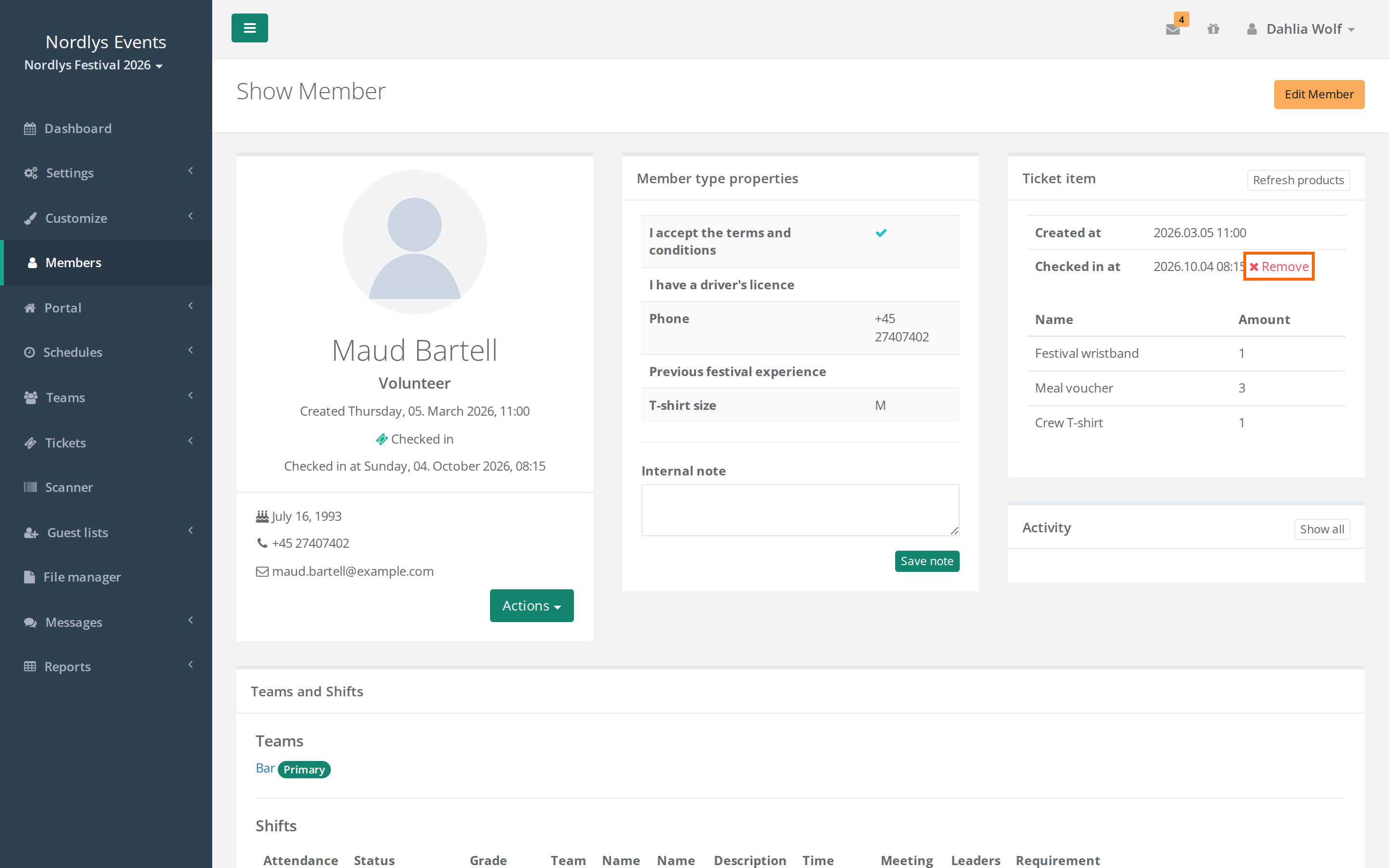
Remove a check-in from the profile
- Open the person's profile.
- Click Remove next to Checked in at in the Ticket item box.
- Read the text in the Remove checkin window.
- Type a Reason, if the field is there.
- Click Remove checkin.
You see the message "Check-in has been removed.".
The Reason field is only shown if Ask for reason when taking actions is switched on under General settings > Admins. If it is set to require a reason, you have to fill in the field. See Ask for reason when taking actions.
Remove a check-in for a guest
- Go to the guest list.
- Click Actions next to the guest, and choose Remove check-in.
- Fill in the window as above, and click Remove checkin.
You can also remove a check-in directly in the scanner with Remove check-in. See Scanner / Scanning tickets.
What happens when you remove a check-in
- The time disappears from the profile and the guest list, and the counter in the scanner goes down by one.
- The person can be checked in again. The scanner doesn't warn that the person has been checked in before.
- If the event uses partial handout, all the person's products are marked as not handed out again. If the person already got them, check this the next time the person is scanned.
- A chip or wristband the person has been given isn't removed. See NFC chips with EventPos.
Who did what?
- In the scanner, History shows every scan, check-in and removed check-in with the name of the person who did it and the reason. Notes from Add note are listed there too.
- On the profile, Activity shows the removed check-ins and the notes from the scanner. The check-in itself isn't listed there. Use Show all to see more than the latest.
Who can remove a check-in?
Admins, super admins and Guest List Admins can remove check-ins. Only admins and super admins can see the Ticket item box and Activity on the profile. Guest List Admins can use the guest list or the scanner.
Pitfalls
- There is no Remove button. The person isn't checked in, you aren't an admin, or the event is a venue. At a venue a check-in covers one concert day and is removed in the scanner. See Scanning at a venue.
- The person is checked in again straight away. Someone has scanned the ticket again. Check History in the scanner.
Didn't find the answer? Write to support@crewstack.io.