
Your team's status in the Crewstack app
As a team lead you can follow your team in the Crewstack app under My team: today's and upcoming shifts, who hasn't accepted, and your team members' details.
As a team lead you can follow your team in the Crewstack app under My team. You see your team's shifts today and over the next days, who still needs to accept their shifts, and you can call or text them straight from the app.
Who sees My team?
My team is for team leads. You see it when you lead at least one team in the event, also if you're hidden with Hide from member list.
Admins and team group leaders only see it if they lead a team themselves. It only shows the teams you lead yourself.
The app must be switched on for the event. See The Crewstack app for your crew.
Open My team
- Open the Teams tab in the app.
- Tap the My team card at the top.
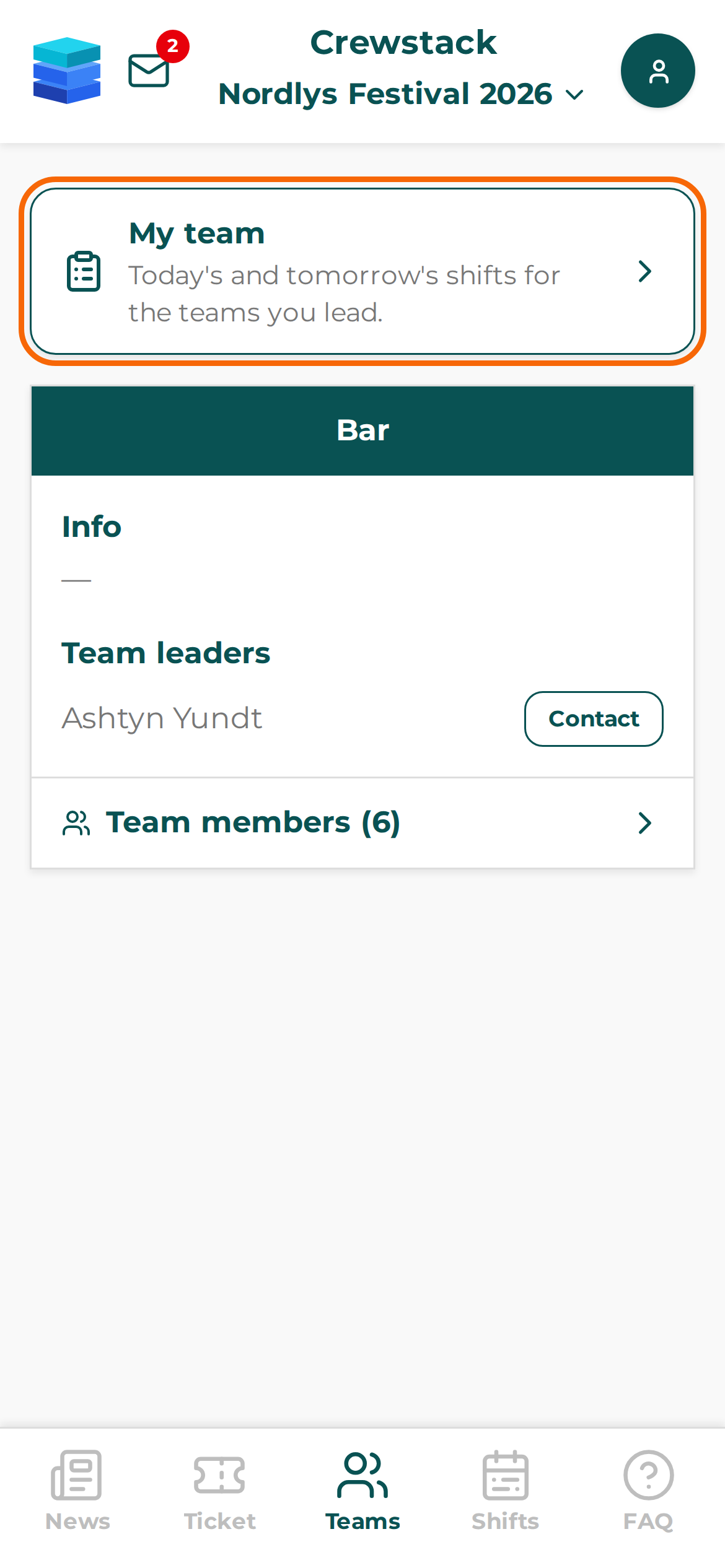
What My team shows
Each team you lead has its own card. At the top of the card:
- Members: the number of people on the team, not counting team leads and people on the waiting list. If the team has a maximum, it shows after the slash.
- Members without shifts: people on the team who have no shifts on published schedules.
- Members with unaccepted shifts: people who have a shift that hasn't ended and that they haven't accepted.
Tap the last two to see the names.
Below that are the team's shifts under Today, Tomorrow and Upcoming. Upcoming shows shifts up to 7 days ahead. For each shift:
- the time, and the meeting point if the shift has one
- Spots: how many people are on the shift and how many it has room for. Underfilled shows when the shift isn't full.
- Accepted: how many of the people on the shift have accepted it. Tap it to see who hasn't. Next to each person are buttons to call and text, if you may see the person's phone number.
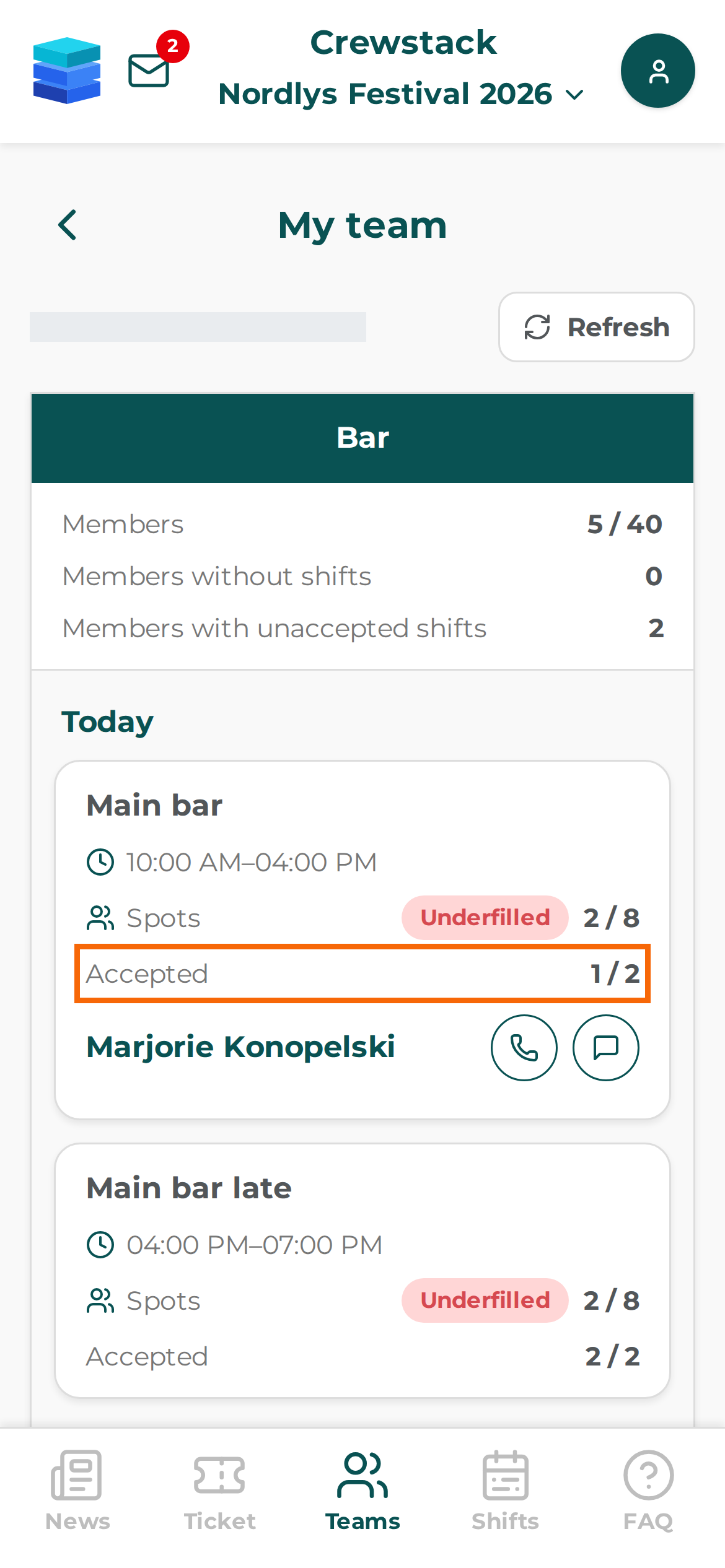
While a shift is running, it shows In progress and Shown with how many have turned up. Open attendance opens attendance registration for the shift. See Attendance registration and shift leaders.
My team only shows published shifts on the team's own schedules. Shifts that have ended are gone. Schedules for a team group or the whole event aren't included.
See a team member
Tap a name to open Team member. You can also tap a name under Team members on your team under Teams.
It shows the person's member type, buttons to call, text and email, and under Details the data fields you may see. The rules are the same as in the browser. See Data fields and who can see them.
Shifts on this team lists the person's shifts on the team's schedules, whether they're accepted, and whether the person showed up.
The person's profile picture is at the top if you may see it. You can't change anything here. Date of birth, sex, nationality, other images and documents aren't shown in the app.
Updates and offline
At the top, Last updated shows the time. Tap Refresh to fetch the numbers again.
The app saves My team and the team members you've opened, so you can see them without a connection. If you no longer lead the team, they're deleted from the phone the next time the app has a connection, and it says "You do not lead a team any more."
Daily notification to team leads
A Super Admin can switch on a daily notification to team leads:
- Go to Settings > General settings > Notifications.
- Tick Send team leads a daily status push under App notifications.
- Choose the time in When the daily team lead push is sent. It's 18:00 unless you choose otherwise, in the event's time zone.
- Click Save.
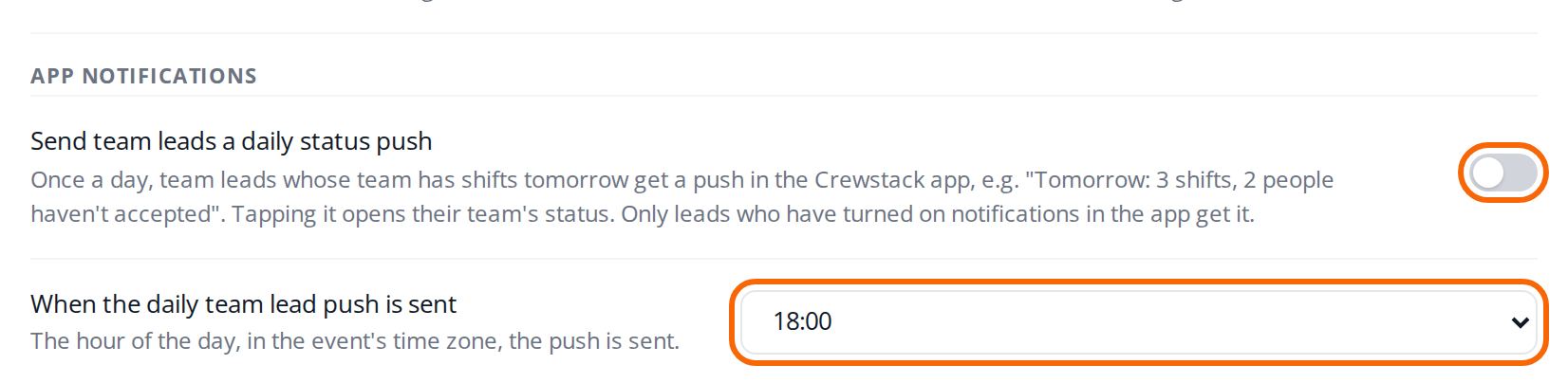
Team leads whose team has shifts tomorrow then get one notification a day, for example "Tomorrow: 3 shifts, 2 people haven't accepted." If everyone has accepted, it says "everyone has accepted". Tapping the notification opens My team.
The notification only goes to team leads who have switched on notifications in the app. See Messages and notifications in the Crewstack app. It's off when the event is new.
Pitfalls
- The card says today and tomorrow. The My team card only mentions today's and tomorrow's shifts, but the page also shows Upcoming up to 7 days ahead.
- A shift is missing. The schedule isn't published, the shift has ended, it's more than 7 days ahead, or it's on a schedule for a team group or the whole event.
- Members without shifts counts all schedules. Someone with a shift on a team group's schedule doesn't count as "without shifts", even though the shift isn't listed under the team.
- No message to one person. The app has no button to send one person a message in Crewstack. Use the call or text buttons, or write to the whole team. See Messages and notifications in the Crewstack app.
- No notification. The team lead hasn't switched on notifications in the app, the team has no shifts tomorrow, or the setting is off.
Didn't find the answer? Write to support@crewstack.io.