
The Crewstack app for your crew
What your crew can do in the Crewstack app, how you get it, how they get started, and what they still need the portal for.
With the Crewstack app, your crew has the event on their phone. They see news, their ticket with its QR code, their teams, shifts and the FAQ, and they can write to their team leader. Team leaders can also write to their whole team from the app, and people with access to the scanner or attendance registration can scan tickets and register attendance.
How you get the app
The app is only included in some contracts with Crewstack, and Crewstack switches it on for you. If you want the app for an event, write to support@crewstack.io.
The app is switched on for each event separately. If it isn't switched on, your crew can't log in to the app for the event.
Get the app
Your crew downloads the Crewstack app from the App Store or Google Play. If a crew member opens the portal on their phone, the Mobil App box on the front page also has buttons for both stores.
The app can also be opened in the phone's browser through the link from the portal. But logging in with email only works in the app from the App Store or Google Play, and notifications don't work in every browser. So recommend the app from the store.
How your crew logs in
There are two ways. The app doesn't use a password.
With email
- Open the app. The first time, it says Welcome to Crewstack.
- Enter the email you have for the person and tap Send me a link.
- Open the email Your Crewstack login on the phone and tap Open Crewstack. Or type the 6-digit code from the email into the app and tap Sign in.
The app logs the person in to the newest of your events they are signed up for. If it doesn't work, see A crew member or admin can't log in.
With the link from the portal
- The crew member logs in to the portal as usual.
- Find the Mobil App box on the front page.
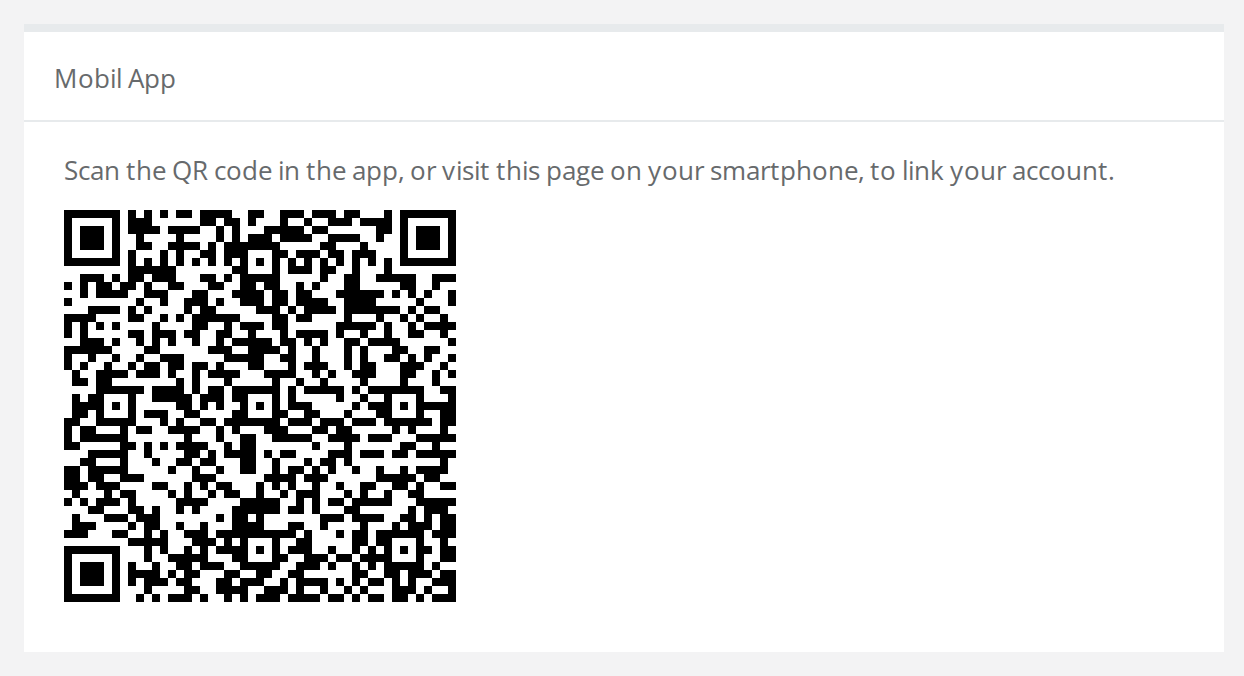
- On a computer, the box shows a QR code. Scan it with the phone's camera. On the phone, the box shows the Link til mobil app button instead. Tap it.
If the app is installed, it opens and links the event. Otherwise Crewstack opens in the phone's browser.
Several events in the app
If the person is in several events, also with other organizers, they can have all of them in the app. They switch by tapping the event's name at the top and choosing another event under Select an event.
Logging in with email only links the newest event with each organizer. If the person should also have another of your events in the app:
- Tap the event's name at the top and tap Add event.
- Scan the QR code from the other event's portal. Or paste the link under Or paste the app link and tap Link event.
What your crew sees in the app
There are five tabs at the bottom:
- News: the same news as in the portal, with the pinned one at the top. The buttons at the top show only the news for a particular team or area. Attachments aren't shown in the app. See News in the portal.
- Ticket: the ticket with its QR code. Show QR shows the code in a large format and keeps the screen on so it's easy to scan. Under the ticket, Food & drinks lists the products the person has been given. If you use EventPos or Corego for the products, see NFC chips with EventPos and Corego wallet with QR tickets. The app follows the same rules for the ticket as the portal. If it says Your ticket is not yet available., see A crew member can't get their ticket.
- Teams: the person's teams with the team's description under Info, the team leaders under Team leaders with the Contact button, the names of the team members under Team members and the team's news under Team news.
- Shifts: the person's shifts under Upcoming and Past. The app only shows shifts on schedules that are published. Add to calendar subscribes to the person's shift calendar. See Shifts in crew members' own calendars. If the person may register attendance, there is also Attendance registration. See Attendance registration and shift leaders.
- FAQ: the FAQ for the person's member type. If the member type has none, the FAQ for the default member type is shown. An administrator writes it under Portal > FAQ. See FAQ for your crew.
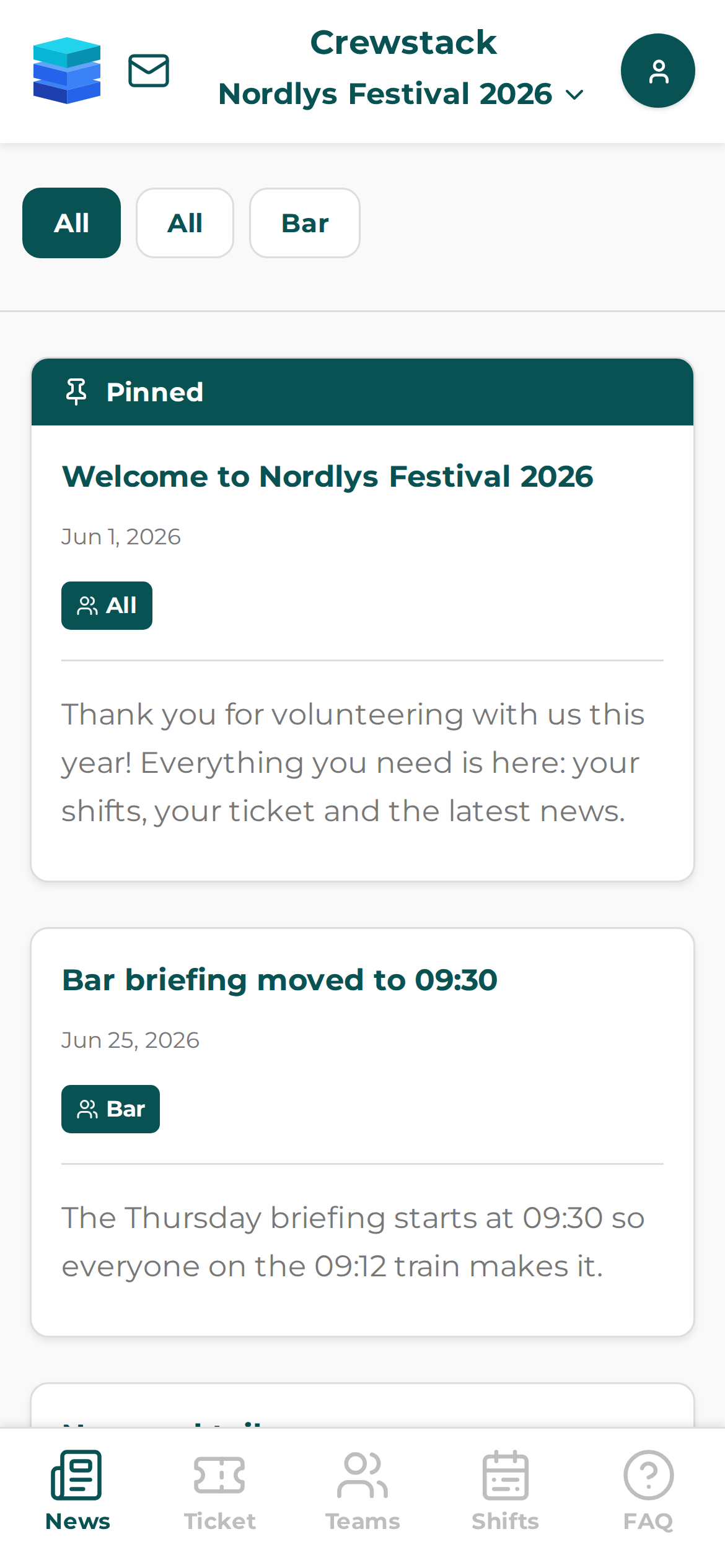
At the top left is the envelope with the messages. A red number shows how many unread messages there are. See Messages and notifications in the Crewstack app.
At the top right, the profile picture opens Profile. Here is Settings with language and notifications and the Log out button. People with access to the scanner or attendance registration also see Scanner and Attendance. See Scanner / Scanning tickets and Attendance registration and shift leaders.
The app is available in Danish, English and German. It picks the language from the phone's language, and the person can change it under Profile > Settings > Language.
Without a connection
The app keeps what it last loaded. If the person loses the connection, it says Offline — showing saved data, and they can still see the things they have opened before.
When a new version of the app is ready, it says Update available. Tap Refresh to load it.
What the app can't do
Crew members have to do these things in the portal in a browser:
- Sign up and change their information.
- Pick or request shifts. See How crew members pick their own shifts.
- Accept shifts. See Shift acceptance.
- Exchange shifts. See Shift exchange.
- Pay. See Membership fees.
- Download the ticket as a PDF and the files that belong to the products. See Create products and give them to your crew.
- Choose a team when you force people to. See Force people to choose a team.
The portal uses email and password. If the person has only used the app and has forgotten the password, ask them to click Forgotten your password? on the login page.
Pitfalls
- The Mobil App box is there, but the link doesn't work. Administrators and people with access to the scanner always see the box, even when the app isn't switched on for the event. The link only works when the app is switched on.
- The person sees the wrong event. Ask them to tap the event's name at the top and choose the right one. If the event is missing, use Add event.
- A shift is missing in the app. The schedule isn't published. See Publish a schedule.
- Log out applies to all events. Log out logs the person out of all events on the phone and switches notifications off.
- The person is suddenly logged out. If the person is resigned or blacklisted, the app stops working. If the app hasn't been used for 180 days, the person has to log in again. See Resigned users – find and restore.
Didn't find the answer? Write to support@crewstack.io.