
Get started with the setup guide
The setup guide takes you through the steps that get a new event ready for signup, and shows what is still missing.
When you create a new event, it gets a Setup guide. The guide shows, step by step, what has to be in place before people can sign up. You change the small settings right in the guide, and for the bigger work it links to the right pages.
Find the guide
- If you create the event yourself, you land straight in the guide.
- In the sidebar it is under Settings > Setup guide. Until the required steps are done, the menu item shows something like "3/8 steps done".
- On the Dashboard you see the card Get your event ready with the next steps and the button Open setup guide. The card only shows while the dashboard has no widgets. Click Hide from dashboard if you don't want to see the card. The guide stays in the sidebar. See Dashboard and widgets.
Events created before 28 September 2026 count as set up. The guide is in the sidebar, but there is no card and no count next to the menu item.
If you copy an earlier event, the copy starts with a new guide. The dates are empty and signup is closed.
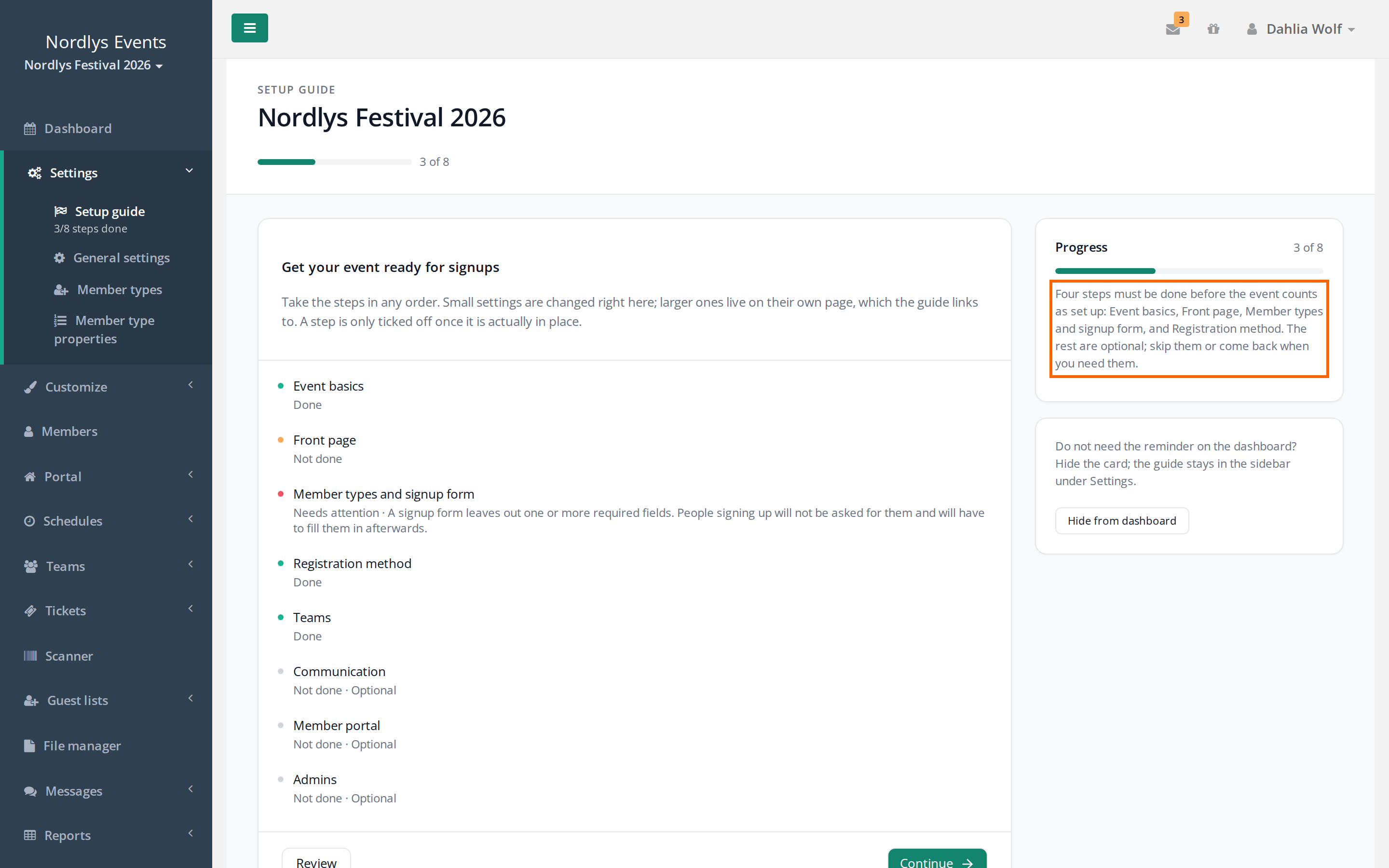
How the guide works
- Take the steps in any order you like.
- Settings you change in the guide are saved straight away. It says Saved when they are.
- A step is only ticked off once it is actually in place. Some steps you confirm yourself with a checkbox.
- You can skip optional steps with Skip this step. You undo it with Undo skip.
- Review shows every step and what is missing. Click Edit to go back to a step.
The guide has up to eight steps. A step that belongs to a part of Crewstack the event doesn't have access to is not shown.
The four required steps
The event counts as set up when these four steps are done.
- Event basics: Event name, Starts, Ends, Languages, Description and Primary colour. The step is done when the name and both dates are filled in. A new event has only one language, so tick the other languages your crew will use. From this step you can also go to General settings. The logos are under Customize > Logos, and if you are an admin for the whole organizer, the step also links to Logos. See Logos and colours.
- Front page: The front page is the first thing people see when they open the signup link. The default text is generic. Click Edit the front page to rewrite it. The guide shows whether the front page still has the Default text or is Customised. Tick The front page is ready when you are happy with it. See View templates and the front page.
- Member types and signup form: Here the guide links to Member types, Member type properties and Forms. The step is done when every member type's signup form asks for all the required fields the person can see themselves, and you have ticked Member types and fields are reviewed. The member type for guests doesn't count.
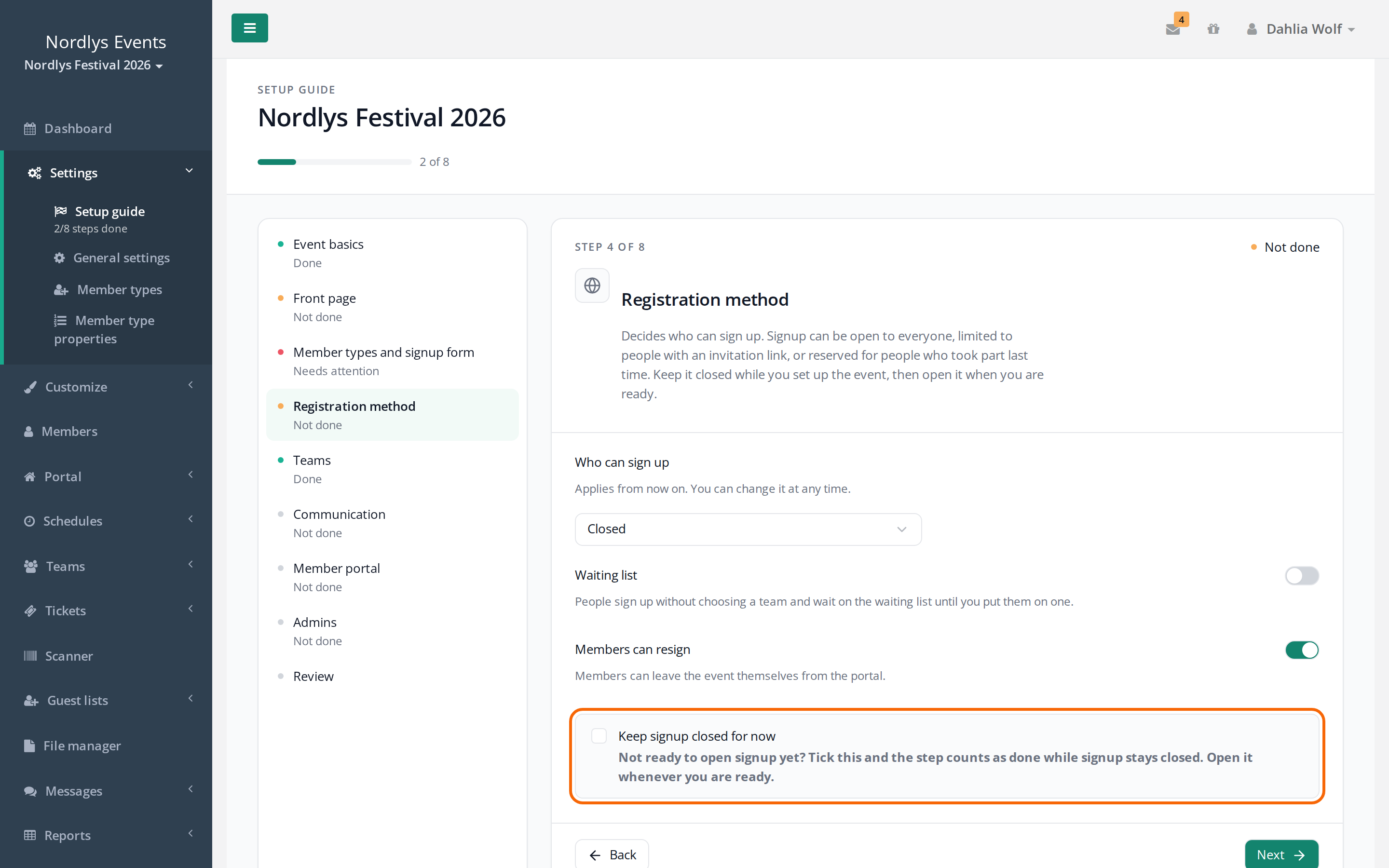
- Registration method: Under Who can sign up, choose whether signup is Closed, Open by invite only, Open for everyone or open only to previous members. This is also where you switch Waiting list and Members can resign on or off. The step is done when signup is no longer Closed. If you are not ready to open, tick Keep signup closed for now.
If Member types and signup form shows Needs attention, a signup form is missing a required field. People signing up are then not asked for that field and have to fill it in afterwards. Add the field to the form under Forms.
The optional steps
- Teams: Members can join several teams, Team leads can only add members if they lead all of the member's teams and Minimum age. The guide links to Teams and Team groups. The step is done when at least one team exists.
- Communication: Choose which emails are sent automatically, for example Email when a member gets a shift, and whether Members can reply to everyone on a message. The text of the emails themselves is edited under Mail templates. Tick I have reviewed these settings when you are done.
- Member portal: Members can see who is on their team and Hide team leads' email addresses. The guide links to Manage Portal Links and Portal front page. Tick I have reviewed these settings. See The portal: what crew members see and My teams: what crew members see about their teams.
- Admins: Give at least one more person access, so the event doesn't depend on you alone. Open the person under Members and give them the role Admin or Super Admin. The step is done when the event has at least two admins. Crewstack's own support users don't count.
When the guide is done
When the four required steps are done, the guide says All required steps are done, and the count in the sidebar and the card on the dashboard disappear. If you later change something so a required step is no longer met, the count comes back.
The guide doesn't open signup by itself. People can only sign up once you have chosen something other than Closed under Registration method or under General settings > Members > Signup status.
What the guide doesn't cover
The guide covers what it takes to open signup. You set up the rest when you need it:
- Tickets: See Ticket templates.
- Guest lists: See Create a guest list.
- News in the portal: See News in the portal.
- All other settings: See General settings.
Pitfalls
- The step isn't ticked off. Front page, Member types and signup form, Communication and Member portal have to be confirmed by you with the checkbox at the bottom of the step, even when everything looks right.
- The member types look finished from the start. A new event comes with a few default member types and fields. Check they are the ones you need before you confirm.
- Signup is still closed. The checkbox Keep signup closed for now makes the step done, but signup stays closed. Remember to open it.
- Admins can't see the guide. The Admin role gives no access to the guide or to Settings. That takes Super Admin.
Didn't find the answer? Write to support@crewstack.io.