
Push notifications in the Crewstack app
Send your crew a reminder in the Crewstack app before their shift, and a notification when they get a shift, join a team, or when there is news.
The Crewstack app can send your crew a reminder before their shift and a notification when something happens for them: a new shift, a new team, a published schedule or a news item. Here you can see what to switch on and what your crew get.
Who gets the notifications?
Only crew members who use the app and have switched on notifications themselves under Profile > Settings get notifications. See Messages and notifications in the Crewstack app.
The notification has the event's name as its title and is in the person's own language. When the person taps it, the app opens the right page in the event.
Reminder before the shift
How to switch on the reminder (needs a Super Admin):
- Go to Settings > General settings.
- Click Notifications in the menu on the left.
- Tick Push reminder before shift under Push notifications in the app.
- Under When the push shift reminder is sent, choose how long before the shift the reminder is sent. Type a number and choose minutes, hours or days, or click one of the buttons. The default is 30 minutes.
- Click Save at the top of the page.
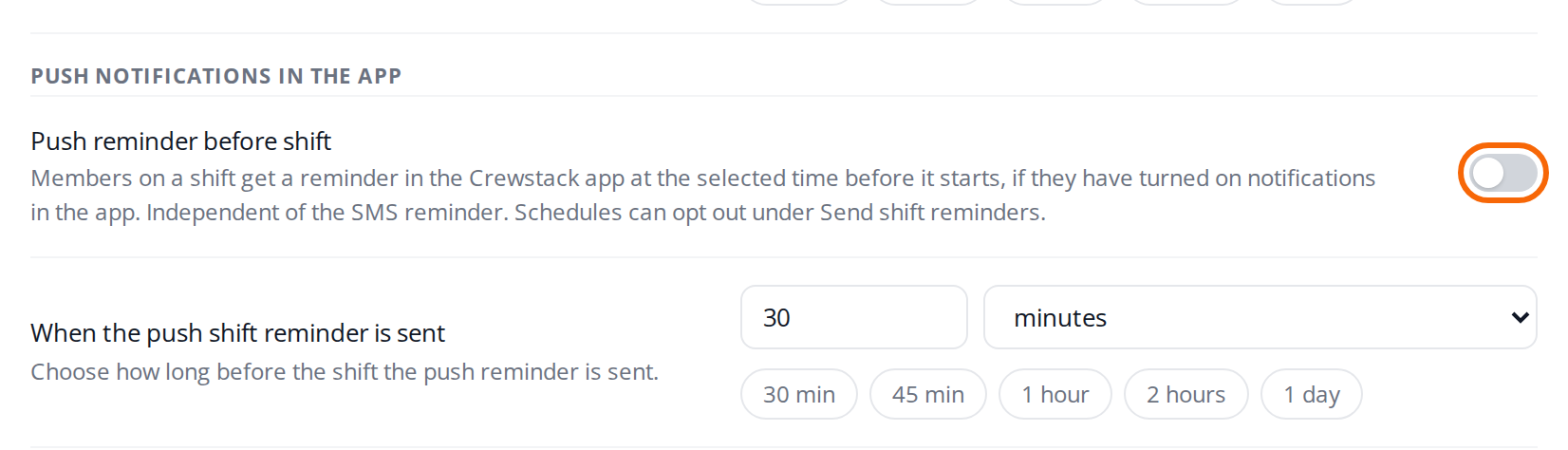
The reminder is sent for shifts on schedules that are published and have Send shift reminders ticked under Edit settings. New schedules have it from the start. The tick applies to both SMS and push. See Publish a schedule.
The reminder works whether or not SMS is switched on. The text looks like this:
"Your shift on Bar starts at 10:00"
If the shift doesn't start on the same day, the date is in the text too. If the shift is on a schedule for a team group or the whole event, the team isn't in the text. Tapping the reminder opens Shifts in the app.
The reminder keeps track of each person separately, not of the shift. So:
- If you put someone on the shift after the reminders went out, they still get one, as long as the shift hasn't started and falls within the chosen time.
- If a crew member switches on notifications later, they still get their reminder.
- If a crew member takes over a shift in the shift exchange, the new person gets the reminder.
The SMS reminder is a separate setting with its own rules. See Automatic emails and SMS reminders.
Notifications on changes
Each notification follows an email Crewstack already sends, and the same setting controls both. If you switch the email off, the notification doesn't come either.
| When … | Controlled by | The text | Opens |
|---|---|---|---|
| someone gets a new shift on a published schedule | Send email when member is assigned to a new shift | "You have been assigned a new shift" | Shifts |
| someone is added to a team | Send email when member is added to a team | "You have been added to Bar" | Teams |
| someone is moved to a team | Send email when member is moved to a team | "You have been moved to Bar" | Teams |
| there is a new offer in the shift exchange | Send email on new offer in shift exchange | "A shift has been offered for exchange" | Shifts |
| you publish a schedule | Notify members that schedule has been published, when you publish | "The schedule Bar shifts has been published" | Shifts |
| you create a news item | Send push notification in the app on the news item | "There is a new post in News" | News |
You find the four email settings under Notifications in General settings. See Automatic emails and SMS reminders. Who gets the email and the notification about the shift exchange is in Shift exchange. Publishing schedules is in Publish a schedule.
Worth knowing about the notification for a new shift:
- If the crew member picks the shift themselves under Find shifts, also in a shift bundle, no notification is sent. The email is sent as before.
- If you put someone on several shifts at once, for example a whole shift bundle, they get one notification, not one per shift.
- If two crew members swap shifts in the shift exchange, neither of them gets the notification.
The notification about a new message comes as always when you write to your crew. See Messages.
Send a news item as a notification
- Go to Portal > News, and click New News.
- Write the news item and choose the recipients.
- Tick Send push notification in the app.
- Click Post.

The notification goes to the same recipients the email would. It doesn't show the headline, only that there is a new news item. The tick box is only there when you create the news item, not when you edit it. Team leads can also send the notification when they write a news item to their team. See News in the portal.
No notification for this
- A shift that is changed or removed.
- A shift the crew member picks themselves.
- Edits to a news item.
If you want to tell your crew about a change, send a message. See Messages.
Pitfalls
- No notifications at all. The person hasn't switched on notifications in the app, or has logged out. See Messages and notifications in the Crewstack app.
- No reminder on a schedule. The schedule isn't published, or Send shift reminders is off on the schedule. The tick switches off both SMS and push reminders.
- No notification about a new shift. Send email when member is assigned to a new shift is off, the schedule isn't published, or the person picked the shift themselves.
- The notification comes a little later. The notification about a new shift is sent about a minute later, so several shifts can be bundled into one.
Didn't find the answer? Write to support@crewstack.io.