
News in the portal
Write news for teams, team groups, member types, everyone, the waiting list or the team leads, pin the most important one, and send it as an email too.
News items are posts that crew members see on the portal front page, under News in the portal and under News in the Crewstack app. Use them for information that should stay up, for example practical info before the event. You decide who sees the news item, and you can also send it as an email.
Team leads can write news for their own teams, and team group leads for their own team groups and the teams in them. Admins can write to everyone.
Admins see news about Crewstack itself, such as new features, under the gift icon at the top right of the admin area. See What's new in Crewstack?.
Write a news item
- Go to Portal > News.
- Click New News.
- Write the Headline and Body. If the event has several languages, there is a tab for each. Only the primary language has to be filled in.
- Optionally add images in the text and files under Attachments (Max. 10MB). The files may take up 10 MB at most in total.
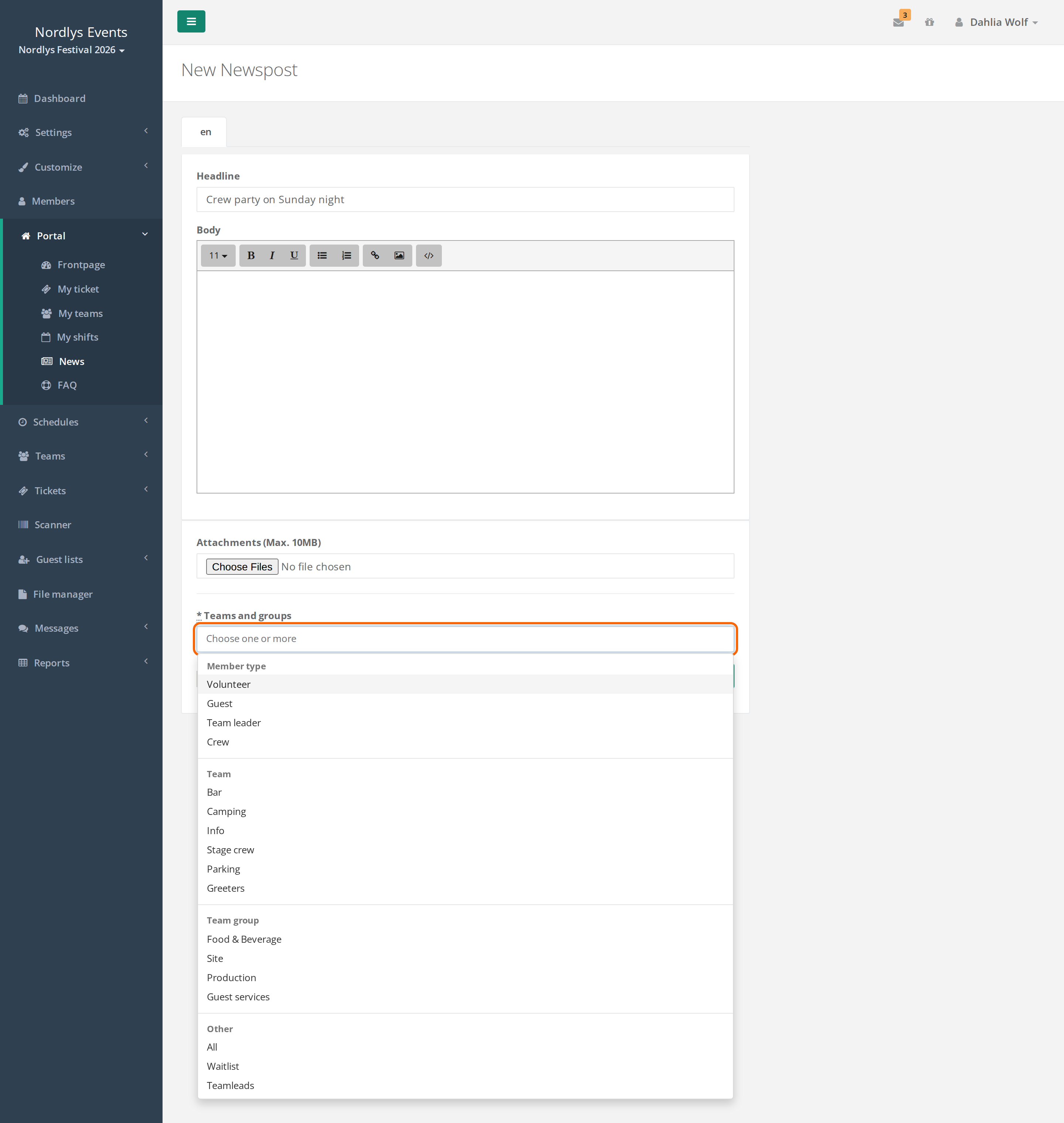
- Choose the recipients in Teams and groups.
- Tick Send email if the news item should also be sent as an email.
- Click Post.
Who can see the news item?
In Teams and groups you choose one or more recipients:
- Team: everyone on the team.
- Team group: everyone on the teams in the team group.
- Member type: everyone with the member type. Only a Super Admin can choose member types.
- Under Other, only for admins: All (everyone in the event), Waitlist (everyone on the waiting list) and Teamleads (all team leads).
Team leads and team group leads can only choose the teams and team groups they lead themselves.
All can't be combined with teams, team groups or member types.
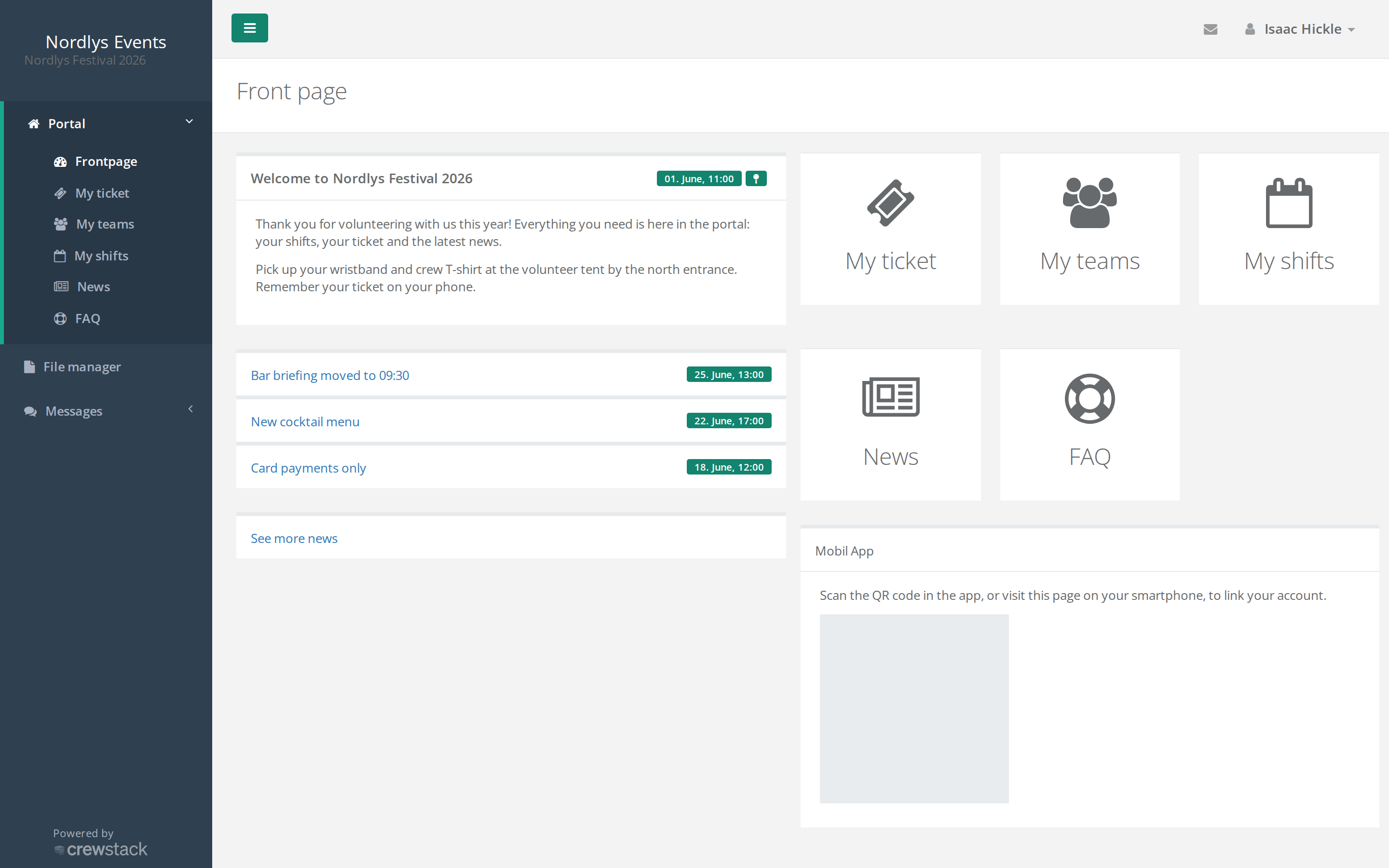
Crew members see the news item on the portal front page and under News. The front page shows the pinned news item, or the newest, in full and links to the next three. See more news leads to the rest.
Send as an email
- Send email can only be chosen when you create the news item. If you edit it afterwards, no new email is sent.
- The email goes to the recipients who have completed signup and aren't on the waiting list. For Waitlist it goes to the people on the waiting list. Blacklisted people and passive users don't get it.
- The email contains the headline and the whole text, and the attachments come along. It is sent in the recipient's language.
- The email uses the mail template New newspost. A super admin can edit it under Customize > Mail templates. See Mail templates.
Pin a news item
Admins can click Pin under a news item. It then stays at the top of the front page and of the news list. There can only be one pinned news item at a time. If you pin a new one, the old one is unpinned. Unpin releases it again.
Edit or delete a news item
Under the news item there are Edit News and Delete News. Admins can edit every news item. Team leads and team group leads can edit news for their own teams and team groups.
If a news item says Not visible, the team it was for has been deleted, and the news item isn't shown to anyone. Edit the news item and choose a team that exists.
Pitfalls
- The news item can't be saved with All and a team. Choose either All or specific recipients.
- No recipients. Without at least one recipient the news item can't be saved.
- Edits aren't sent. If a change needs to go out by email, write a new news item or send a message. See Messages.
- The files are too big. The attachments may take up 10 MB at most in total.
- The team lead can't see Other. All, Waitlist and Teamleads are for admins only.
Didn't find the answer? Write to support@crewstack.io.