
Create a schedule and add shifts
How to create a schedule, copy it from another schedule or from last year, add the shifts and put people on them.
A schedule holds the shifts for a team or an area. Here you can see how to create a schedule, copy one from last year, add the shifts and put people on them. Crew members can only see the shifts once the schedule is published. See Publish a schedule.
Create the schedule
- Go to Teams, and open the team.
- Click Add schedule.
- Enter a Name.
- To copy the shifts from another schedule, pick it under Template schedule. See the next section.
- Leave Published off until the shifts are in place.
- Click Create Schedule.
Admins can also go to Schedules > Manage schedules and click New Schedule. Then pick the team or area under Team or area. Team leaders can only create schedules for the teams they lead.
The other fields in the window:
- Location: Where the shifts take place. It is shown in the list of schedules and with the shifts.
- Cooldown (min. hours between a persons shifts): The minimum number of hours between two shifts for the same person on the schedule. If two shifts are closer than that, the schedule planner warns about overlapping shifts, and crew members can't pick both themselves. 0 means only shifts that actually overlap count.
- Shift selection: Whether crew members may pick or prefer shifts themselves. See How crew members pick their own shifts.
Copy a schedule from last year
Under Template schedule you can pick a schedule to copy the shifts from. The list is grouped by event. At the top are the schedules in this event, marked Current event. Below them are schedules from your earlier events.
If you pick a schedule from another event, the field First shift date on new schedule appears. Pick the date the first shift should be on this year. All shifts are moved by the same number of days, and the times of day stay the same. If the first shift was on a Wednesday, pick a Wednesday this year too, so the shifts land on the right weekdays.
If you pick a schedule from this event, the shifts keep their dates and times.
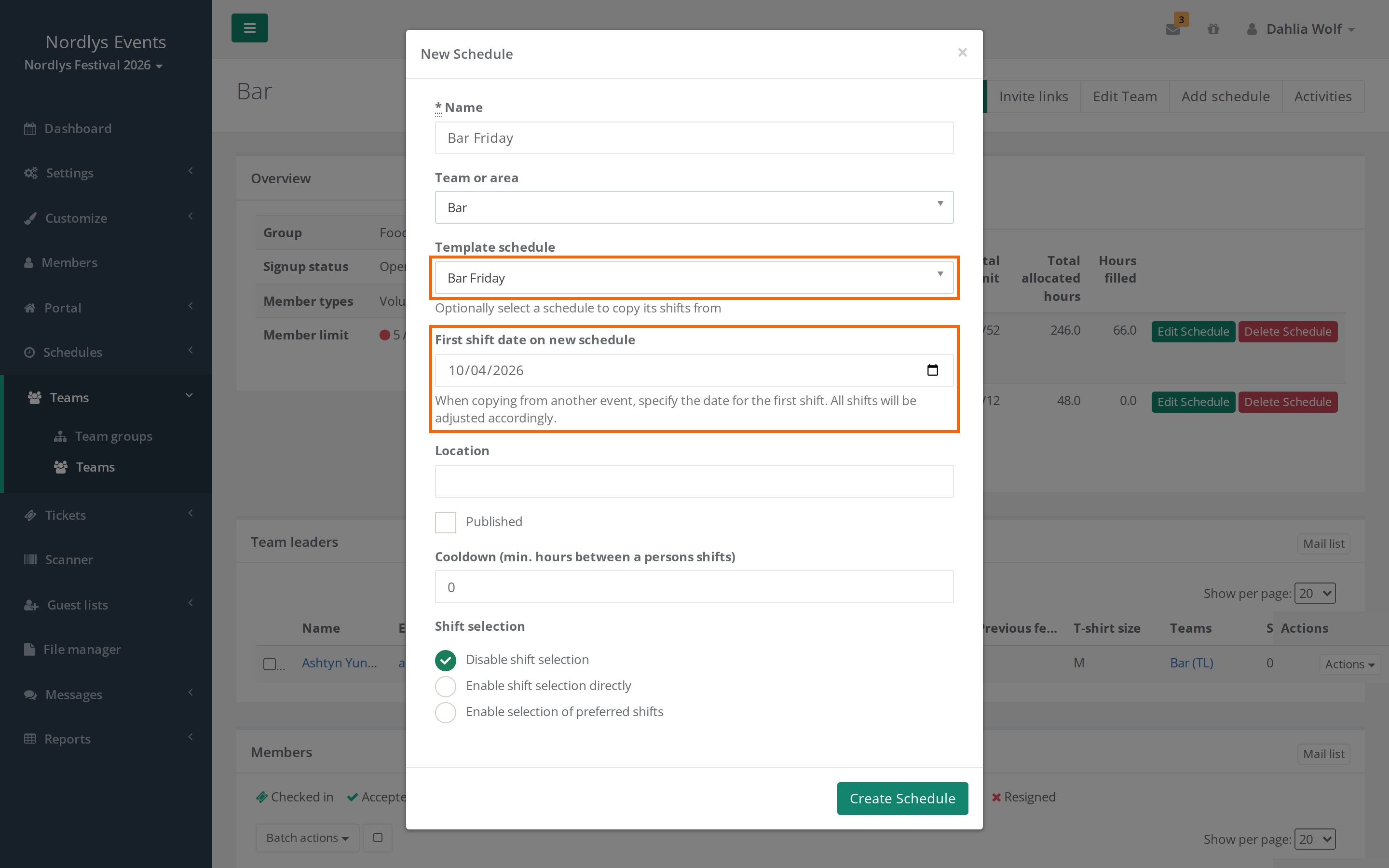
What is copied:
- The shifts with name, time, Attendance limit, Meeting point and Hidden.
- Shift grades and shift bundles.
- Registration requirements on the shifts. If the template comes from another event, a requirement is only copied if the data field also exists in the new event, for example because the event was copied from the old one. Otherwise the requirement is skipped without a message.
What is not copied:
- The people on the shifts, shift preferences and attendance registrars.
- The shifts' Description.
- Requirements set on a whole shift bundle.
- The settings of the schedule itself. You fill them in in the window.
You only see schedules from events you are part of yourself and where you could see the schedule, for example because you led the team. Hidden events are not in the list.
Add the shifts
Open the schedule by clicking its name under Manage schedules or Edit Schedule on the team page. This opens the schedule planner. The people are on the left under Members. The shifts are on the right under Shifts, as a calendar or a list.
- Click a time in the calendar, or drag across the time the shift should cover.
- Fill in Start, End and Attendance limit. The limit is required.
- Optionally give the shift a Name, a Description and a Meeting point.
- Click Create Shift.
If you need the same shift several times, click + Add shift in the window. You get another line with a new time that starts a day later (or with the same gap as between the two lines before it). Each line becomes its own shift with the same details.
- Move a shift: Drag it to a new time in the calendar.
- Copy a shift: Open the shift, and click the copy icon (Copy shift).
- Delete a shift: Open the shift, and click the bin.
- Hidden: The shift can't be picked under Find shifts, but you can still put people on it.
You also set up shift grades, shift bundles and requirements for who may take a shift here. See Shift grades. See also Shift bundles.
Put people on the shifts
- Drag and drop: Drag a person from Members onto a shift. Hold cmd (Mac) or ctrl (Windows) to select several. Click one person and then another with shift to select everyone in between.
- New shift with people on it: Drag people onto an empty time in the calendar. The window for a new shift opens with them on it.
- Inside the shift: Open the shift, and go to the Assigned members tab. Find the person in Search for members. Click Leader to make the person shift leader, or Remove to take the person off. Click Update Shift to save. See Attendance registration and shift leaders.
- From preferences: The Suggested members tab shows who preferred the shift. See Assign shifts from shift preferences.
What you drag is saved straight away.
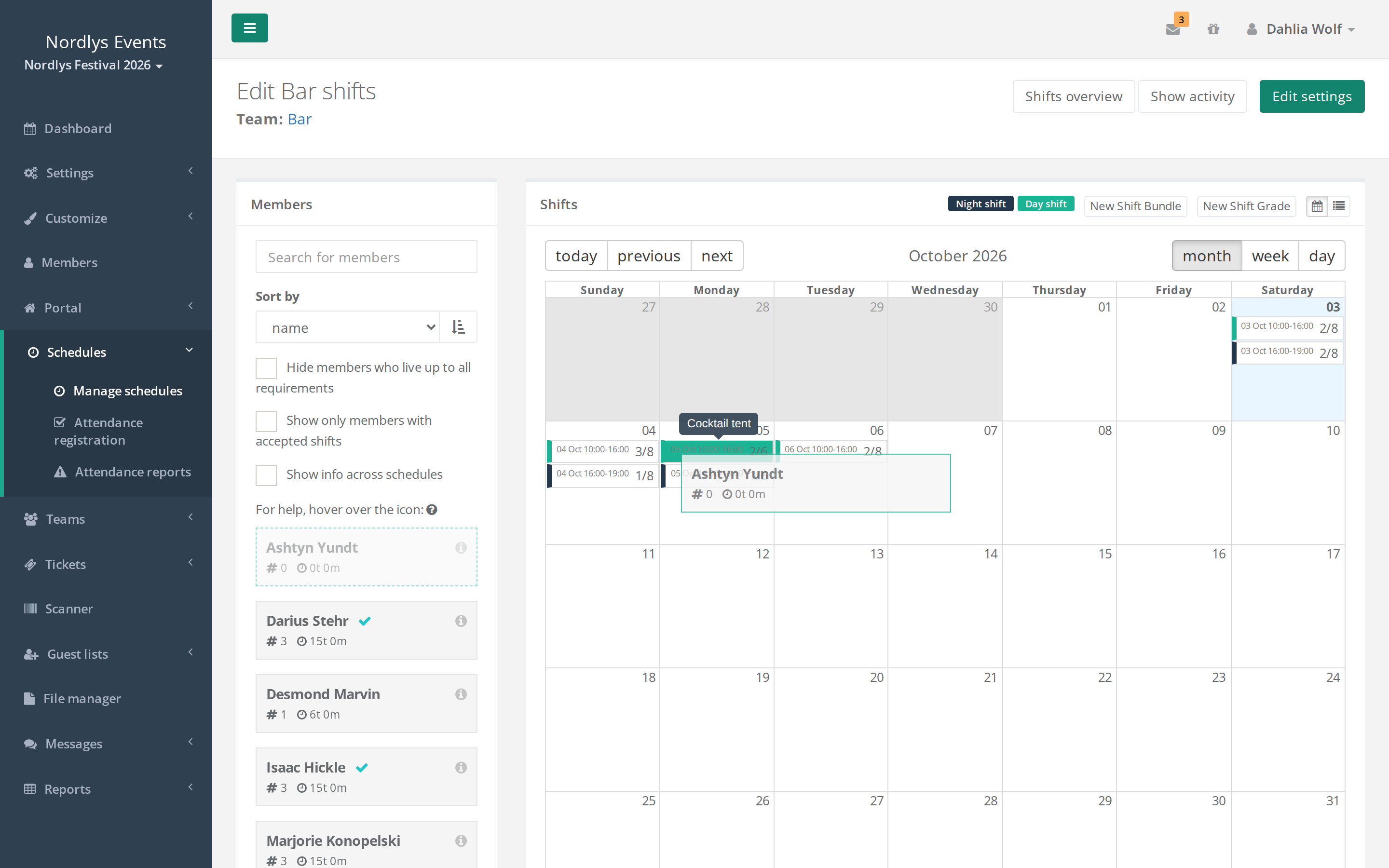
Each person under Members shows their number of shifts and total hours. A check mark means Has accepted all current shifts. A red triangle means the person has overlapping shifts.
If a person gets two overlapping shifts, the Overlapping shifts window opens. Click Continue to keep both shifts or Undo to take the person off the new shift again.
If the shift is full, it says Filled, and you can't drag more people onto it. Raise the Attendance limit if there should be room for more.
Members only lists people on the team (or the teams in the area) the schedule belongs to. As a team leader, you only see people on your own teams.
Pitfalls
- No shifts show up for crew members: The schedule isn't published yet. See Publish a schedule.
- Tickets can't be downloaded: As soon as the team has a schedule, even one that isn't published, the team's crew members need shifts on a published schedule and must accept them before they can get their ticket. Team leaders without shifts are exempt. See A crew member can't get their ticket.
- Hours disappear: If you choose Shift selection when you create the schedule, Minimum hours and Maximum hours are not saved. Open the schedule afterwards, click Edit settings, and fill them in there.
- Shift grade limits from last year: If you copy from another event, the shift grades' Minimum shifts count and Maximum shifts count don't come along. Set them again on each shift grade.
- The shifts are on the wrong days: You picked a First shift date on new schedule on a different weekday than last year. Delete the schedule, and create it again with the right date.
- A person is missing under Members: The person isn't on the team. Put the person on the team first.
- Delete Schedule deletes everything: The shifts and who is on them are gone too. It can't be undone.
Didn't find the answer? Write to support@crewstack.io.