
How crew members sign up
An overview of the ways people can sign up, from a direct link to a member type, with or without team selection and waiting list, to an invite link to a specific team.
There are several ways to take people in. They all build on the member type: it decides the signup form, and whether the person chooses a team themselves. The event's settings decide who can sign up at all, and whether there is a waiting list.
Choose a method
| You want to … | How |
|---|---|
| Let people sign up without a team and place them yourself afterwards | Share a signup link to a member type without Team select. |
| Collect people on a waiting list and take them in as you go | Switch on Waiting list activated, and share a signup link to a member type without Team select. |
| Let people choose a team themselves | Switch on Team select on the member type. |
| Get people straight onto a specific team | Send the team's invite link. |
You can use several methods at once, for example an open link for one member type and invite links for another.
Signup links
- To a member type: Under Settings > Member types the Direct link button shows the link to each member type. The person signs up as that member type.
- The event's default link: The event's address with /tilmelding or /signup sends people to the member type marked Default.
- From the front page: Under Customize > View templates each member type has a variable with its signup link, which you can use for a button on the front page.
See Set up member types.
Who can sign up?
Signup status under Settings > General settings applies to every method. If it is Closed, nobody can sign up, not even with an invite link. With Open by invite only, only invite links work. See Signup status: who can sign up?.
Without team selection
If the member type doesn't have Team select switched on, the signup doesn't ask about a team.
- Waiting list activated is off: The person signs up without a team. You place them on a team afterwards.
- Waiting list activated is on: The person goes on the waiting list. During signup it says You are signing up for the waiting list. You take them in by putting them on a team. That takes them off the waiting list and sends them an email about it. Promote from waiting list on the profile takes them off the list without a team and without an email.
You find Waiting list activated under Settings > General settings > Members. See How the waiting list works.
With team selection
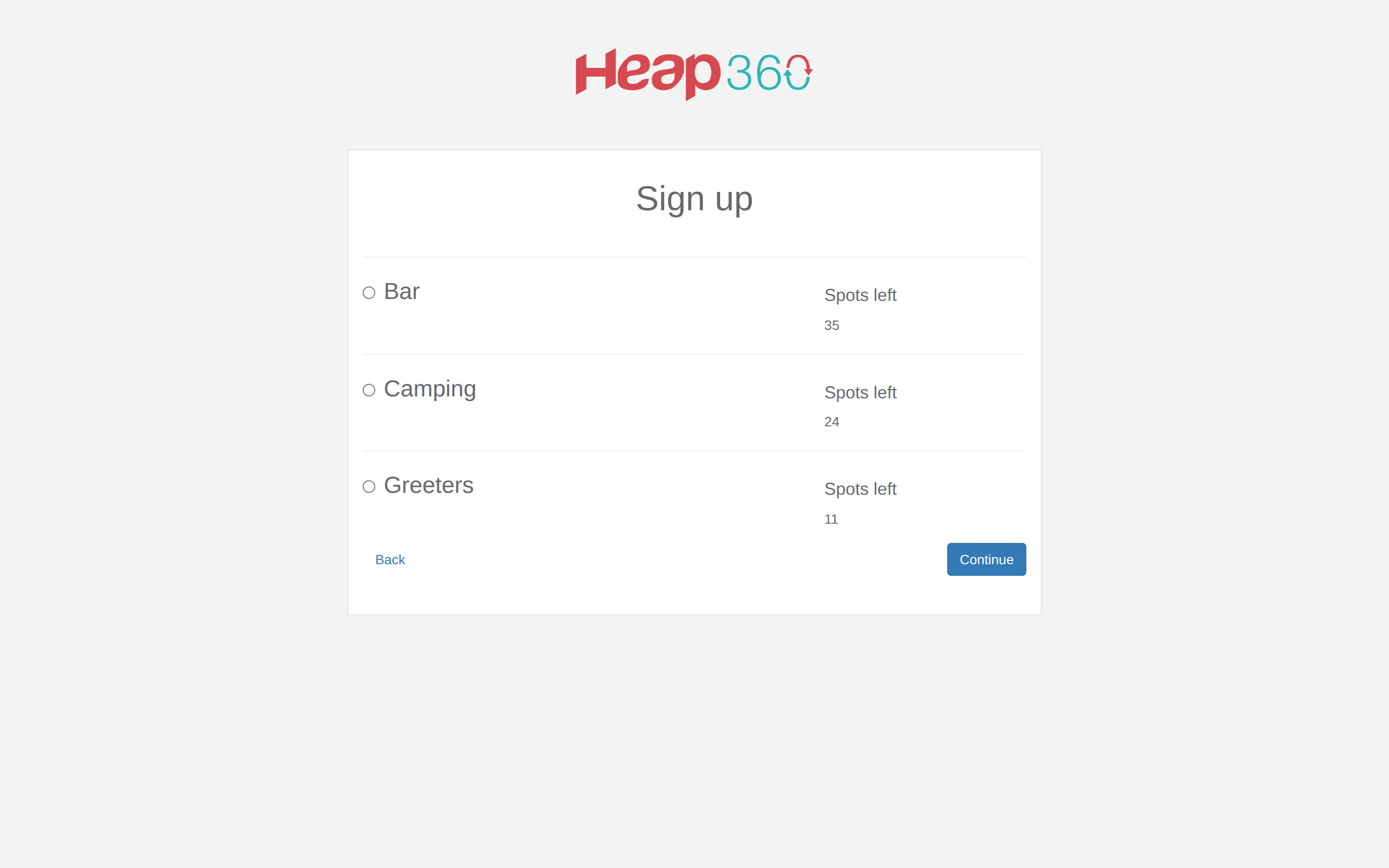
Switch on Team select on the member type. The person then gets the Choose team page after the pages of the signup form. There they can choose between the teams that:
- have Signup status Open,
- are open to the person's member type, and
- have free spots, also for that member type.
A team is open to all member types if none are selected under the team's Member types.
If there is no team to choose, it depends on the waiting list. With Waiting list activated, the person goes on the waiting list. Without a waiting list, the person can't sign up and gets the message Teams are full.
With an invite link to a team
On the team's page, the Invite links button shows one link for each member type allowed on the team. Whoever uses the link:
- signs up as the link's member type,
- sees throughout the signup that they are signing up for the team,
- skips team selection and the waiting list, and
- joins the team when they click Confirm.
The link only works when the team's Signup status is Open or Invite only, and the team has free spots for the member type. With Invite only, the team can't be chosen on the Choose team page, but the link works. See Invite crew members to a team.
Pitfalls
- Team selection with no free teams and no waiting list. Then nobody of that member type can sign up. Open a team, add more spots, or switch on the waiting list.
- A waiting list without team selection takes everyone. If Waiting list activated is on and the member type doesn't have Team select, everyone with that member type goes on the waiting list, except those with an invite link.
- Don't switch links in the middle of signing up. If a person opens the link to another member type before they have finished, their half-finished signup is deleted, and they start over as the new member type. See Crew members are stuck in the signup.
Didn't find the answer? Write to support@crewstack.io.