
Set up teams and team groups
How to create teams and team groups, set spots, member types and signup status, appoint leaders and choose what team leaders may do.
Teams are the groups your crew works in, for example Bar, Entrance or Stage. Team groups collect several teams, so one team group leader can run them all. Here you create them and choose what the team leaders may do.
An admin can create teams and team groups. The settings for all teams under General settings need a super admin.
Create a team group
Team groups are optional. If you want to use them, create them first, so you can choose the team group when you create the teams.
- Go to Teams > Team groups.
- Click New Team group.
- Enter the Name.
- If the team group should sit under another team group, choose it under Parent group.
- Optionally choose Group leaders.
- Save.
A team group leader can do the same as a team leader on all teams in the team group and in the team groups below it. They can also edit the teams and create new teams in the team group.
Create a team
- Go to Teams > Teams.
- Click New Team.
- Fill in the fields, and save.
| Field | What it does |
|---|---|
| Name | The team's name. Required. You can enter it in each of the event's languages. |
| Description | Shown to crew members when they choose a team and under My teams. |
| Warning message | A text that pops up when a crew member chooses the team during signup. For example a requirement for age or a driving licence. |
| Sort index (sorted low to high) | The order the teams are shown in when crew members choose a team. |
| Group | The team group the team belongs to. |
| Signup status | Whether crew members can sign up for the team. See below. |
| Member limit | The largest number of people on the team. 0 means no limit. Team leaders don't count. |
| Member types | Click Add member type to decide which member types may be on the team, and optionally how many of each. If you add none, all member types may be on the team. |
| Ticket items | Ticket items that everyone on the team gets automatically. |
If you've switched tags on, there's also a Tags field. See Tags on teams and member types.
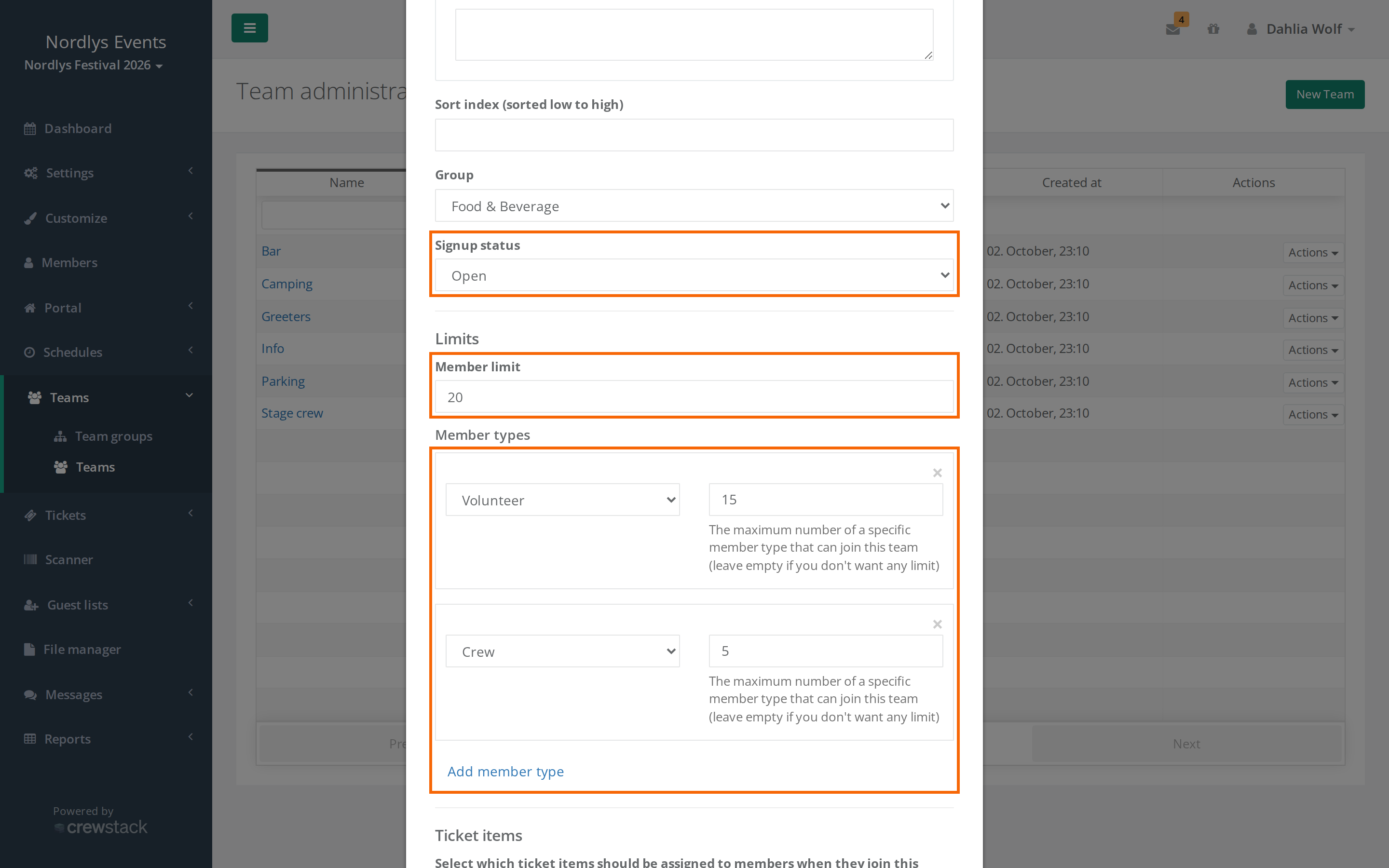
Signup status
| Status | What it means |
|---|---|
| Open | Crew members can choose the team during signup, and invite links to the team work. |
| Invite only | The team isn't shown during signup. People can only join it with an invite link. |
| Closed | Nobody can sign up for the team, not even with an invite link. |
Crew members only choose a team during signup if their member type has Team select switched on. A team is only shown to the member types allowed on the team, and only when there are free spots, also for the crew member's member type.
Whatever the status, admins, team group leaders and team leaders can put people on the team. See Manage your team as a team leader.
Appoint team leaders
- Open the team under Teams > Teams.
- Click Actions next to the person, and choose Set as teamlead.
If the person isn't on the team, click Add members, find the person, and choose Set as teamlead there. If the person hasn't signed up for the event yet, you can invite them as team leader. See Invite crew members to a team.
Decide what team leaders may do
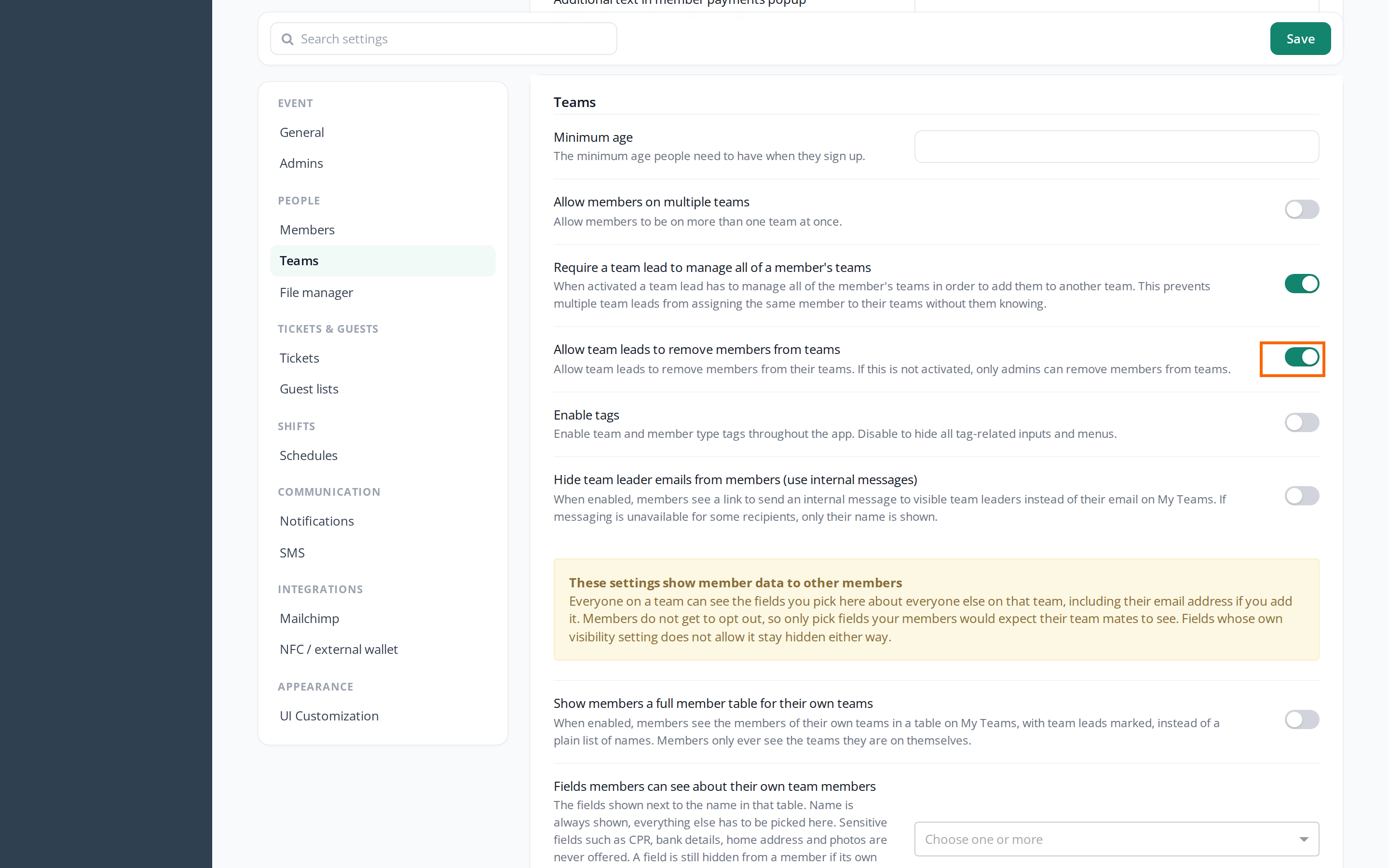
This needs a super admin. Go to Settings > General settings, and find the Teams section:
- Allow team leads to remove members from teams: Team leaders and team group leaders can remove people from their teams. On by default. If it's off, only admins can remove people from teams.
- Require a team lead to manage all of a member's teams: A team leader can only add a person if they're also team leader of all the person's other teams. On by default.
- Allow members on multiple teams: People can be on more than one team. Off by default. See People on several teams.
- Minimum age: The age you must be to sign up. It's checked against the birth date data field.
- Hide team leader emails from members (use internal messages): Crew members see a link to write to the team leader instead of the email under My teams.
Click Save in the toolbar at the top. You'll also find some of these settings in the Setup guide under Teams. See Get started with the setup guide.
Pitfalls
- The limits don't apply to admins: Spots and member types stop signup and team leaders. Admins and team group leaders can put more people on the team than there are spots.
- One team per person doesn't apply to admins: If Allow members on multiple teams is off, an admin can still put a person on several teams.
- Closed also stops invitations: If you only want invited people on the team, use Invite only, not Closed.
- A team group with teams can't be deleted: Move or delete the teams and sub-groups first.
- If you delete a team, everyone is removed from the team, and the team's schedules are deleted.
Didn't find the answer? Write to support@crewstack.io.