
My teams: what crew members see about their teams
What crew members see under My teams in the portal, and how you decide whether they see the team leads' email and a table of their teammates.
Under Portal > My teams crew members see the teams they are on: the team's description, the team leads and the others on the team. Here you can see what is shown, and how you decide how much they see about each other.
What is under My teams
There is a box for each team the crew member is on. They can't see teams they are not on.
- Teamleaders: the name of each team lead and their email. Team leads who are hidden from members are not shown here.
- Team description: the text from the Description field on the team. See Set up teams and team groups.
- Team members: the names of the others on the team.
If the crew member is a team lead themselves, it says You are the team leader of this team and there is a button to the team page.
The settings
Three settings control what crew members see. Only a Super Admin and the organizer's admins can change them:
- Go to Settings > General settings.
- Click Teams in the menu on the left.
- Change the settings described below.
- Click Save at the top of the page.
You can also hide the team leads' email and switch on the table in the Setup guide under the Member portal step. See Get started with the setup guide.
Hide the team leads' email
Switch on Hide team leader emails from members (use internal messages). Then Send message is shown next to the team lead's name instead of the email. The link opens a new message to the team lead. If the crew member can't send messages, only the name is shown. See Messages.
Show a table of teammates
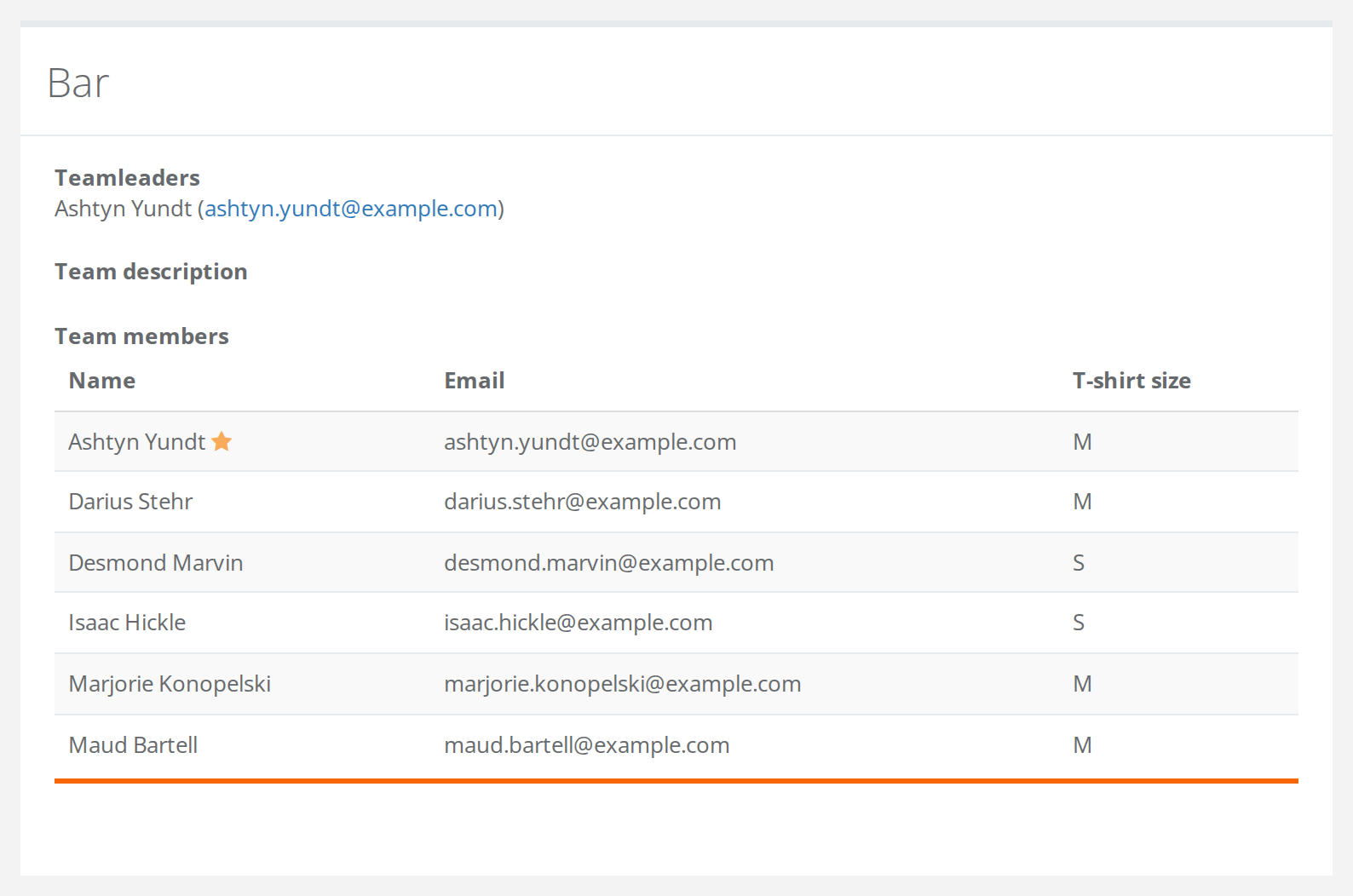
Switch on Show members a full member table for their own teams. Then the list under Team members becomes a table:
- The team leads are at the top with a star next to their name.
- Name is always in the table. Under Fields members can see about their own team members you choose the columns shown next to it, for example Email, Member type or your own data fields such as phone.
- Sensitive fields such as CPR, bank details, address and images can't be chosen.
- Visible to on the data field still applies. Crew members only see the answers they are allowed to see. See Data fields and who can see them.
- A column nobody on the team has filled in is not shown for that team.
- If you have switched on Hide team leader emails from members (use internal messages), the email is empty next to everyone who is a team lead on any team.
In the Crewstack app
In the app crew members see the team under the Teams tab with the names of their teammates. The table with data fields is only in the portal.
Pitfalls
- The setup guide says something else. In the Setup guide the table is called Members can see who is on their team. It only switches on the table. Crew members can see the names either way.
- A team lead is missing. Team leads who are hidden with Hide from member list on the team page are shown neither under Teamleaders nor in the table. See Manage your team as a team leader.
- A column is missing from the table. Either nobody on the team has filled in the field, or Visible to on the field doesn't let crew members see it.
- Many teams. If the crew member is on several teams, there is a box and a table for each team. See People on several teams.
Didn't find the answer? Write to support@crewstack.io.