
Several languages in your event
Switch on several languages, let crew members choose their language in the System language data field, and translate your own texts.
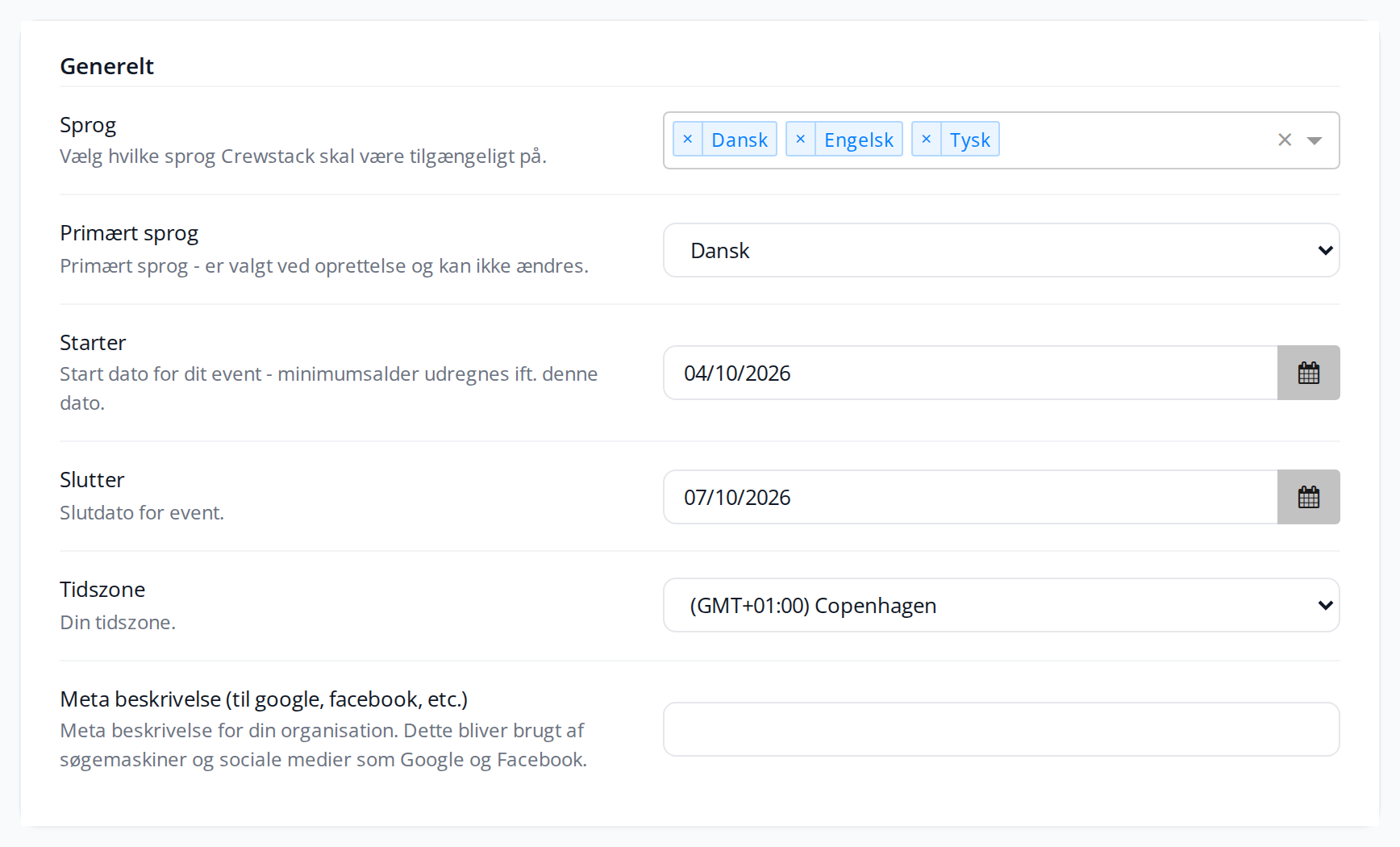
Crewstack can show the portal and send emails in Danish, English, German and Faroese. Once you have switched the languages on and added the System language data field to the signup, each crew member gets Crewstack in the language they chose themselves.
Switch on several languages
- Go to Settings > General settings.
- Choose the languages in the Languages field in the General section.
- Click Save at the top of the page.
You can also choose the languages in the Setup guide under Event basics. See Get started with the setup guide.
The Primary language was chosen when the event was created and can't be changed or removed from Languages. Crewstack uses the primary language when it doesn't know which language a person wants.
Let crew members choose their language
The System language data field decides a person's language. Without it, Crewstack can't remember which language the person wants, and every email is sent in the primary language.
- Go to Settings > Member type properties and click New Member type property.
- Tick every member type and choose the type System language. Click Next.
- Leave Visible to on Everyone, so the person can see and choose the language themselves. Save.
- Put the field on the first page of each member type's signup form. See Set up the signup form.
If System language already exists, edit the field instead and tick the member types that are missing. The field can only exist once in the event.
In the signup, the crew member sees a list of the event's languages. The language the page is shown in is selected in advance.
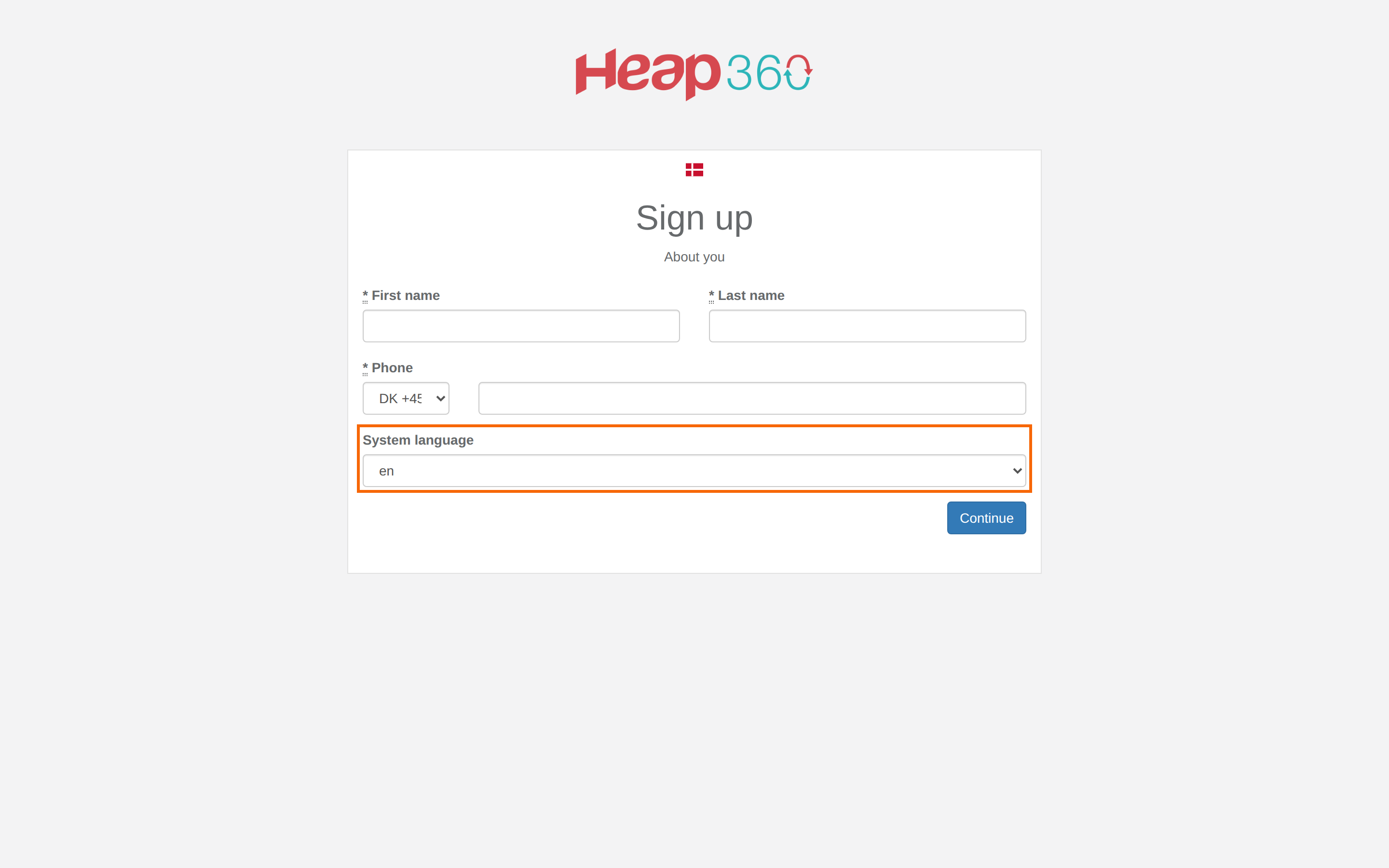
Crew members who have already signed up haven't chosen a language. If you make System language Required, they are asked to choose the next time they log in, in the We need more information! window. Otherwise they get emails in the primary language until they change the field on their profile themselves.
How Crewstack finds a person's language
| Where | Language |
|---|---|
| The front page and the login and signup pages | The language the visitor chose with the flags on the page. Otherwise the primary language. |
| The portal, when the person is logged in | System language. If the person hasn't chosen one, the language they last chose with the flags in that browser, otherwise the primary language. |
| Emails, news sent as email, SMS shift reminders, the ticket and the shift calendar | System language. Otherwise the primary language. |
| The email with the confirmation link and the email about a new password | The language the page was shown in when the email was sent. |
This applies to you too. If you have chosen English in System language on your own profile, you see Crewstack in English.
The flags come from the {{ flags }} variable in the Page layout view template. It is part of the default layout. See View templates and the front page.
Change the language for a person
Open the person's profile, click Edit Member, choose the language in System language, and save. The portal, emails and ticket follow straight away.
Ask the crew member to do the same on their own profile. They can do that until they are checked in. After that, only an admin can change it.
Translate your own texts
Crewstack translates its own buttons and menus. You write your own texts in each language yourself. If the event has several languages, the text fields have a tab with a flag for each language, with the primary language first. This applies, for example, to:
- the name, description and Warning message of teams
- the names of team groups and member types
- the name, description and answer options of data fields
- the descriptions on the pages of the signup form
- shifts, shift grades, shift bundles and products
- news and FAQ
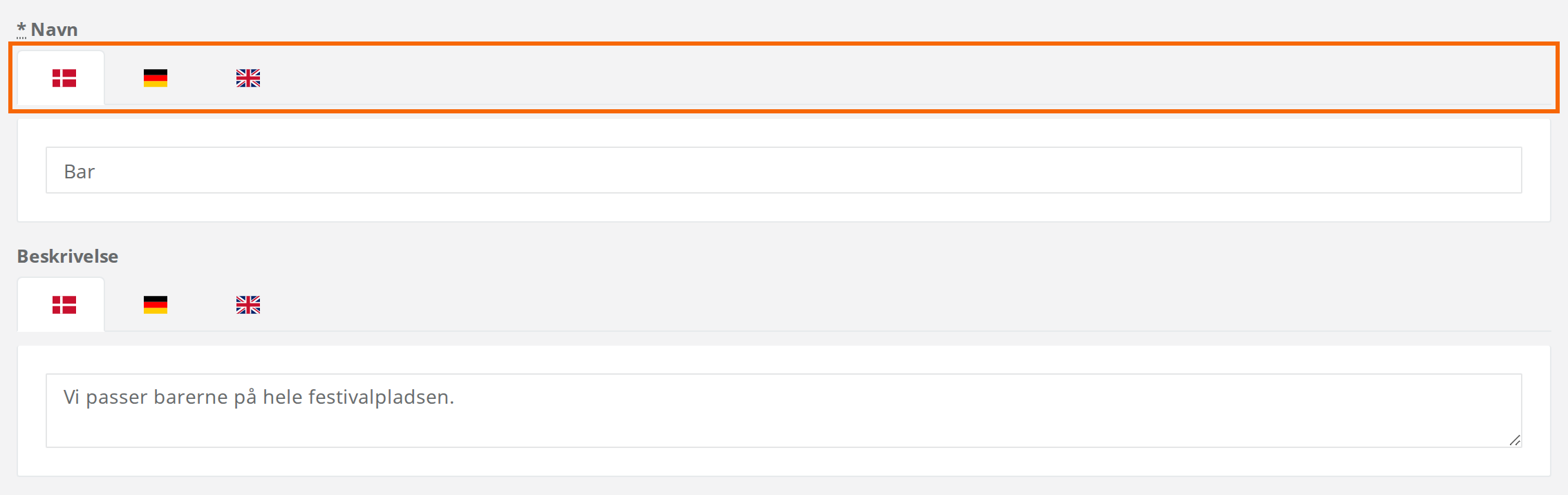
If you leave a language empty, Crewstack shows the text in one of the other languages instead.
Mail, view and ticket templates also have a version for each language, but they work differently. See Mail templates, View templates and the front page and Ticket templates.
Messages you write to your crew yourself are sent as you wrote them. To write to them in their own language, go to Members > Show advanced and search on System language.
The Crewstack app
The app's own menus and buttons follow the phone's language if it is Danish, German or English. Otherwise the app is in English. The choice only applies to that phone and doesn't change System language.
Ask the crew member to switch like this:
- Tap the profile picture at the top of the app.
- Tap Settings.
- Choose the language under Language.
You can also switch language on the app's login page. The email with the login link arrives in the language the app is set to.
Pitfalls
- Everyone gets emails in the primary language. The member type doesn't have the System language field, or the person hasn't chosen a language. The flags on the front page aren't saved on the person.
- The flag doesn't change the language. When the person is logged in and has chosen a System language, it wins over the flags. Change System language on the profile.
- New language mid-season. Write the mail, view and ticket templates in the new language. Tickets can't be made public until every member type has a ticket template in every language.
- No flags on the front page. Your Page layout is missing
{{ flags }}. Put it back. - Faroese: Crewstack's own texts are not fully translated into Faroese. Whatever is missing is shown in Danish. The app isn't available in Faroese.
- Invitations to passive users are sent in the language Crewstack is shown in for you when you send them.
Didn't find the answer? Write to support@crewstack.io.