
The portal: what crew members see
What crew members see on the portal front page and in the menu, and how you add your own links, for example to the crew handbook.
The portal is what crew members see when they are logged in: news, their teams, shifts, ticket and FAQ. Here you can see what is where, so you can help a crew member who is looking for something, and how you put your own links into the portal.
Crew members and team leads land on the portal front page when they log in. Admins land on the Dashboard and find the portal under Portal > Frontpage in the sidebar.
The front page
- News: the pinned news item, or the newest, is shown in full. Below it are links to the next news items. See News in the portal.
- Shortcuts: a large button for each item in the menu under Portal, including your own links.
- Mobil App: if the Crewstack app is switched on for the event, there is a QR code the crew member scans in the app to link their account. On a phone there is a link and buttons for the App Store and Google Play instead. See The Crewstack app for your crew.
If the crew member still needs to pick or accept shifts, a yellow box is shown at the top of every page in the portal, for example "You have shifts awaiting your approval.". See How crew members pick their own shifts and Shift acceptance.
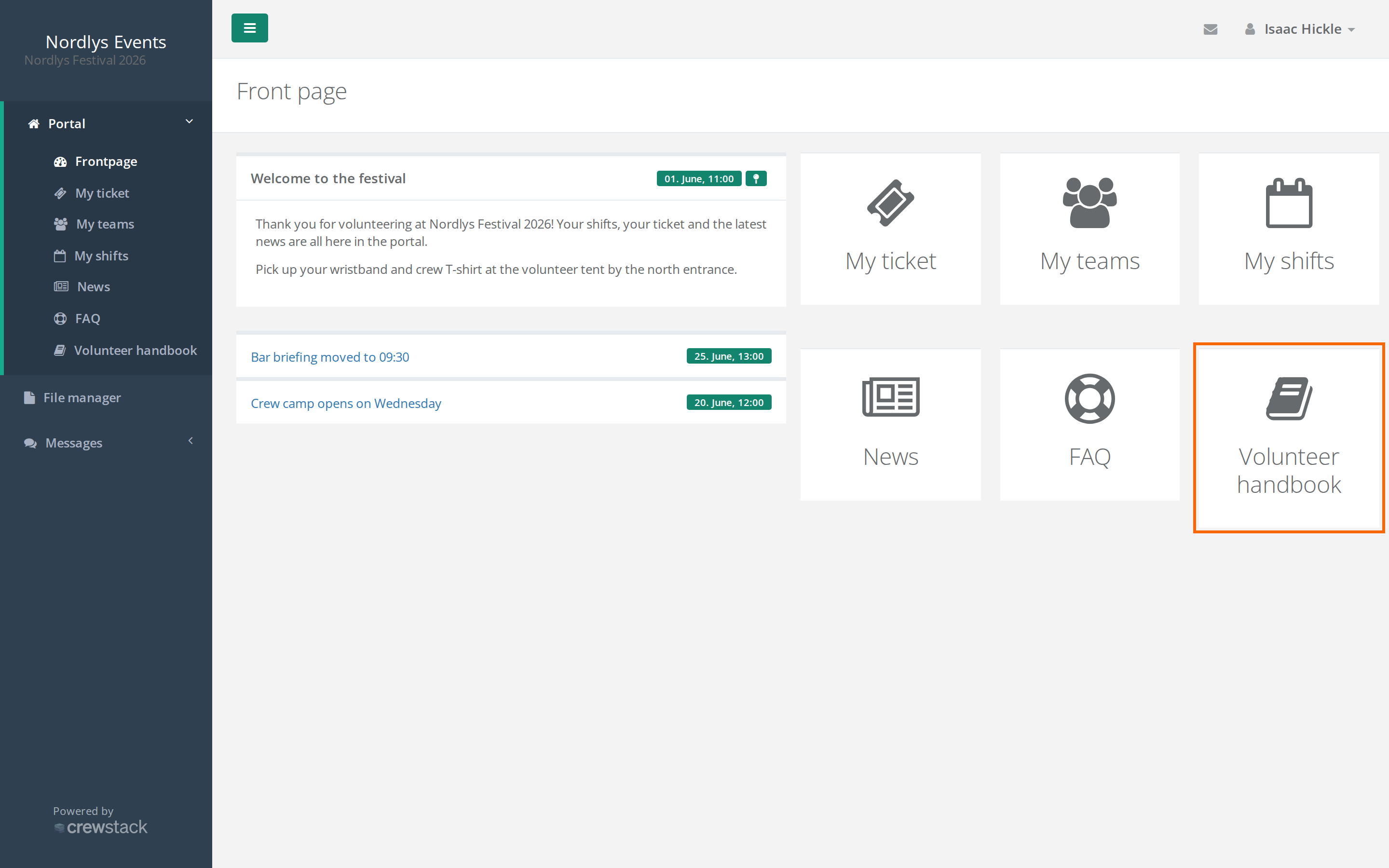
The menu under Portal
The menu only shows the items that make sense for the event and the crew member:
| Menu item | Shown |
|---|---|
| Frontpage | always |
| My ticket | when the event uses tickets and Hide tickets from the users, but still allow check-in through the scanner. is not switched on |
| My teams | when the event uses teams. See My teams: what crew members see about their teams |
| My shifts | always |
| Find shifts | when the crew member can pick shifts or say when they can work, and hasn't accepted their shifts yet. See How crew members pick their own shifts |
| Shift Exchange | when Shift exchange open is switched on. See Shift exchange |
| News | always |
| FAQ | always. See FAQ for your crew |
Your own links are at the bottom of the menu.
Add your own links
If you have a crew handbook, a site map or a page on your own website, you can put a link to it in the portal. This needs a Super Admin.
- Go to Portal > Frontpage.
- Click Manage Portal Links at the top.
- Click Add Link.
- Type a Title. If the event has several languages, there is a tab with a flag for each language. Type the title in each language.
- Type the address in URL Path, for example
https://example.com/handbook. A link to a page in Crewstack can start with/, for example/portal/shifts. - Choose an Icon.
- Repeat from step 3 for more links, and click Save.
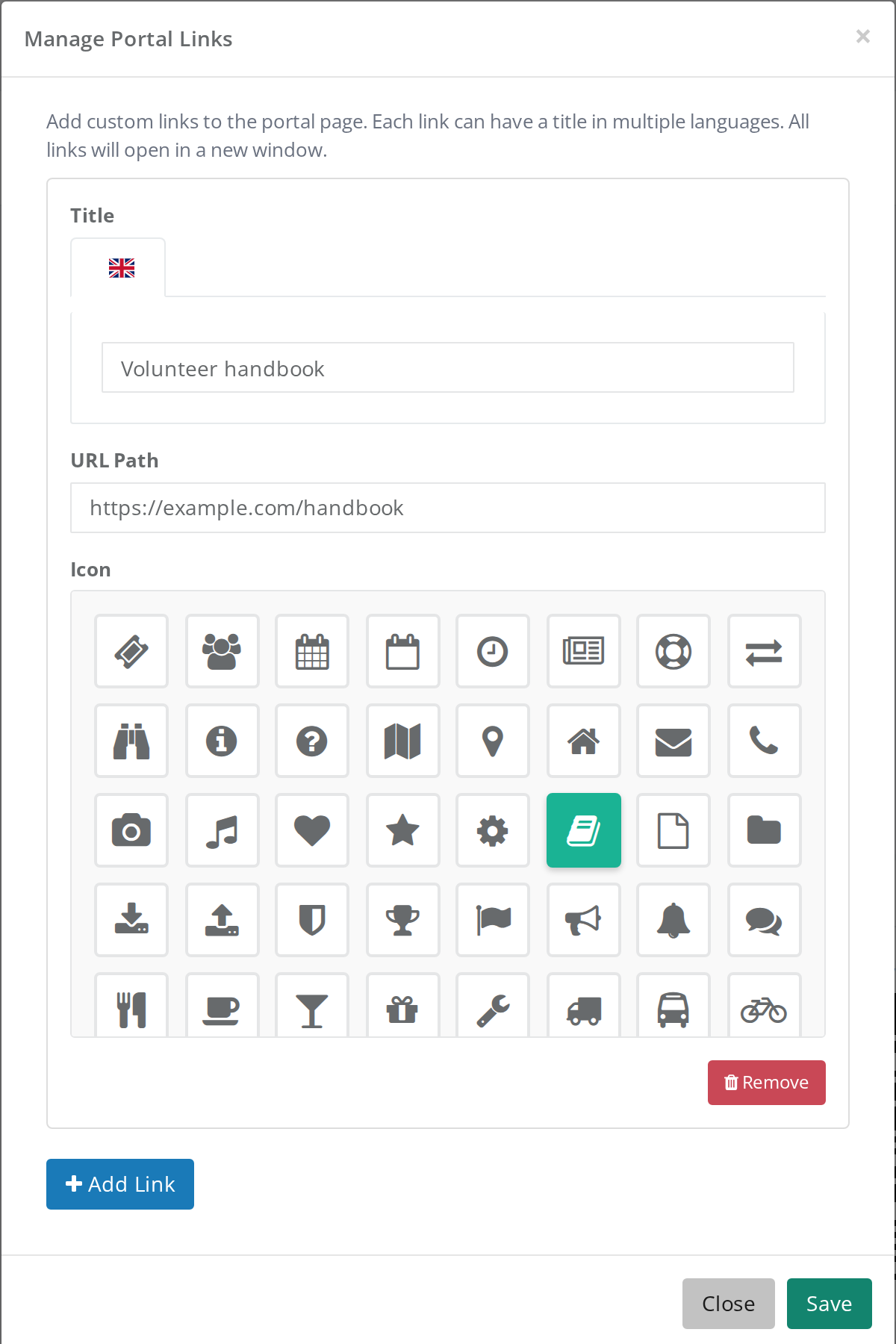
The links are shown in the menu under Portal and as buttons on the front page for everyone who can see the portal. They always open in a new window. Remove under a link removes it when you click Save.
You can also get to Manage Portal Links from the Setup guide in the Member portal step. See Get started with the setup guide.
See the portal as a crew member
Use Log in as on a crew member, and you see the portal exactly as they do, with their teams, shifts and menu. See Log in as another person.
Pitfalls
- The link has no text. If the title is missing in one of the event's languages, the link has no text for people using that language. Type the title in all languages.
- Can't save. Each link needs a URL Path and a title in at least one language.
- Not in the app. Your own links are only in the portal in the browser, not in the Crewstack app.
- The button is missing. Only a Super Admin and the organizer's admins see Manage Portal Links.
Didn't find the answer? Write to support@crewstack.io.