
A new year or season
A new year is a new event that Crewstack copies for you. What comes along, what you do afterwards, and how you find earlier years.
Every year or season is a new event in Crewstack. You don't set it up from scratch: when you ask, Crewstack copies your setup from last year into the new event. Last year's event stays for as long as you're a Crewstack customer, so you can always look up who was there and what they did.
How the years fit together
- Each year is its own event under your organizer, with its own name and its own address. People, teams, shifts and messages belong to the year they were created in.
- Your crew has one login with you that works for all your events. But they sign up for each year separately. Someone who was there last year isn't in this year until they have signed up for the new event.
- Roles and team leader positions also belong to the single event. See Admins and roles.
How to order the new year
- Write to support@crewstack.io when you're ready. Say which event we should copy, what the new event should be called, for example Nordlys Festival 2027, and who should be super admin in the new event from the start. They must be people who are already super admin in one of your events.
- Also say if there is anything you don't want copied, for example the old teams. We copy a whole category at a time: all teams or no teams.
- We copy the event and let you know when it's ready. The new event starts closed, so nobody can sign up before you have made it ready.
What gets copied
- Dashboard with widgets.
- Member types and Member type properties, including dependencies between the fields, and which fields each member type uses.
- Forms.
- Team groups and Teams, including how many of each member type may be on the team, and the products the team gives.
- View templates, including the front page.
- Appearance under Customize: the settings for pages and emails, the background image and the fonts. The new event looks like the old one. See Appearance of pages and emails.
- Mail templates.
- FAQ under Portal.
- Products and their global limits.
- Guest list groups.
- General settings, for example languages, time zone and colour. Some settings are reset: Starting at and Ending at are empty, Signup status is Closed, shift exchange is switched off, and Tickets are public and can be downloaded through the portal is switched off.
You don't need to think about the logos. They belong to you as the organizer and are the same in all your events. See Logos and colours.
What doesn't get copied
- People. No crew members, team leaders, roles or signup answers come along. Everyone signs up for the new year again with their old login. See the section on signup below.
- Schedules and shifts. You copy those yourself when you create the schedules in the new event. See Create a schedule and add shifts.
- Guest lists. The groups come along, but not the lists themselves or the guests.
- Ticket templates. They can't be copied, so upload them again in the new event.
- Files in the File manager. The folders for teams and team groups are created empty.
- News in the portal and sent messages.
- Tags on teams and member types.
- Approved documents, for example criminal record checks. They have to be uploaded and approved again every year. See Documents for approval.
The setup guide starts over in the new event. See Get started with the setup guide.
Check this when the new year is ready
You need the Super Admin role in the new event for the menus Settings and Customize to be shown.
- Dates: Set Starting at and Ending at under Settings > General settings. The minimum age and Import from previous event... are worked out from the start date.
- Texts: Correct years, dates and places in View templates, Mail templates and FAQ. They are copied word for word from last year.
- Member types and data fields: Go through them and delete what you no longer use. Don't rename the data fields that should be pre-filled from last year (see below).
- Teams and team groups: Check the spots. You set the team leaders again once they have signed up, or you invite them as team leaders. See Invite crew members to a team.
- Schedules: Create them and copy the shifts from last year with Template schedule. See Create a schedule and add shifts.
- Tickets: Upload the ticket templates and switch on Tickets are public and can be downloaded through the portal when they are ready. See Ticket templates.
- Admins: Give your other admins the Admin or Super Admin role again once they have signed up for the new event. An organizer admin can also give them access without signing up. See Users and organizer admins.
- Open signup: Set Signup status to something other than Closed. If you want to give last year's crew first pick, choose one of the options for previous members. See Signup status: who can sign up?.
Your address and signup link
The new event gets its own address at Crewstack. Last year's address still points to last year's event. So do links on your website, in emails and on social media, until you correct them. Organizer admins find all your events by clicking the event name at the top of the menu and choosing Go to organizer.
If you have your own domain, for example crew.yourfestival.com, it belongs to one event at a time. Crewstack moves it to the new year for you: write to support@crewstack.io saying which event the domain should point to, and when. Until then, the domain sends people to last year's event. See A custom domain for an event.
How to find earlier years
- Click the event name under the logo at the top of the menu.
- Choose the event in the list.
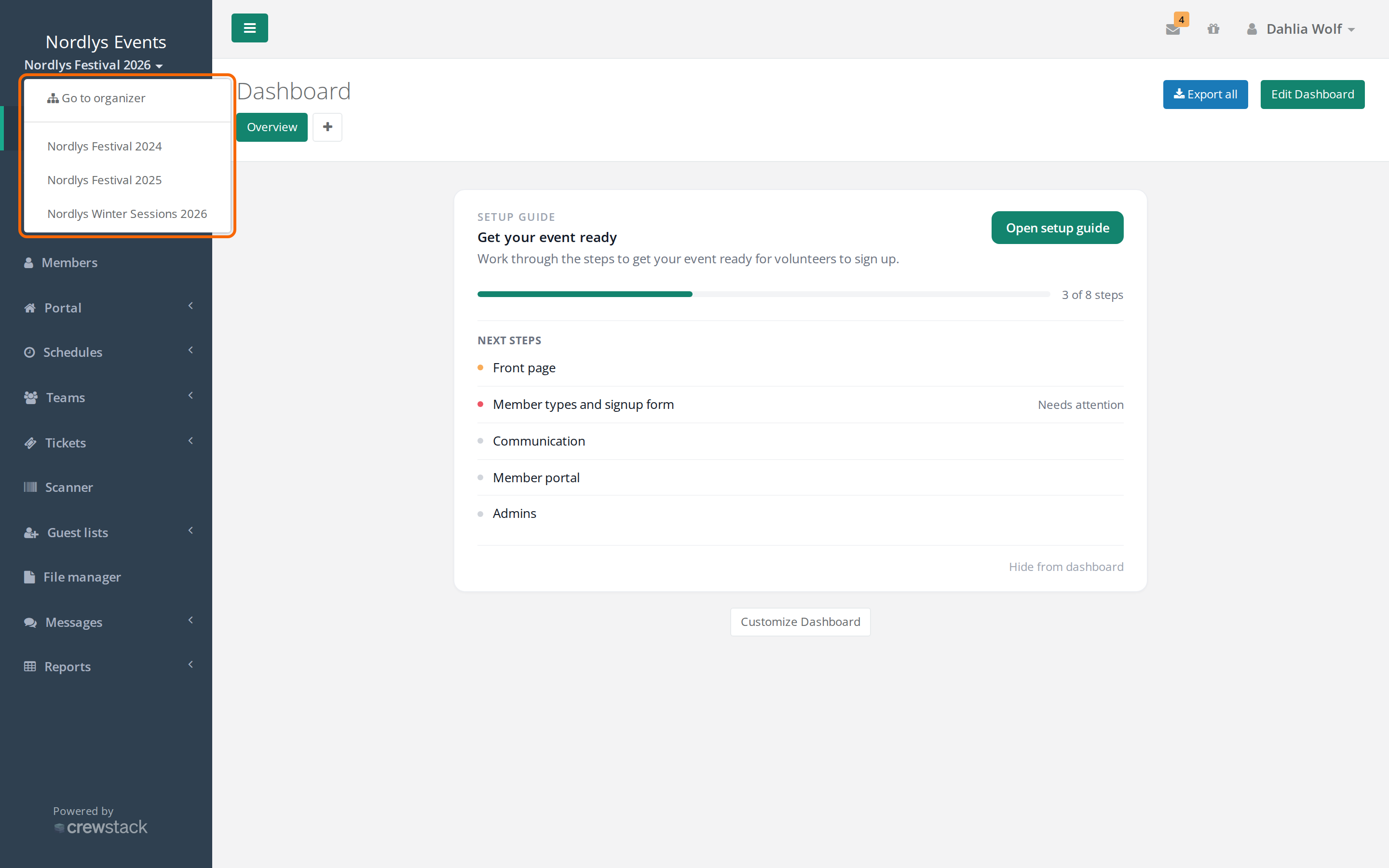
The list shows the events of yours that you have a profile in, and it's only there when you're an admin, team leader or team group leader in the event you're in. Organizer admins see all your events. If you weren't there last year, it isn't in the list. An organizer admin can give you access. See Users and organizer admins.
In last year's event you have the role you had there. If you were a crew member, you land in the portal. Everything is as it was: people, teams, schedules and messages. Last year's address still works, and crew members can still log in there and see, for example, their old shifts.
How crew members sign up for the new year
Everyone signs up again, including team leaders and admins. Send them the new event's signup link or an invite link to the team.
- The crew member opens the signup link and enters their email.
- If the email already has a login with you, the crew member is asked for their password: "Use your password from last time that you signed up at …". Forgot password works as usual.
- The answers from their latest signup are filled in beforehand, so the crew member only has to check and correct. Your own data fields are only filled in if the field has exactly the same name as last time.
- The crew member chooses a team and confirms the signup as usual.
Approved documents are never filled in beforehand. See Documents for approval.
Pitfalls
- Signup is closed from the start. A copied event starts as Closed. Open it under General settings when you're ready.
- Last year's event doesn't close by itself. Set Signup status to Closed in the old event, so nobody signs up for it by mistake while old links are still around.
- Renamed data fields aren't pre-filled. Keep last year's names on the fields your crew should recognise.
- People who resigned last year shouldn't be restored in the old event. They simply sign up for the new year. See Resigned users – find and restore.
- Can't find a person this year? The person may only be signed up for last year's event. See Can't find a person in the search.
- The team leader can't switch to last year. The list only shows events the person has a profile in. If they weren't there, or were there under a different email, an organizer admin can give them access.
Didn't find the answer? Write to support@crewstack.io.